ChatGPT
 Perplexity
 Gemini
 Claude
 Grok
Grok
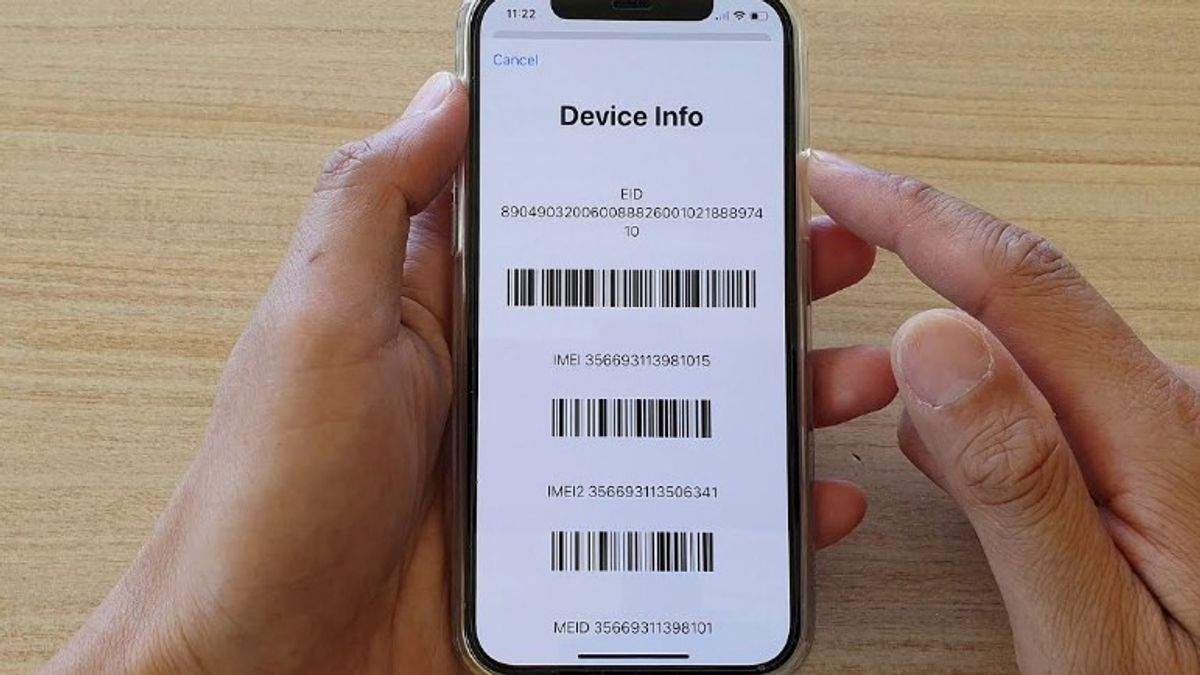
If you are planning to buy a second-hand iPhone or Android phone, this one number can tell you everything about the phone: the IMEI. This is a unique 15-digit code that works like a digital fingerprint of your device and helps you check the carrier using IMEI of the phone, network lock, and authenticity of the phone.
Here is a simple step-by-step guide on how to find the IMEI of any handset, check the carrier using IMEI of a phone, and confirm the lock status of a phone. Besides these manual techniques, the article also introduces a great tool, Dr.Fone – Online Unlock, that makes the whole process not only quicker but also more trustworthy. Let's get started!
In this article

Part 1. What an IMEI Carrier Check Can Tell You
An IMEI carrier check is quite handy in determining a phone's network status briefly, even before the SIM card is inserted. It tells if the device is locked with a particular carrier or if it's unlocked and can work with different networks. This helps avoid issues like SIM rejection or limited connectivity after purchase.
Besides, a thorough IMEI check is capable of revealing the original network operator of the phone along with its activation status and locked status. In fact, it is so detailed that it can even feature a red flag when the unit is reported as lost or blacklisted, turning it into a critical tool for verifying if a phone is safe and good for use.
Part 2. How to Find Your IMEI Number
You must have your IMEI number to perform a carrier check by IMEI. Depending on the phone model and situation, there are several methods to get the IMEI. Sometimes, one can get it even without the need of fully unlock the device.
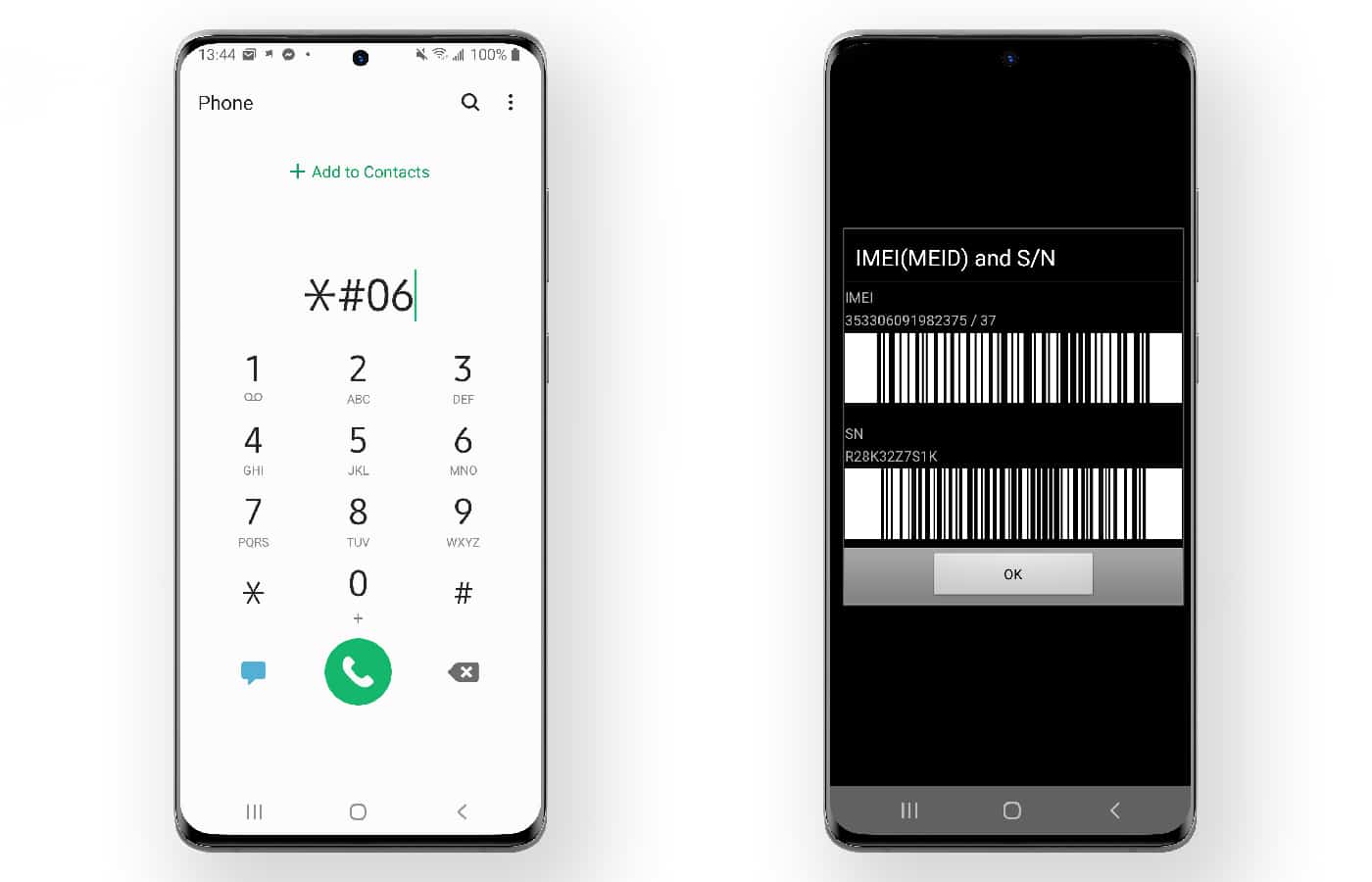
Method 1 — Dial Code (Universal)
This is the fastest and most universal method that will work on almost all smartphones regardless of brand or carrier. It immediately shows the IMEI without going to the settings.
-
Step 1 Launch the phone dialer.
-
Step 2 Dial *#06#.
-
Step 3 The IMEI will be displayed on the screen instantly.
Method 2 — Device Settings
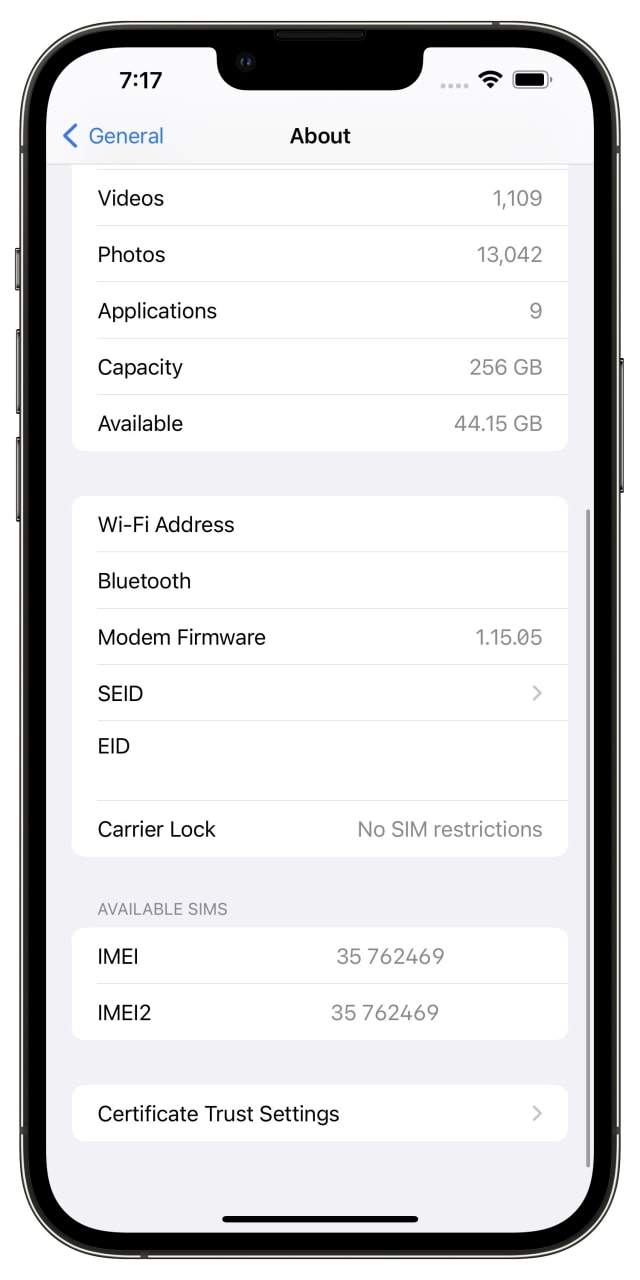
This is a good method to use when the device is at hand, and you decide to verify the IMEI and other details from the phone's information directly. Besides IMEI, this method will show you some of the device's features too.
-
Step 1 Access Settings.
-
Step 2 Navigate to About Phone (for Android devices) or General > About (for iPhone).
-
Step 3 Scroll through the screen to find the IMEI number.
Method 3 — Physical Device
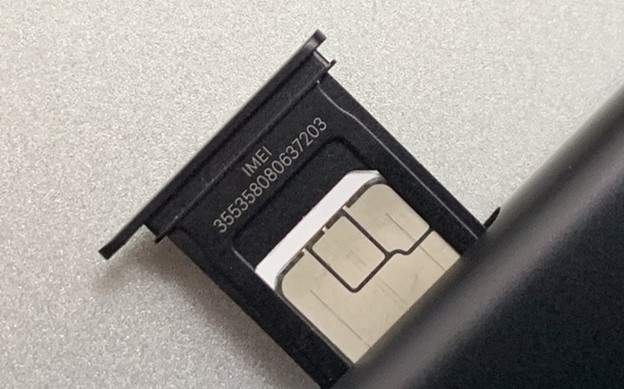
The phone may be locked, broken, or it may not be turning on, the IMEI can somehow be found through physical means. Most of the time, the manufacturers reveal this number on the actual device or on the original packaging for identification purposes. Usually, it can be found on the SIM tray, the back of older phones, or on the box label which is placed near the barcode and device details.
Method 4 — iTunes/Finder (iPhone only)
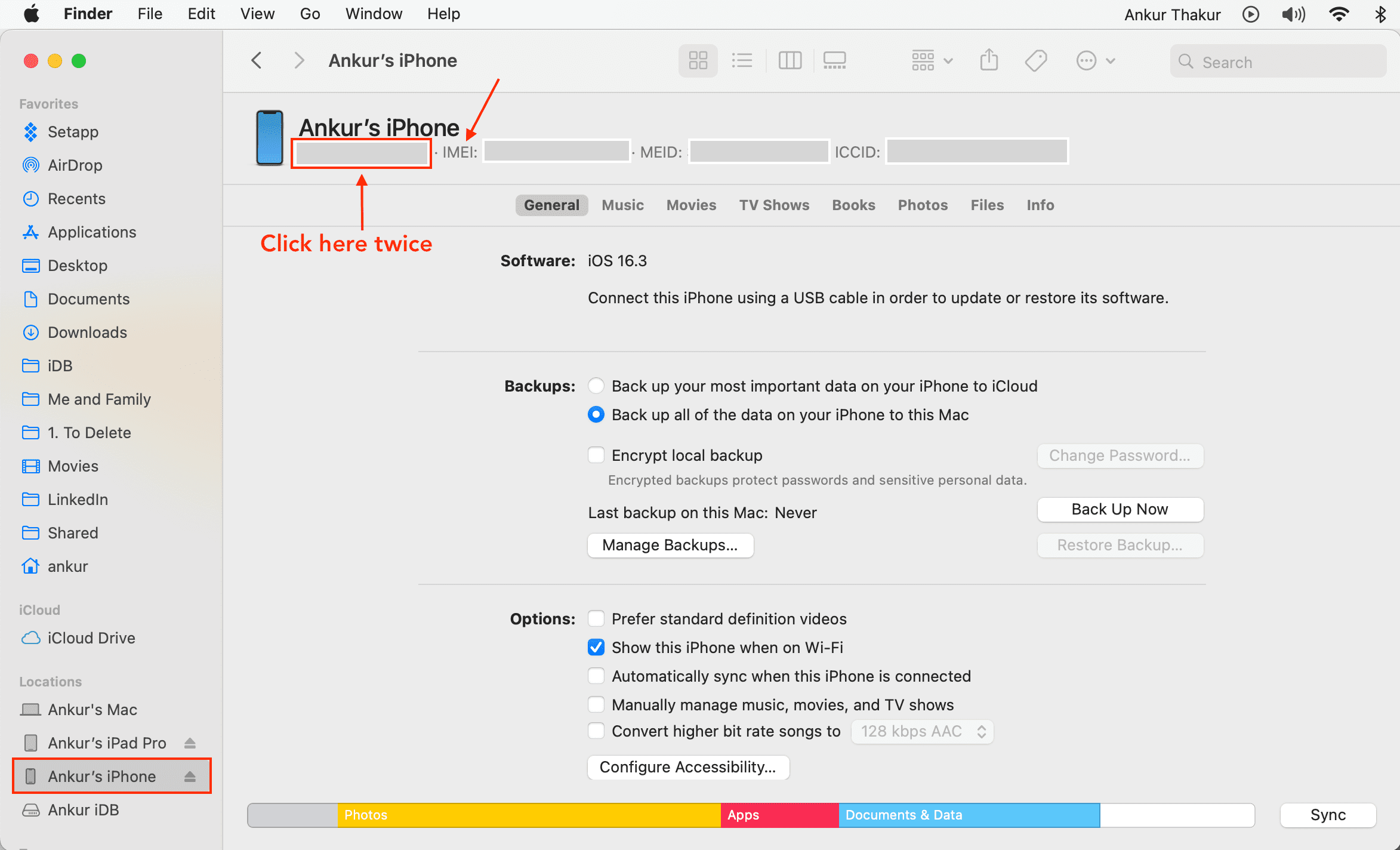
When the iPhone is connected to a computer, this method comes in handy, accessing the device details even if the screen is unresponsive or locked.
-
Step 1 Connect the iPhone to a computer.
-
Step 2 Open iTunes (Windows/older macOS) or Finder (new macOS).
-
Step 3 In the "Summary" section, select the device and click the model number until IMEI is revealed.
Part 3. How to Check Phone Carrier Using IMEI
Once you have the IMEI, you can do a carrier lookup to determine whether the phone is locked or unlocked. An online IMEI checker is the easiest and fastest method since it provides you with carrier details in few seconds, and no technical knowledge is needed. Here are methods for carrier lookup by IMEI:
Method 1: Use an Online IMEI Carrier Checker (Recommended)
Wondershare Dr.Fone Online Unlock provides an online IMEI Check Service that helps to verify the carrier lock status for Apple/iOS devices. Users can enter their IMEI number to see, basically, in a second, if the phone is locked to a specific network. Besides, the IMEI data is used only in the lookup stage and is never stored. Most checks are completed within 1 - 30 seconds, which makes this carrier lock checker an excellent option when you want to verify the lock status of an iPhone or Android phone before you buy it.
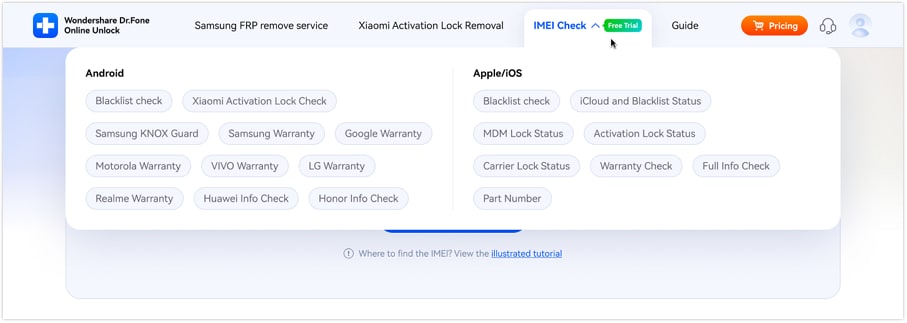
More than just carrier checks, the Dr.Fone IMEI Check platform can verify over 20 types of devices. Android and iOS blacklist status, Samsung KNOX Guard status, Apple Activation Lock, iCloud account status, MDM lock, Xiaomi activation lock, carrier lock details, and warranty status for Apple, Samsung, Huawei, OPPO, VIVO are just some of the device features that the platform can check.
Step-by-Step Guide to Use Dr.Fone's IMEI Check
Here is a step by step guide to check IMEI online:
-
Step 1 Choose the Type of IMEI Check
Launch the Dr.Fone IMEI Check tool from your browser, and from the list of options on the sidebar pick the kind of check you want to do, for example carrier lock, blacklist, or warranty.
-
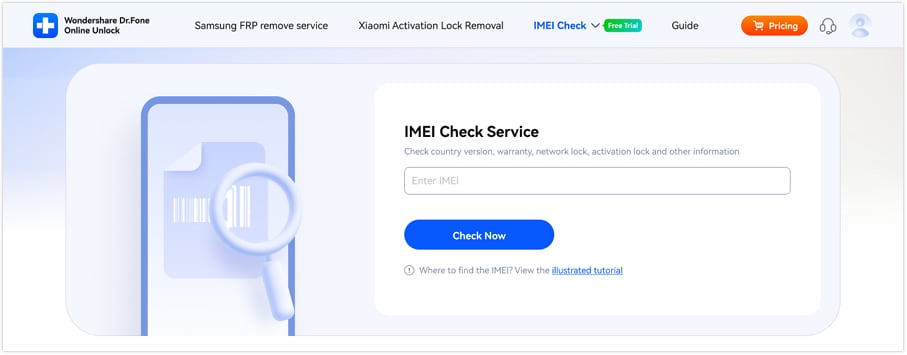
Step 2 Provide Your IMEI Number
Put the IMEI of your phone in the box and hit Check Now to do the verification. A first and free check is possible even without logging in, and users can also get an illustrated tutorial if they need help locating the IMEI.
-
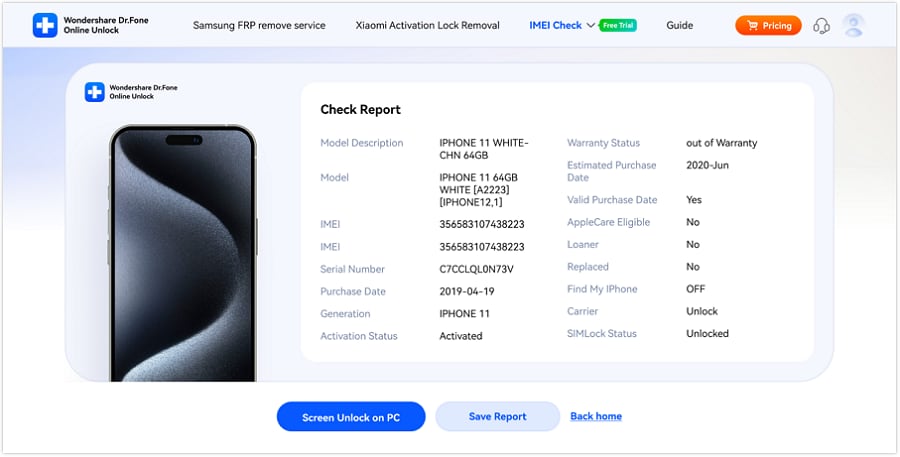
Step 3 Receive Report and Save It
Once the analysis is done, the system will produce a full report according to the check you have chosen. Press Save Report to get a copy for reference.
Method 2. Check Carrier Lock Status on iPhone
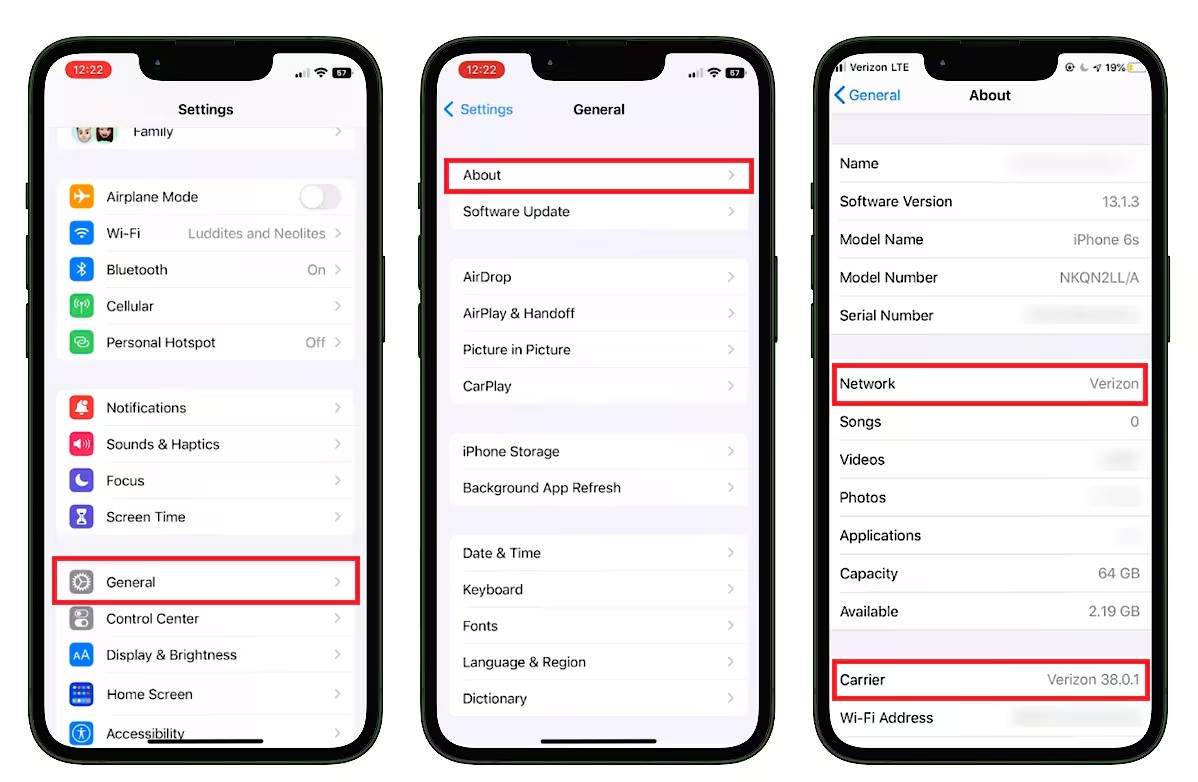
This method allows iPhone owners to quickly confirm if their device is locked to a carrier without having to resort to external tools. Apple has just introduced the direct display of carrier lock information in iOS settings; thus, it is a reliable method to check for any network restrictions. Here's how to check phone carrier by IMEI:
-
Step 1 Launch the Settings app on your iPhone.
-
Step 2 Navigate to the General > About.
-
Step 3 Keep scrolling until you find Carrier Lock. If it says, "No SIM restrictions, " that means the iPhone is unlocked; on the other hand, if it is a carrier, then the iPhone is locked to that specific carrier.
Method 3. Contact the Original Carrier
If the carrier lock status cannot be found out from the phone settings or IMEI tools, the most certain way is to get in touch with the original carrier. The carrier will also have the physical check IMEI number to know if the device is locked, unlocked or in contract. You only have to contact the carrier's customer support or visit an official store, provide the IMEI when asked and get all details about the phone's network lock status and unlocking eligibility.
Part 4. What Do IMEI Carrier Check Results Actually Mean?
The results of IMEI carrier check can seem technical at first, but in fact, they tell whether a phone is unlocked for any network, locked to a particular carrier, or its use is prohibited due to issues like blacklisting, etc. Knowing the results well is the main thing when deciding on the purchase or change of a device.
| Result | Meaning | What to Do |
|---|---|---|
| Locked to [Carrier Name] | Phone works only with that specific carrier's SIM | Contact carrier for official unlocks or use a trusted unlocking service |
| Unlocked / No SIM Restrictions | Phone is free to use with any compatible carrier worldwide | Safe to use or purchase |
| Blacklisted / Blocked | Device is reported lost, stolen, or tied to unpaid bills | Avoid buying, as it may not work on most networks |
| Clean / Not Blacklisted | No negative reports linked to the device | Generally safe to buy, but still check carrier lock |
| Bad ESN/MEID | CDMA network block (mainly US carriers) | Avoid, as activation on most US networks is not possible |

Part 5. Common Carrier Check Problems
IMEI carrier checks are very fast and simple in most cases. However, a few problems that happen frequently can still make the results less correct. These issues usually arise from entering the wrong information, having a limited database, or local variations in the data.
Wrong IMEI number
When someone mistypes IMEI, the result may be wrong or no result at all. Changing one number can change everything, so make sure you are checking the right IMEI code before you start searching.
Slow or outdated data
Occasionally, carrier databases will not get updated immediately, which in turn may result in outdated or delayed information. Recent events, such as unlocking or carrier switching, will most likely not be reflected instantly in the report.
Unknown results
Sometimes the result of a check might be "unknown" or partially filled. This case is often observed when dealing with brand-new gadgets or carriers that are not completely supported by all IMEI tools, and it does not necessarily mean that there is a problem with the phone.
Different results in different regions
The status of a carrier can be different based on the location or the database that the tool is using. Due to this, the same device can sometimes present different results, and therefore, the best option to be sure is to check with the original carrier.
Conclusion
You can check the carrier using IMEI of device. Apart from confirming that you are not buying a locked or restricted device, this method also shows if the phone is: an iPhone or Android phone locked to a specific network, fully unlocked, or has problems such as being blacklisted or activation blocked.
Utilizing an IMEI lookup tool, inspecting the iPhone settings, or even getting in touch with the carrier can help you. Also, using Dr.Fone Online Unlock is a tool that can speed up the process as it delivers very detailed reports in just a few seconds. Ultimately, all it takes is a simple IMEI check to keep oneself from wasting time, money, and energy by buying another incompatible or unsafe-to-use device with any carrier of one's choice.

Wondershare
Dr.Fone
Wondershare Dr.Fone
Need More Phone Tools? Discover More on Dr.Fone — One Toolkit for All Your Phone Solutions.


 Try
It Free
Try
It Free Try It
Free
Try It
Free 100% Clean
& Safe
100% Clean
& SafeFAQs
-
Can I check the carrier of a phone I don't physically have?
Yes, as long as you have the IMEI number, you can check the carrier status of a phone without physically holding the device. -
Will an IMEI check work for phones from any country?
Generally, yes. IMEI carrier checks are capable of identifying devices originating from any country, but the degree of the information accessible is dependent on the carrier database availability for that particular region. -
Does a carrier check show if a phone is iCloud locked?
Carrier checks are not related to iCloud lock status. Carrier check reveals only the network lock status, whereas iCloud lock is a security feature tied to Apple ID and device access. -
Is checking a carrier by IMEI free?
You may find some tools that provide free basic IMEI check, but to obtain a full detailed report including carrier status, blacklist, or warranty info, one may have to use a paid service/tool.