ChatGPT
 Perplexity
 Gemini
 Claude
 Grok
Grok
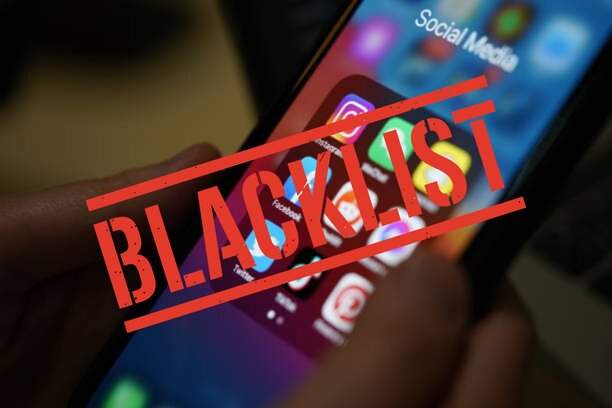
A blacklisted phone has its IMEI—a unique 15-digit number—blocked by carriers. This usually happens if the phone is reported lost, stolen, linked to fraud, or has unpaid bills. Once blacklisted, the phone can't connect to most networks, so you can't make calls or use data.
Always check if a phone is blacklisted before buying or selling it second-hand. A blacklisted phone can cost you money, limit its use, and even cause legal trouble. This article covers the main ways of how to check if a phone is blacklisted for both iPhone and Android.
In this article

Part 1. Signs Your Phone May Be Blacklisted (Quick Self-Check)
If you're unsure whether your phone is blacklisted, look for these signs before using an official tool.
- No Network Access:
Your phone may always display messages like "No Service" or "Emergency Calls Only," even when you use a working SIM card from a compatible carrier. If the SIM works in other phones but not yours, your phone might be blacklisted.
- Unusual Error Messages:
If you see messages such as "Device Blocked," "SIM Not Allowed," or "Network Locked," your carrier or network could be blocking your phone because it is blacklisted.
- Carrier Notifications:
Some carriers notify you by SMS, email, or account alerts if there are unpaid bills, suspected fraud, or if your device is reported lost or stolen. These messages often appear before or at the same time as blacklisting.
- Activation Problems (Especially iPhones):
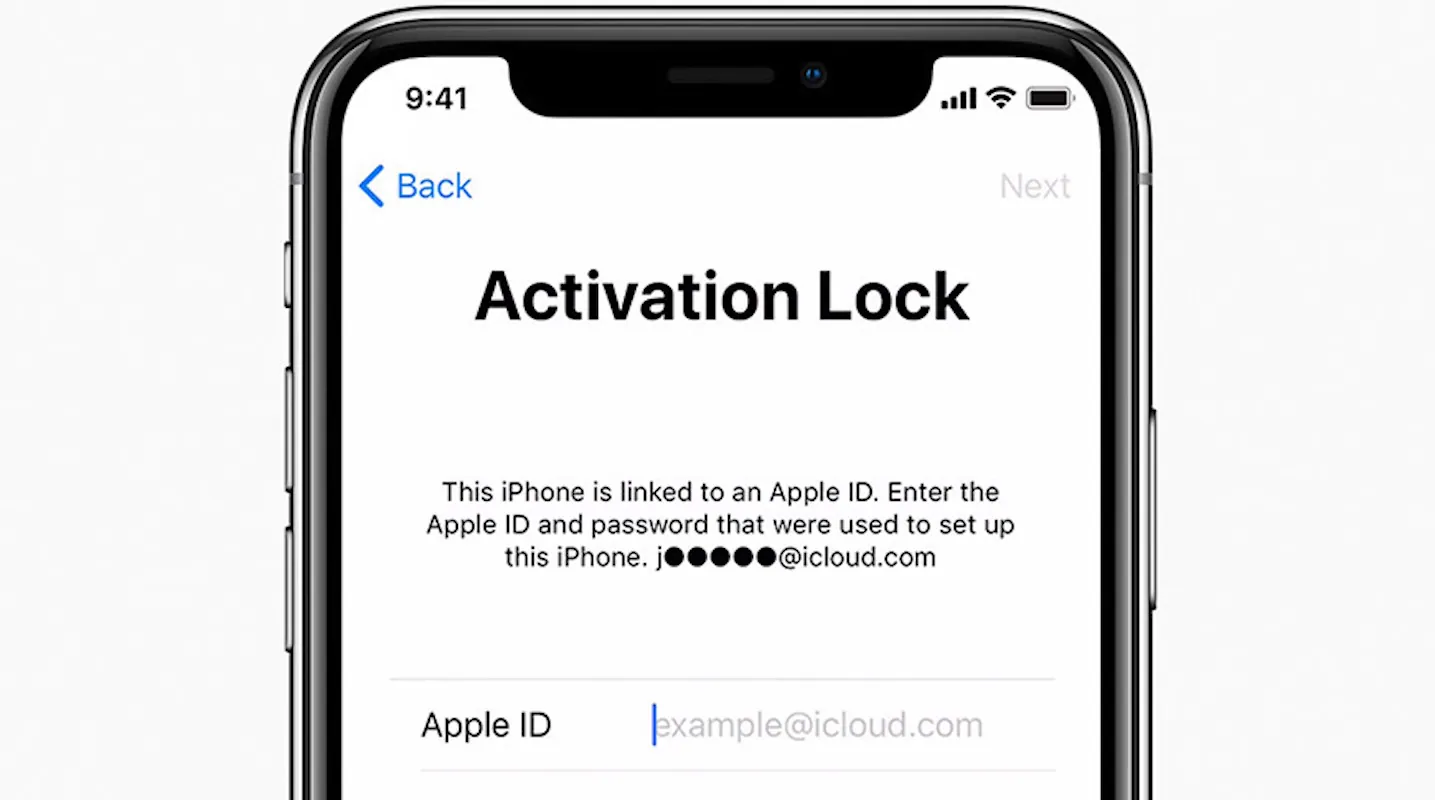
iPhones may show an "Activation Lock" or might not complete the setup process. Apple blocks access to devices reported as lost or stolen, which often means carriers also blacklist the phone.
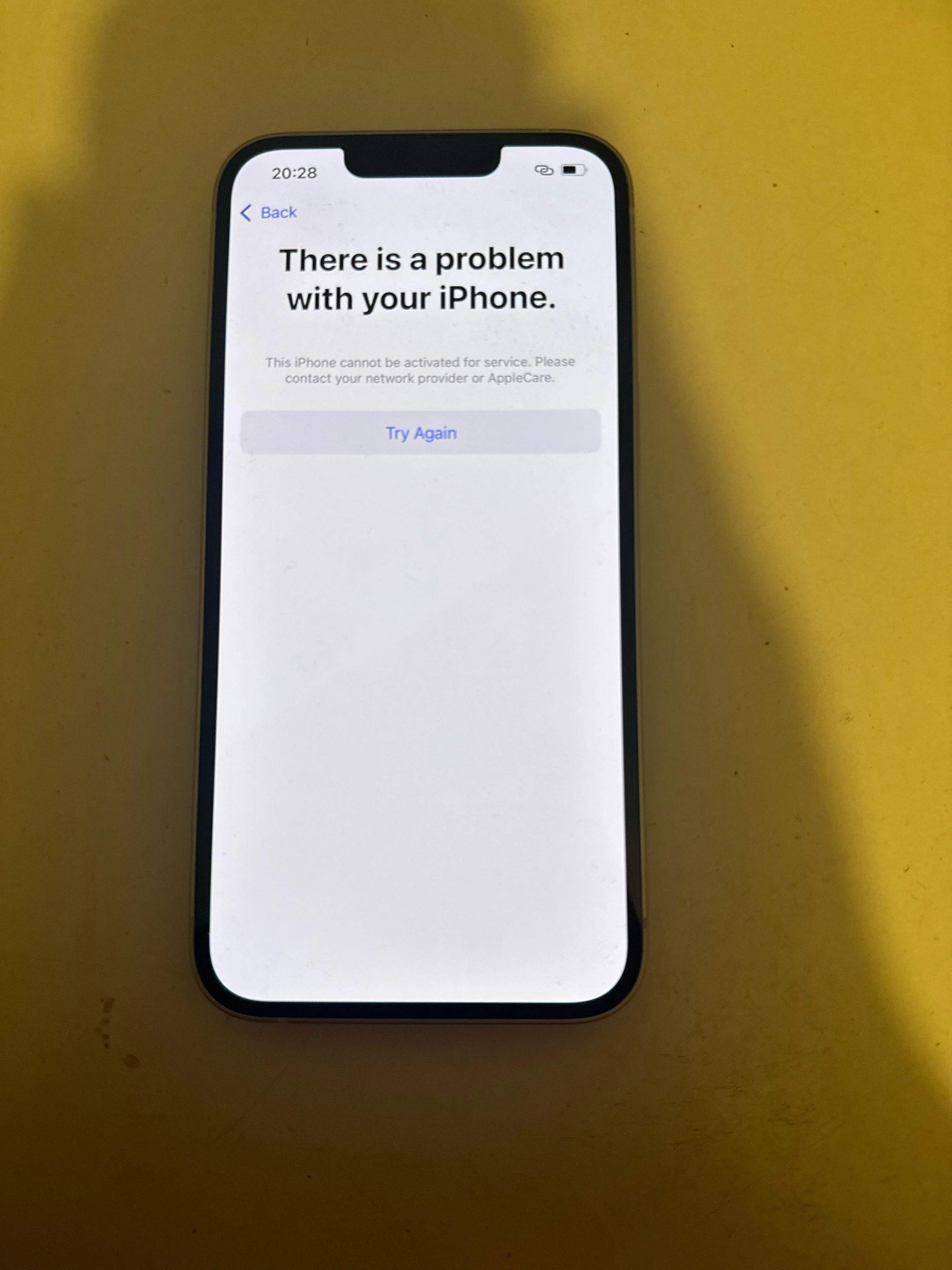
According to the GSMA, it is estimated that nearly one in five mobile devices sold may be counterfeit, which highlights a serious risk for buyers of used smartphones. The phone could lose network access right after purchase, so you can't make calls, send texts, or use mobile data (GSMA, 2023).
Part 2. How to Check If a Phone Is Blacklisted (Step-by-Step Methods)
If you're wondering, "How can I check if a phone is blacklisted?", use one of these proven methods:
Method 1: Check Blacklist Status Using IMEI
Why use this method?
This method works worldwide, is free, and is effective for almost any phone. It's a great way to do a quick first check.
Steps:
-
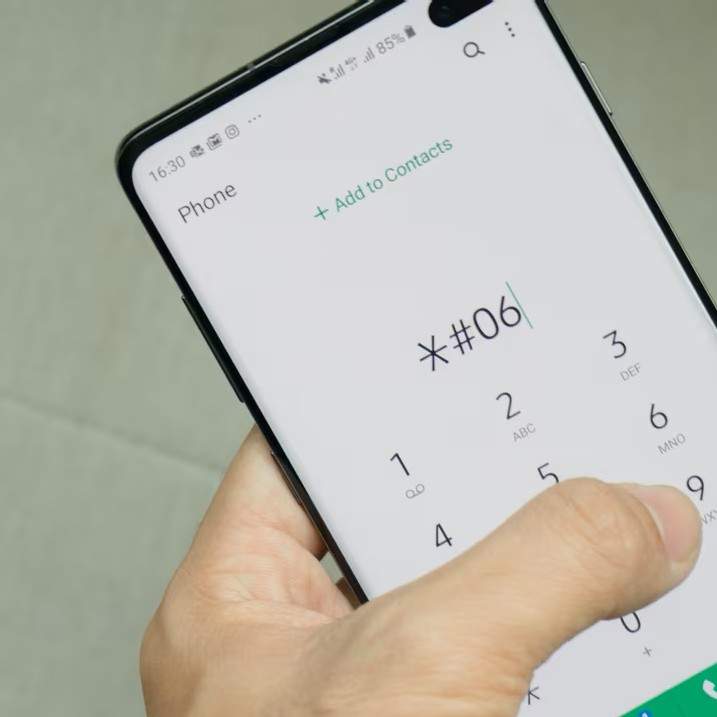
Step 1 Dial *#06# on your phone
This will display your unique IMEI number on the screen.
-
Step 2 Go to a recognized, free IMEI blacklist database.
Examples:
- IMEI.info
- IMEIPro.info
- Swappa IMEI Checker
-
Step 3 Enter the IMEI number
Type or paste the IMEI code from step 1 into the checker's search box.
-
Step 4 Review the results
The site will tell you if your phone is "clean" or "blacklisted" based on worldwide carrier databases.

- These databases are updated regularly, but they may not always reflect the most current information compared to carriers' own records.
- If a phone check tool shows a "blacklisted" result, it is a good idea to verify that status with another service or directly with your mobile carrier.
- This method works for both iPhone and Android devices, and no registration is required.
Method 2: Use Dr.Fone Online Unlock for Free (Recommended Method)
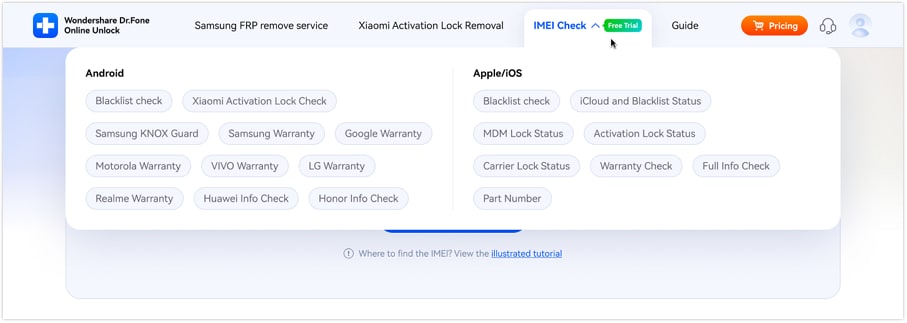
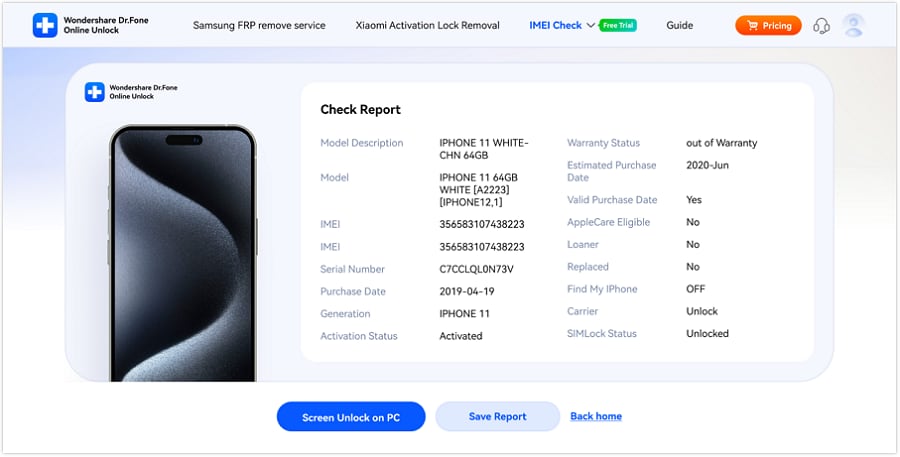
Dr.Fone Online Unlock is reliable, fast, and easy to use, even if you have no technical experience. Its IMEI Check platform is completely free to use. You can instantly unlock 20+ device verification results, including Android and iOS blacklist status, Samsung KNOX Guard status, Apple Activation Lock, iCloud account status, MDM lock, carrier lock, Xiaomi activation lock, as well as warranty status for Apple, Samsung, Huawei, OPPO, VIVO, and many other brands.
Quick Steps:
-
Step 1 Go to the Dr.Fone IMEI Check page
-
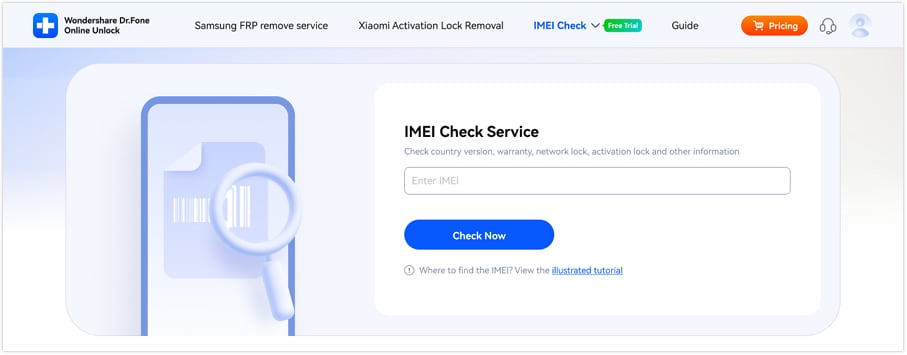
Step 2 Enter your phone's IMEI number
-
Step 3 Submit the request and View the Result instantly
Method 3: Contact Your Carrier for Official Blacklist Status
This is the most official and legally recognized method. It's best if you need proof or think there might be fraud.
-
Step 1 Contact your carrier's support channel (phone, online chat, or store visit)
-
Step 2 Provide your IMEI number
-
Step 3 Request a blacklist status check
-
Step 4 Wait for confirmation
- Results are highly reliable and official
- May require waiting or additional verification
- Some carriers only assist account holders
Which Method Is the Most Reliable?
Carrier checks are the most reliable, but Dr.Fone Online Unlock is fast and accurate, especially if you are dealing with phones from different countries or carriers. For best protection, use both an online tool and confirm with your carrier. This wa,y, you can avoid buying a blacklisted phone and check again before making a purchase.
Comparison Table: Best Ways to Check If a Phone Is Blacklisted
| Method | Supported Devices | Speed | Reliability | Cost | Requires Account? |
|---|---|---|---|---|---|
| IMEI Checker Websites | All (iOS/Android) | Fast | Medium | Free | No |
| Dr.Fone Online Unlock | All (iOS/Android) | Fastest | High | Free | No |
| Carrier Customer Support | All (iOS/Android) | Slow | Highest | Free | Sometimes |
Part 3. iPhone vs Android: Are Blacklist Checks Different?
Process:
Both iPhone and Android phones use the IMEI number, a unique code for each device, to check blacklist status. No matter the brand or system, carriers and online tools use this number to see if the phone is blocked.
User Experience Differences:
iPhone:
- May display "Activation Lock" or "Device is Blocked" messages if blacklisted.
- Apple's ecosystem can completely prevent activation if the IMEI is blocked, especially after a factory reset or SIM swap.
- iPhones can also be blocked with iCloud, which differs from carrier blacklisting but often overlaps.
Android:
- May show "No Service," "Emergency Calls Only," or "Network Locked" messages.
- Activation generally completes, but if your device is carrier-locked or blacklisted, you won't be able to connect to mobile networks.
- According to Consumer Reports, most Android phones do not include a feature like Apple's Activation Lock, so restrictions on network access are usually due to carrier locks or blacklisting.
In summary:
"How do I find out if a phone is blacklisted?" The process is almost the same for both iPhone and Android.
Part 4. What to Do If Your Phone Is Blacklisted
Learning that your phone is blacklisted can be stressful, but there are definite steps you can take to fix or improve the situation:

1. Contact the Seller
- If you bought the phone recently (especially second-hand), contact the seller immediately.
- Demand either a refund or a replacement device.
- If you bought through a marketplace (e.g., eBay, Swappa, Facebook Marketplace), open a dispute. Many platforms provide buyer protection for blacklisted phone cases.
- Tip: Save all your receipts, chat messages, and transaction details as proof.
2. Contact Your Carrier
- Ask your carrier why your phone is blacklisted. It could be an unpaid bill, a lost or stolen report, or a mistake.
- If the problem is unpaid bills or an account mistake, pay what you owe or resolve the issue. This could get your phone off the blacklist.
- Note: If the phone is blacklisted because of theft or fraud, carriers usually won't remove the block unless the original owner asks them to.
3. Check with Authorities
- If you suspect the phone was stolen or lost before you bought it, report the situation to local police and provide all documentation.
- In some regions, law enforcement can help trace the rightful owner or investigate fraudulent sales.
4. Check International Usability
- A phone blacklisted in one country may still work in another, depending on whether the blacklist is shared internationally.
- However, many countries now use global blacklist databases (GSMA), so using a blacklisted phone in another country is becoming harder each year.
5. Use the Device for Other Purposes
- Even if your phone is blacklisted, you can still use it on Wi-Fi, as a media player, camera, or for apps that don't need cellular service.
6. Seek Legal Advice if Needed
- If you've been scammed or are a victim of fraud, especially with expensive phones, contact a consumer protection agency or get legal advice.
Conclusion
Checking whether a phone is blacklisted is one of the most important steps before buying or selling a used device. By using your phone's IMEI number, you can quickly verify its status through online databases, carrier support, or trusted tools. While carrier verification remains the most official method, tools like Dr.Fone Online Unlock offer a fast and convenient way to check blacklist status, activation locks, and other device restrictions in just a few minutes. Taking a few moments to confirm a phone's status can help you avoid scams, unexpected network blocks, and costly problems later on.

Wondershare
Dr.Fone
Wondershare Dr.Fone
Need More Phone Tools? Discover More on Dr.Fone — One Toolkit for All Your Phone Solutions.


 Try It Free
 Try It Free
 100% Clean & Safe
FAQs
-
Q1: How can I check if my phone is blacklisted for free?
A1: Use your IMEI on a reputable online checker, like Dr.Fone's free IMEI check tool. -
Q2: Will a blacklisted phone work internationally?
A2: Sometimes, but most countries now share blacklist databases, so the phone may also be blocked abroad (GSMA, 2023)[1]. -
Q3: Can Dr.Fone help if my phone is blacklisted?
A3: Dr.Fone can check blacklist status instantly and offer solutions for some regional blocks. -
Q4: How do I know if my phone is blacklisted without the IMEI?
A4: You need the IMEI for a definitive check. It's available by dialing *#06#. -
Q5: How often should I check the blacklist status when buying used?
A5: According to IMEI.best, a blacklisted IMEI can render a phone nearly unusable for calls and mobile data, so it is important to check the device's status right before buying.