ChatGPT
 Perplexity
 Gemini
 Claude
 Grok
Grok
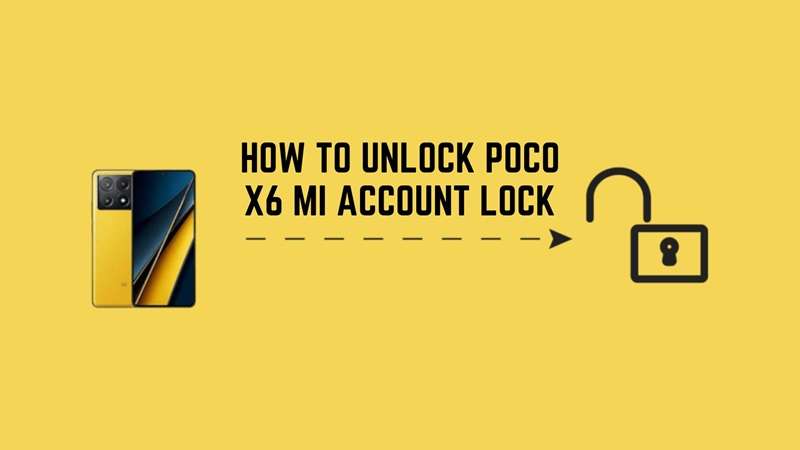
A used POCO X6 can look like a perfect deal until the setup screen asks for the previous Xiaomi Account. At that moment, the problem is no longer about specs, battery, or price. It becomes an ownership check.
The POCO X6 Mi account lock is designed to stop unknown access after a reset, but it can also block real buyers when the seller forgets to remove the device. Since the POCO X6 can run newer HyperOS builds, older shortcut tricks are far less reliable.
This guide explains the POCO X6 Mi account lock in plain words and reviews safer POCO X6 bypass options for real owners.
In this article
Part 1. Why POCO X6 Lock Cases Need a Smarter Approach
The POCO X6 5G is a new phone from Xiaomi. According to POCO’s specifications, the device is powered by Snapdragon 7s Gen 2 with MIUI 14 for POCO on top of powerful mid-range hardware.
There is also a variation of the model. POCO X6 5G features Snapdragon 7s Gen 2, MIUI 14, and HyperOS could follow suit. According to the official listing of POCO and Xiaomi, POCO’s X6 Pro is a more powerful HyperOS-era device with a Dimensity 8300 Ultra. So, do not treat every X6 guide as the same. Always check the exact model, region, and software build before choosing any POCO X6 bypass method.
Part 2. What Triggers Mi Account Lock on POCO X6?
Mi Account Lock usually appears when the POCO X6 is reset while it is still linked to a Xiaomi Account. The most common triggers are:
- Factory reset with Find Device turned on
- Wipe data from Recovery Mode
- Used phone bought without account removal
- Forgotten Mi Account password
- Lost access to the linked phone or email
- ROM flashing before removing the account
A reset may erase phone data, but it does not always remove Xiaomi’s account check. So, when the phone shows “This device is locked,” it is asking for the previously linked account or valid ownership proof. This is why random bypass APKs are risky, especially on newer MIUI or HyperOS builds.
2.1 Why POCO X6 Mi Account Lock Is Different
POCO X6 5G is a newer Snapdragon 7s Gen 2 device. It commonly starts with MIUI 14 for POCO and can move to HyperOS through updates. That is why old MIUI shortcut videos may not work on newer builds.
It is also close to the Redmi Note 13 Pro 5G hardware family, so some repair steps may look similar. Still, model, region, software version, and security patch can change the right unlock path.
2.2 POCO X6 vs POCO X6 Pro Note
Do not mix POCO X6 with POCO X6 Pro.
- POCO X6 5G: Snapdragon 7s Gen 2, MIUI 14/HyperOS path
- POCO X6 Pro: Dimensity 8300-Ultra, HyperOS-focused device
Part 3. POCO X6 Unlock Methods That Make Sense
Now that the lock causes and model differences are clear, the next step is choosing a fix that matches your access, proof, and POCO X6 software build.
Method 1: Reset the Xiaomi Account Password for POCO X6
Use the Forgot Password option first if you forget your Xiaomi Account password. To unlock the POCO X6, the safest way is if the device is linked to your own account. After changing the password, you can sign in again and continue setting up your POCO X6.
Steps to reset your Xiaomi Account password:
-
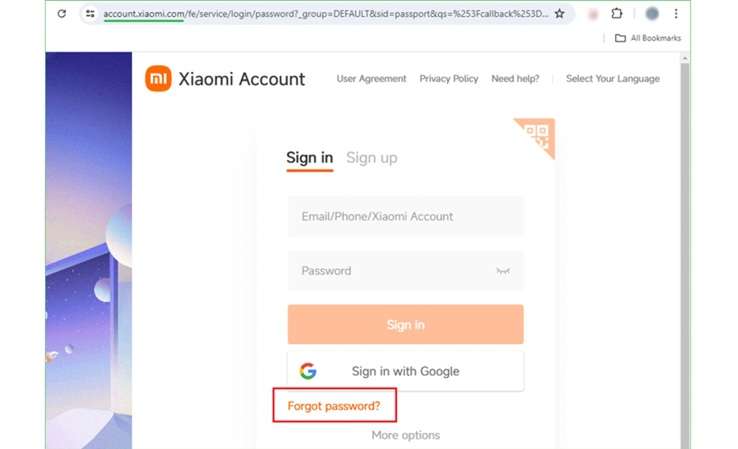
Step 1 Open a browser and go to account.xiaomi.com.
-
Step 2 Click Forgot Password under the sign-in box.
-
Step 3 Select an SMS or email to receive the verification code to your device. Insert code and tap submit.
-
Step 4 Create a new password on the next screen. Click Submit again to finish the reset.
- It is Xiaomi’s official and safe account recovery method.
- It does not need any third-party tool.
- It works well if the POCO X6 is linked to your own Xiaomi Account.
- It needs access to the registered phone number, email, or account ID.
- It will not help if the Xiaomi Account belongs to a previous owner.
- It needs an internet connection to receive the verification code.
Method 2: Factory Reset POCO X6 with ADB
You can wipe a locked POCO X6 with a computer and ADB. ADB means Android Debug Bridge. Before getting started, download it from the Android Developer's official site. This method can reset the phone, but may not reset the Xiaomi Account of a different user.
Steps to wipe your POCO X6 with ADB:
-
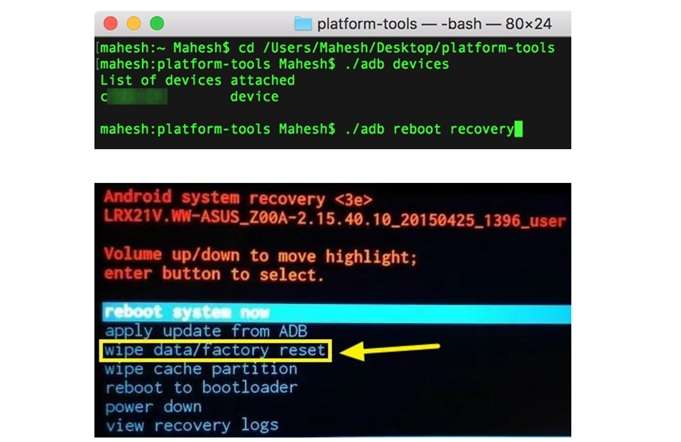
Step 1 Attach one end of a USB cable to the computer and the other to the POCO X6. Let The Computer Detect Your Phone.
-
Step 2 Open the Command Prompt on the computer. Type
adb reboot recoveryand press Enter. -
Step 3 When the phone enters Recovery Mode, select English. Then tap Wipe & Reset.
-
Step 4 Pick Wipe data/factory reset and confirm with Yes. After the reset, choose Reboot system now.
- It can reset the phone even when the screen is locked.
- It gives the device a clean factory start.
- It erases all data from the phone.
- It needs basic computer and ADB knowledge.
- It may not work as a full POCO X6 bypass if the phone is still linked to someone else’s Xiaomi Account.
Method 3: Hard Reset POCO X6 from Recovery Mode
If your POCO X6 cannot connect to Mi PC Suite or you do not have the phone screen lock details, then a hard reset will help. It deletes all your information and makes the device new. Before beginning this process, you must back up any important files.
Steps to hard reset your POCO X6:
-
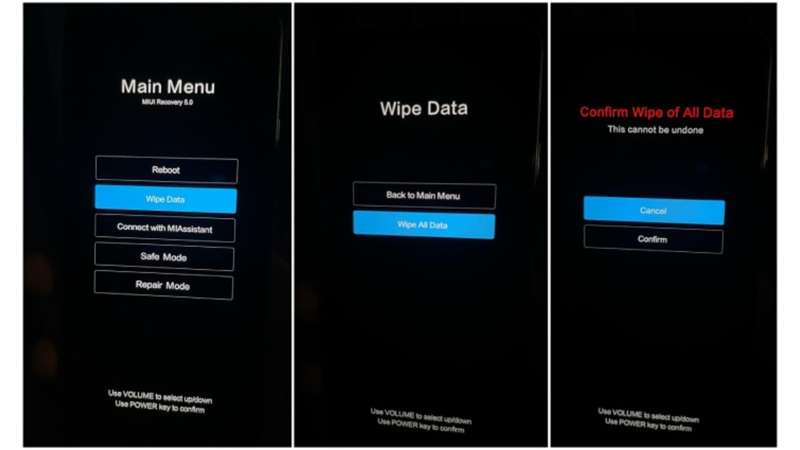
Step 1 Press and hold the Power key and Volume Up key together until the Mi logo appears.
-
Step 2 Use the Power key to select your language.
-
Step 3 Use the Volume keys to go to Wipe Data. Confirm it with the Power key.
-
Step 4 Select Wipe All Data, confirm with Yes, and wait for the process to finish. Then choose Reboot to System. The phone will restart after a few minutes.
- It can remove normal screen locks without Mi Account details.
- Various Xiaomi, Redmi, and POCO mobiles are subject to work.
- This may fix freezing or crashing apps, or other system glitches.
- It removes any and all apps, files, and settings.
- The phone should have enough battery before starting.
- It’s going to take a few minutes.
- If the phone is not unlinked from the old account, POCO X6 Mi account verification may not be removed.
Method 4: Ask Xiaomi Support to Unlock POCO X6
When things don’t work as they should, Xiaomi would like to suggest that you get in touch with Xiaomi customer support or visit a Mi service center. This is the official method to unlock your POCO X6 if you have proof that it is yours.
Steps to contact Xiaomi Support:
-
Step 1 The Xiaomi Support website has different interfaces for different countries and regions. So open and use the correct interface based on your country or region.
-
Step 2 After that, choose a way to contact them, like live chat, email, or phone.
-
Step 3 Indicate to them that your POCO X6 is locked. Fill in the requested details.
-
Step 4 Ask them to help with the unlock process. If needed, request to update your Mi Account phone number or email.
- It is safe and official.
- It gives guidance from Xiaomi-trained support staff.
- It avoids risky tools that may harm the phone.
- It can help when other unlock steps fail.
- Support may take time.
- Proof of ownership or purchase may be required.
- Service options may not be open all day in every region.
- You may need to visit a service center in person.
Method 5: Use Dr.Fone Online Unlock for POCO X6 (Recommended)
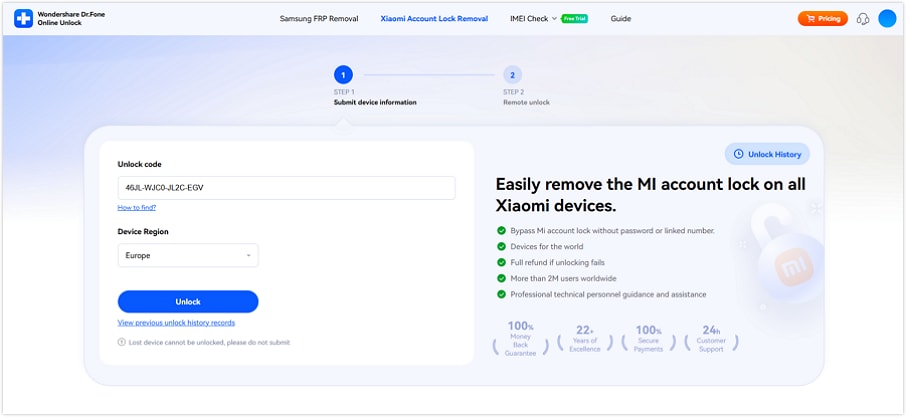
When you have no password, no linked phone, and no seller support, a guided online method can be more practical than chasing risky shortcuts. Dr.Fone’s Xiaomi guide is an online Mi Account Lock removal process for Xiaomi, Redmi, and POCO devices. It uses the device unlock code from Recovery Mode and submits it to an Online Unlock Workbench.
If your POCO X6 is on HyperOS and old APK tricks are failing, Dr.Fone Online Unlock is cleaner than downloading unknown files or flashing the wrong ROM. It does not need manual firmware flashing, and Dr.Fone supports Xiaomi, Redmi, and POCO models across MIUI and HyperOS versions.
Steps to Use Dr.Fone Online Unlock
-
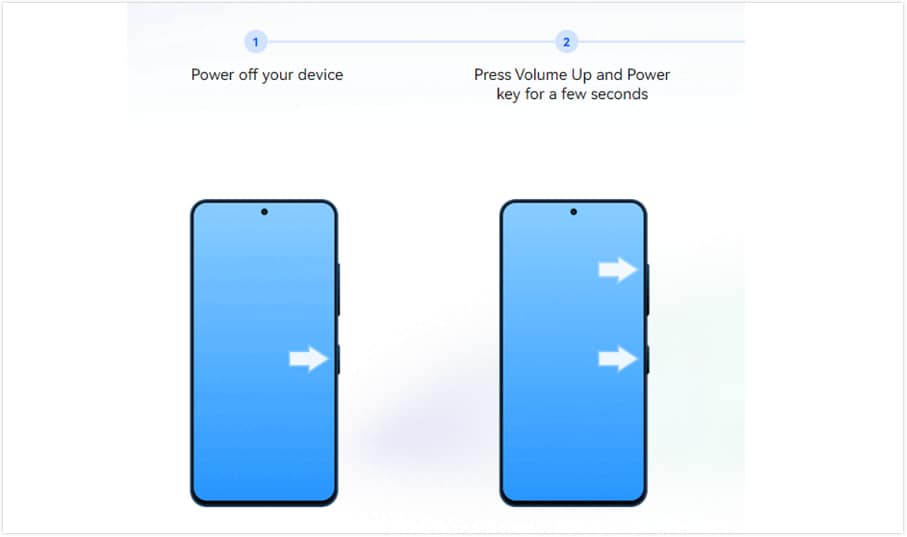
Step 1 Switch off your locked POCO X6 phone. Then press the corresponding keys until Recovery Mode appears on the screen.
-
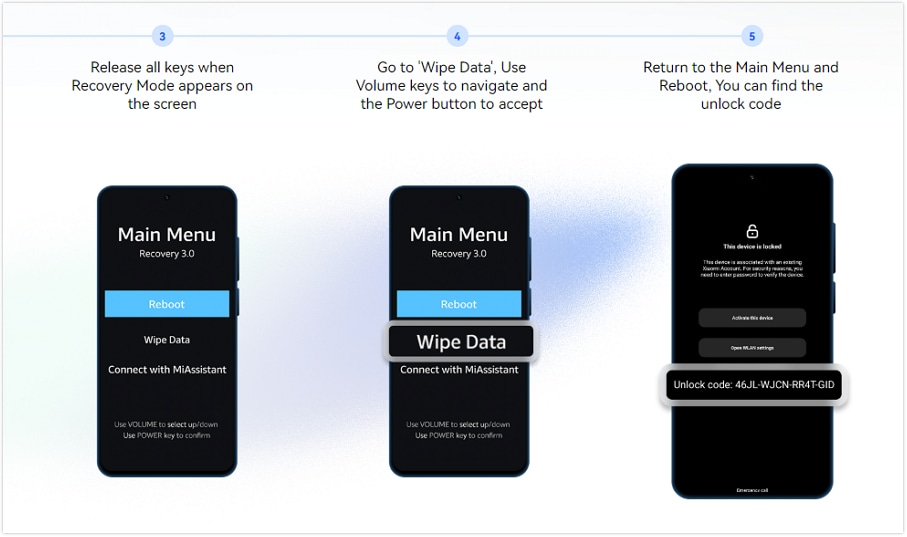
Step 2 Find the device unlock code shown in Recovery Mode. Write it down exactly as it appears on the screen.
-
Step 3 Open your browser and go to Dr.Fone Online Unlock. Choose the option for removing the Xiaomi Account lock.
-
Step 4 Enter the unlock code and select your device region. After checking the details, submit the request.
-
Step 5 Follow the online instructions on the page. You may also receive an email with a tracking ID for the request.
-
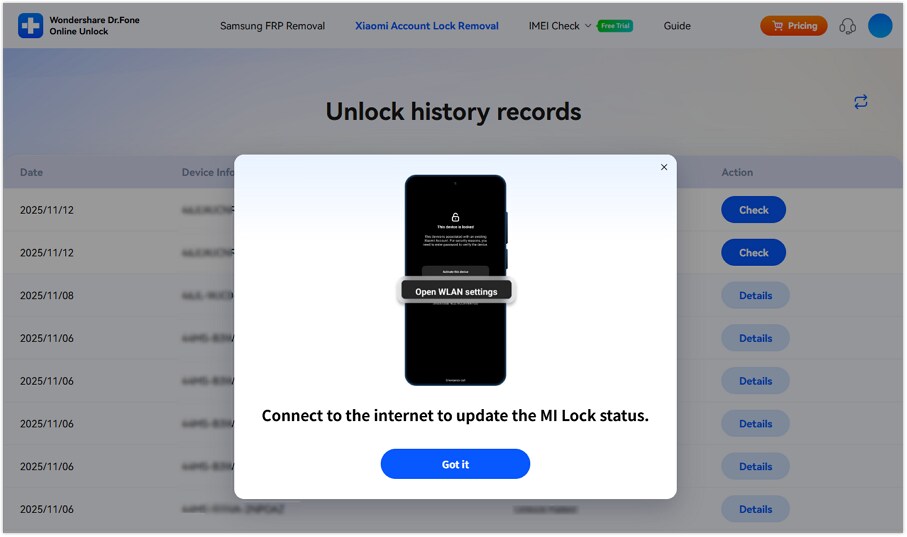
Step 6 Once the removal process is complete, restart your Redmi phone and connect it to Wi-Fi.
-
Step 7 Set up the phone with a Mi Account that you control. Enable two-factor protection to avoid another Xiaomi device lock issue later.
Part 4. POCO X6 Bypass Tricks You Should Avoid
Many POCO X6 bypass videos look simple, but they can create bigger problems. Avoid these:
- Random APK bypass files
- Old MIUI-only shortcuts
- Fake “free unlock code” generators
- Telegram unlock sellers
- Flashing the wrong regional ROM
- Unlocking without ownership proof
- EDL or deep flashing tricks from unknown sources
Xiaomi warns that bootloader unlocking makes the device less secure and may risk data leakage or data loss. That warning matters more on a newer phone like POCO X6. A wrong flash or forced unlock attempt can damage software, block updates, or create a new lock.
Part 5. POCO X6 Unlock Methods Compared
After checking each route, the real question is not which method looks fastest, but which one fits your account access, data risk, proof, and POCO X6 software condition.
| Method | Best For | Needs Account Access? | Best Decision Point |
|---|---|---|---|
| Reset Xiaomi Account Password | Original owner who forgot the password | Yes, phone/email/account ID | Choose this first if you can receive SMS or email codes through Xiaomi Account recovery. |
| Factory Reset with ADB | Locked screen or phone needing a clean reset | No | Use only when you need a wipe, not when the phone is locked to another Mi Account. ADB is a command-line tool from Android Developers. |
| Hard Reset from Recovery Mode | Screen lock, bugs, freezing, or reset need | No | Good for device reset, but not a full POCO X6 Mi account lock solution. Xiaomi also warns wipe data erases phone data. |
| Xiaomi Support / Service Center | Users with proof of ownership | Not always | Best official option when you have invoice, IMEI, box, or valid ownership details. Xiaomi allows appeals for devices locked by Find Device. |
| Dr.Fone Online Unlock | No password, no linked phone, no seller support | No | Best guided option when official recovery is not possible and the phone is legally yours. Dr.Fone says it uses the unlock code from Recovery Mode and Online Unlock Workbench. |
Conclusion
A locked POCO X6 needs the right fix, not the fastest trick. Password reset is best when the Xiaomi Account is yours. ADB and hard reset are useful for wiping the phone, but they may not clear the POCO X6 Mi account verification. Xiaomi Support is the safest route when you have proof of purchase. For cases with no password, no linked phone, and no seller help, Dr.Fone Online Unlock becomes the cleaner choice. It gives a guided POCO X6 unlock path without random APK files, risky flashing, or old HyperOS shortcuts. This makes it practical for real owners who need a safer way forward.
FAQ
-
1. Why is my POCO X6 asking for a Mi account after a reset?
Your POCO X6 asks for a Mi Account because it was still linked to Xiaomi’s Find Device before reset. Xiaomi says a device locked by Find Device may still need account verification, even after wiping data. -
2. Can I unlock POCO X6 without the Mi password?
Yes, but it depends on your case. If you have proof, Xiaomi’s unlock appeal is the official route. If you have no password or linked phone number, Dr.Fone Online Unlock can be considered because it uses the unlock code from Recovery Mode instead of Mi password login. -
3. Does POCO X6 bypass work on HyperOS?
Old bypass tricks may not work well on HyperOS. POCO X6 uses Snapdragon 7s Gen 2 and MIUI 14 for POCO, with security updates for POCO devices supported through Xiaomi’s update program. For newer builds, avoid random APKs and use official recovery, Xiaomi appeal, or a guided tool like Dr.Fone if recovery is not possible.