ChatGPT
 Perplexity
 Gemini
 Claude
 Grok
Grok
Samsung FRP lock removal without a computer? I reset my Galaxy phone, but it now wants my previous Google account. Today I must use my phone as I have no PC. Is it unlockable?
This affects many Samsung users. Android phones with FRP are protected by Google after a factory reset. Others can't use the phone without the original Google account. It can also prevent legitimate owners who forgot their login, bought a used phone, or reset the phone too quickly. Samsung FRP bypass without a PC is doable; it depends on your model, Android version, and security patch level.
In this article
Why would users need to bypass FRP without a PC?
Sometimes users need to bypass a Samsung FRP without a PC, this might happen in real-life scenarios where a computer is not available. For instance:
- User resets the Samsung phone factory while traveling and gets stuck on Google verification.
- Someone buys an old Galaxy phone, but the previous owner failed to deactivate their Google account.
- A user resets the phone outside of the home and doesn't have a laptop.
- A student or casual user may not own a computer at all.
- A repaired or resale phone may return after reset with FRP still active.
- A user forgets the old Google account or password linked to the device.
Which no-PC methods currently work on Samsung devices?
When you are locked out and only have the phone in your hand, the next question is simple: which Samsung FRP methods can work without a PC? The answer depends on your device. Some older tricks still work on select models, while newer Galaxy phones may need a safer browser-based option.
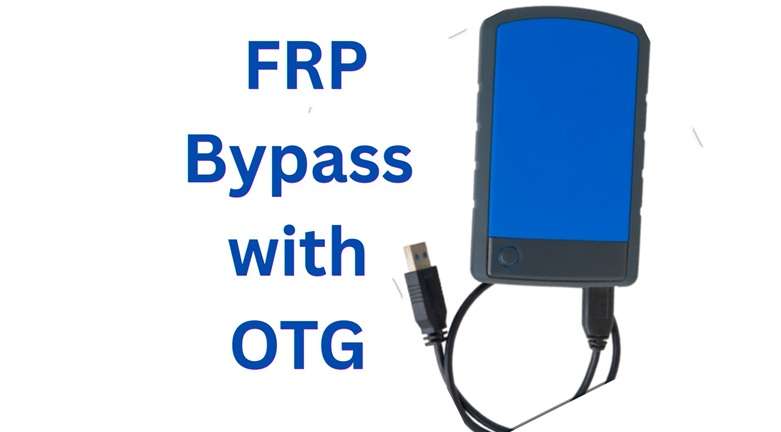
2-1. Using an OTG adapter + USB drive with an APK bypass file
The OTG method is an older Samsung FRP without a PC option. It uses a USB drive, an OTG adapter, and an APK file made for FRP-related access. This method became popular because users could try it without a laptop or desktop.
-
Step 1 Download FRP bypass APK and files
1. Start by downloading the FRP bypass APK and connecting the USB. Please connect the USB with an OTG cable.
2. Power on your Android phone. Connect with a strong Wi-Fi network.
-
Step 2 Install FRP bypass APK
3. Now, click the Home button thrice to trigger Talkback. You will see a new menu on your screen.
4. Click on Talkback Settings. Tap the Talkback button thrice again. Navigate to Help & Feedback.
5. Now head to Get Started with Voice Access. A YouTube video will appear; tap on the Play button to start it.
6. Click on Getting Started with a Voice in the following video. This will redirect you to YouTube.
7. As YouTube opens, you have to click on the User icon. Click the option Terms & Privacy Policy.
8. Now, tap on the cancel option and click Bookmarks. Move to the Download History option.
9. Click the My files option, it allows you to open your USB.
10. Install the APK from USB to your Android phone. An “unknown source” error appears on your screen. Go to the Settings of your phone to allow unknown sources.
11. After installing the APK, you need to reset your Android device.
12. You bypassed FRP on Android using an OTG cable. Now, set up your phone without the old account verification.
-
Step 3 Safely disconnect OTG from the phone
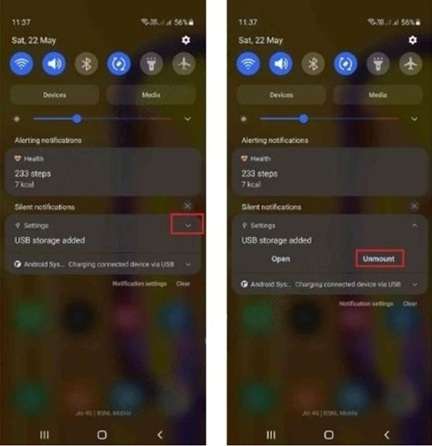
13. Open the Notification panel from the top bar on your screen.
14. Tap the arrow that appears beside the “USB storage added” notice to get the drop-down options.
15. Tap the option Unmount to disconnect OTG safely.
2-2. Using the Google keyboard shortcut within the setup wizard
After installing Google Keyboard, you can attempt to bypass the Google account after resetting your Samsung.
-
Step 1 Open the Help Page
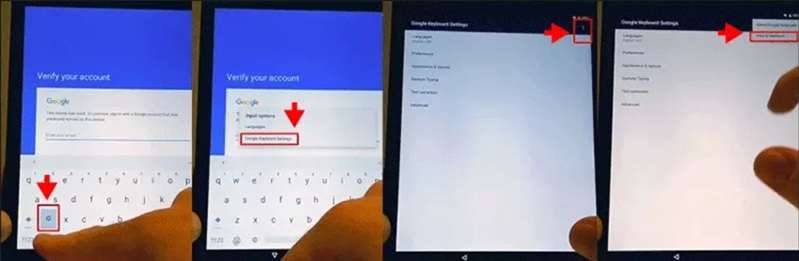
1. After resetting the Samsung Phone, it reboots, and you are required to set it up. When you see the "verify your account" interface, click the text box and use the virtual Google keyboard. Long-press the @ button until a menu appears.
2. From the menu, select Google keyboard settings.
3. Then click on the three dots in the upper right side and select the Help & feedback button.
-
Step 2 Access the Settings Option
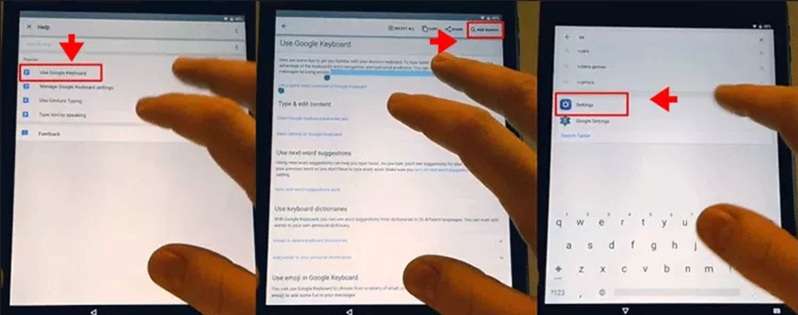
1. Now select the option of ‘’use Google keyboard’’ from the help page.
2. Long-press the screen to select any text on the page of the Google keyboard. Click websearch to proceed.
3. The search bar appears, and you can navigate to settings to search. Then click on the settings from the results.
-
Step 3 Bypass the Google account verification on the Samsung phone
1. Within a few seconds, the settings screen will pop up. Click on ‘’about phone option, software information, then tap on the "build number option. Click on the build number again and again until the developer mode has been turned on.
2. Navigate back to settings and then click on develop options.
3. Toggle on OEM unlocking and click the Back icon twice.
4. Reboot your Samsung mobile and then complete the setup wizard. This time, Google account verification will not be required. Instead, you will be able to add the new Google account to your mobile.
2-3. Using a secondary Android device as a hotspot and accessing browser-based tools
A second Android phone can help when you need Samsung FRP without PC access and no Wi-Fi is nearby. This method relies on interrupting the device's connection during the update check to trigger a software glitch that allows you to bypass the verification screen.
This technique typically follows these steps:
- Initiate the setup: turn on your Samsung mobile and follow the setup wizard until you access the Wi-Fi connection interface.
- Turn on hotspot: on your secondary mobile phone, toggle on hotspot.
- Connect and restart: link the locked Samsung mobile to this hotspot and click ‘’next’’.
- The Timing Trick: As soon as the Samsung phone displays "Checking for updates" or "Just a sec," immediately turn off the hotspot on the secondary device.
- Access the "Back Door": If the timing is perfect, the Samsung device may encounter a connection error and skip the Google account verification, taking you to a screen where you can set a new PIN, pattern, or access the home screen.
2-4. Recommended Tool: Dr.Fone Online Unlock
If your Samsung is running Android 14 or later, the manual tricks above may no longer work. Older Samsung FRP without PC methods often depend on shortcuts that Samsung has already patched. In that case, a browser-based option is easier, cleaner, and more practical.
It is made for users who want FRP bypass without computer support, without installing apps or using cables.
Why Choose Dr.Fone Online FRP Unlock?
- It uses the Samsung phone’s IMEI or SN to check the device.
- Wondershare lists support for Android 14, 15, 16, and 17.
- It supports Samsung phones and tablets, including Galaxy S and Z series models.
- Customer support and technical guidance on the service page.
How It Works
- Access Dr.Fone Online Unlock from any Samsung device.
- Insert the IMEI of your locked Samsung Mobile so the service is able to verify your device.
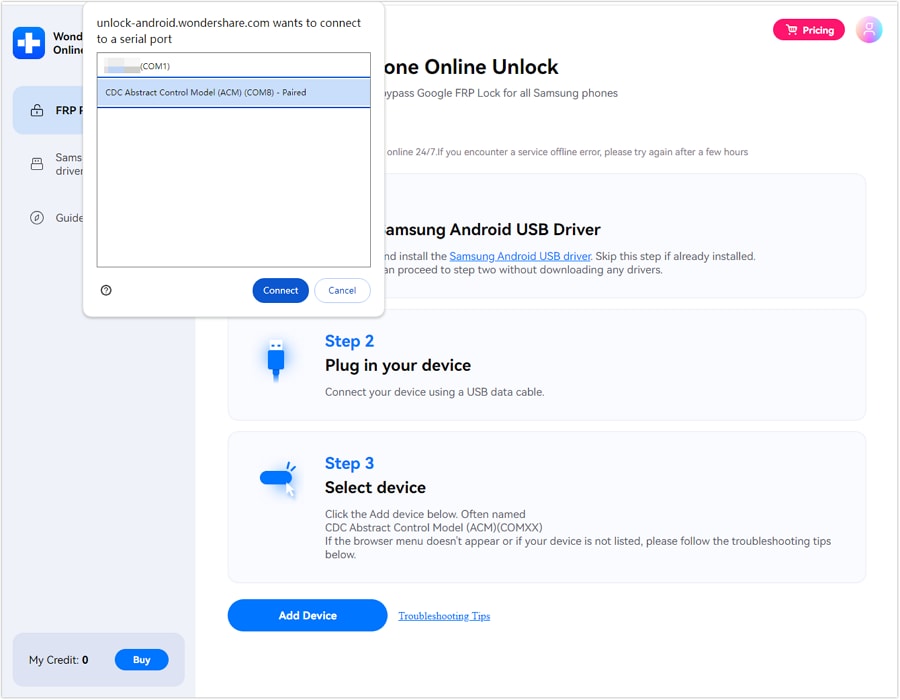
- Proceed by submitting your unlock request and follow the on-screen instructions.
- You need to keep your Samsung mobile on and connected to Wi-Fi or mobile data while Dr. Fone performs the mobile FRP removal.
Best For
Dr.Fone Online Unlock is useful for users who want mobile FRP removal without a computer, USB drive, OTG adapter, or risky APK file. It is also a better fit for users who forgot the old Google account details and need a guided online option.
What are the limitations of no-PC bypass methods?
As of May 2026, Samsung FRP without PC methods is harder than before. FRP is made to stop unauthorized use after a reset, and Samsung says the phone may ask for the previously synced Google account to verify ownership.
Main limits include:
- New updates block old tricks: Samsung and Google security patches often close setup-screen shortcuts.
- Android 14/15/16 are harder: Older FRP bypass no computer tricks like OTG, keyboard, and accessibility shortcuts may not work.
- Model support varies: A method may work on one Galaxy A or S model but fail on another.
- Extra items may still be needed: Some “no-PC” methods require an OTG cable, a USB cable, an SD card, or another phone.
- APK files can be risky: Unknown mobile FRP removal APKs may contain malware or unsafe permissions.
- Results are not guaranteed: Some phones may still show account errors or setup issues after trying a bypass.
Pick the Right FRP Method for Your Galaxy Model
After comparing manual no-PC methods and Dr.Fone options, it helps to see which route fits your device best. FRP success depends on your Samsung model, Android version, One UI build, and security patch. Use the table below to set realistic expectations before trying any method.
| Method | Best For | Works Best On | Main Limit |
|---|---|---|---|
| OTG + USB APK | Older no-PC cases | Older Galaxy models / older Android | Often blocked on newer updates |
| Google Keyboard shortcut | Set up the wizard shortcut access | Older Samsung firmware | Usually patched on Android 14+ |
| Second Android hotspot | Getting internet without Wi-Fi | Most Samsung phones | Does not unlock FRP alone |
| Dr.Fone Online Unlock | Browser-based mobile FRP removal | Many newer Samsung models | Check model/IMEI support first |
| Dr.Fone Desktop | When no-PC methods fail | Galaxy S/A/Note/Z models | Needs a PC and USB connection |
Bonus Tip: Samsung FRP Bypass with PC
If the no-PC methods do not work, Dr.Fone - Screen Unlock (Android) can be used as a backup option.
This tool is made for Android screens and FRP lock issues. It supports Google FRP, PIN, pattern, password, and fingerprint locks. It also caters to non-technical users. The UI is straightforward, and the tool provides on-screen instructions.
Dr.Fone Desktop may be useful when older FRP bypass no computer tricks fail on newer Samsung phones. It supports widely used Samsung Galaxy S, A, Note, and Z models. It supports Android 14, 15, 16, and previous versions, depending on model compatibility.
 Unlock Android phone in seconds.
- Remove PIN, pattern, password, fingerprint.
- Bypass Google FRP lock easily.
- Works on all Android brands & models.
- No tech skills required – user-friendly.

How to Use Dr.Fone Desktop – Screen Unlock
-
Step 1 Download and set up Dr. Fone - screen unlock on your PC. Link your Samsung device to the PC via USB.
-
Step 2 Navigate to the toolbox, select the screen unlock option and click on Android.
-
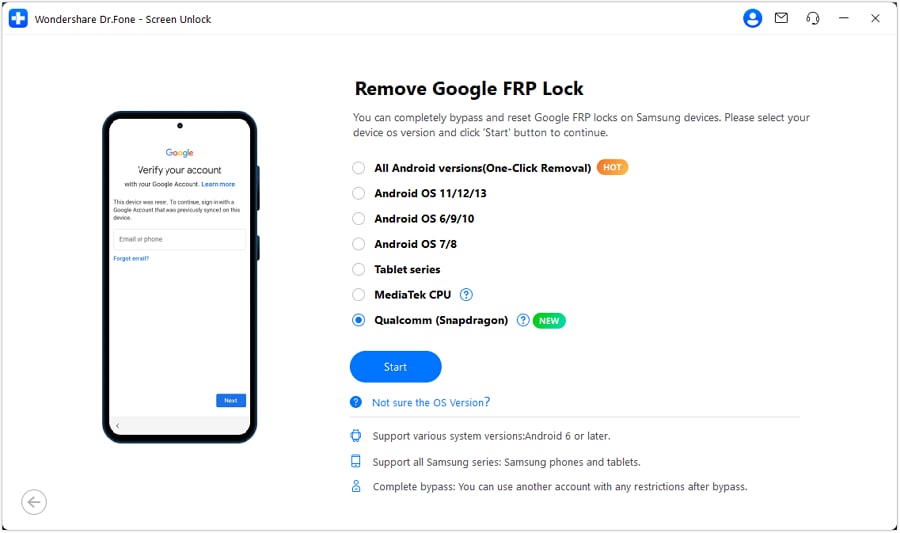
Step 3 Select ‘’remove Google FRP lock option, then choose Qualcomm for your Samsung mobile. Click ‘’start’’ button.

-
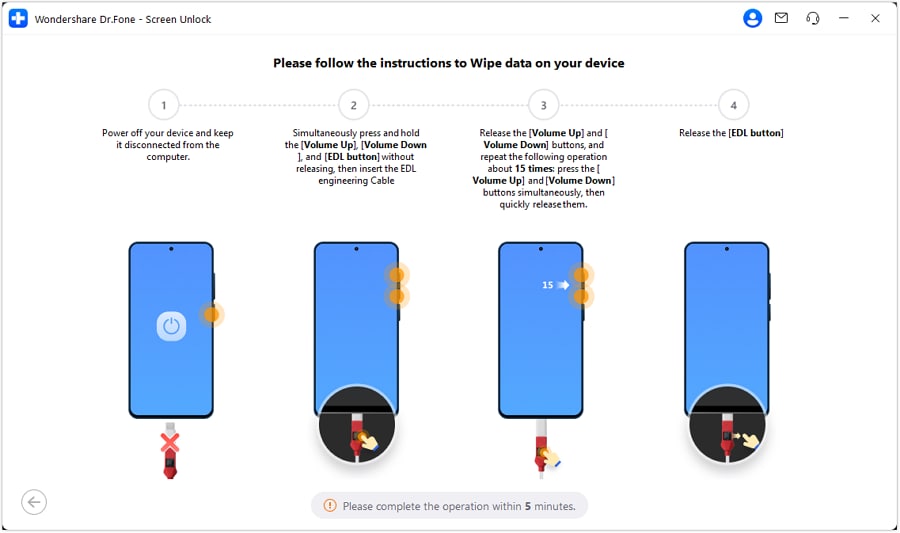
Step 4 Do follow the on-screen instructions and Dr. Fone will automatically install the needed firmware for your phone.
-
Step 5 Select your exact Samsung model if the tool asks for it, then continue.
-
Step 6 Wait while Dr.Fone processes the FRP removal. Keep the phone connected during this step.
-
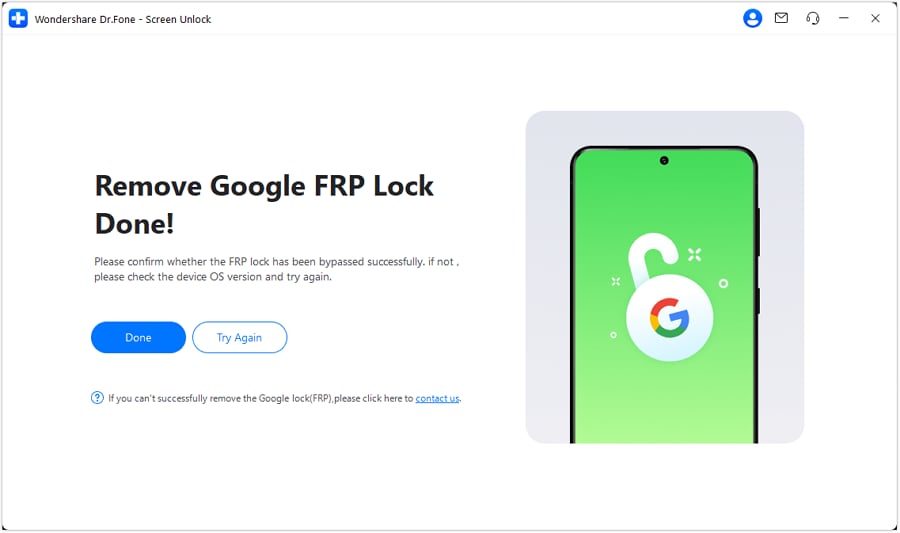
Step 7 When the process is complete, check your Samsung phone. If it works, click Done. If not, follow the retry option shown in the tool.




Conclusion
FRP lock can appear at the worst time, so no-PC methods are useful. The OTG method suits older Samsung phones, while the keyboard shortcut may help only on old setup versions. When you don't have Wi-Fi nearby, an Android hotspot is your second-best option but it won't open every lock. Results vary since newer Galaxy phones (with Android 14 or greater) often prevent these tricks.
For users who need Samsung FRP without a PC, Dr.Fone Online Unlock feels more practical because it works through a browser and avoids APKs, cables, and complex steps. If that fails, Dr.Fone Desktop remains a solid backup for mobile FRP removal.
FAQ
-
1. Can I bypass FRP using only my phone?
Yeah, occasionally. It depends on your Samsung model, Android version and security patch. First, try to retrieve your Google Account. Dr.Fone Online Unlock is an online method to overcome Samsung FRP without a PC. It requires device information such as IMEI. -
2. Does the OTG method still work in 2026?
Only on certain Samsung phones that are ancient. OTG and APK-based tricks are frequently prevented by Samsung security upgrades and newer Android versions. It is not dependable for Android 14, 15, or later. -
3. What if the keyboard shortcut doesn't appear during setup?
It likely means your phone has patched that method. Try Google account recovery or Samsung support. For no-PC users, Dr.Fone Online Unlock may help if your model is supported.