ChatGPT
 Perplexity
 Gemini
 Claude
 Grok
Grok
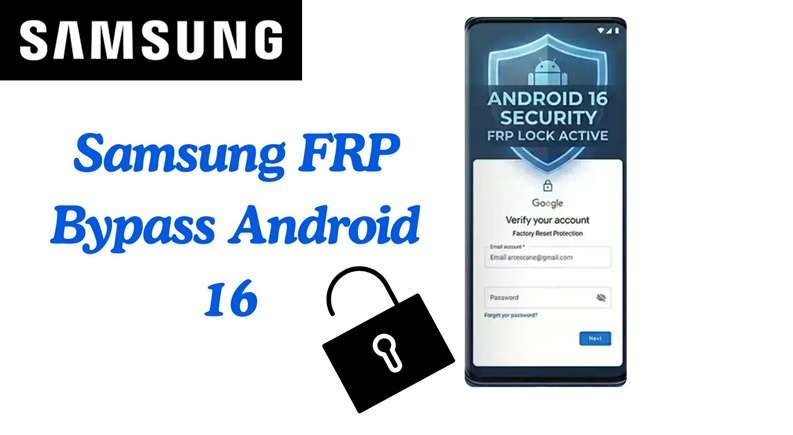
A Samsung phone that stops at Google verification can feel like a locked door with your name on it. You may know the phone is yours. You may even have the receipt. But after a reset, Android still asks for the old Google account. That is Factory Reset Protection, or FRP.
On Android 15, this lock is tougher than before. Old tricks from Android 13 and 14 often fail. Samsung One UI 7 also blocks many setup-screen shortcuts that people used in the past. This guide gives you the safe, owner-focused path. You will see what changed, which phones are affected, and which real options still work for Samsung FRP Android 15.
In this article
Android 15 FRP: Key Facts at a Glance
| Quick Point | What Readers Need to Know |
|---|---|
| What’s new | Android 15 makes FRP stronger after a factory reset. A locked phone may require the old Google account or previous screen lock before normal setup. |
| What’s patched | Many Android 13/14 tricks are now unreliable, including setup wizard skips, hidden Settings routes, random FRP APK installs, and old TalkBack-style shortcuts. |
| Why old tricks fail | On Android 15, bypassing part of the setup screen may not remove FRP. The phone can still block new Google accounts, new screen locks, and app installs. |
| What still works | The safest options are the original Google login, Google Account Recovery, help from the previous owner, Samsung support with proof of purchase, IMEI-based services, and trusted desktop tools. |
| Best takeaway | Free manual methods have a low success rate on newer Samsung Android 15 / One UI 7 devices. Use owner-safe methods for Samsung FRP Android 15. |
What is new with Android 15 regarding FRP and security?
Android 15 makes FRP stronger after a factory reset. It is designed to prevent a reset device from being reused until the previous Google account or screen lock is confirmed. On Samsung phones, One UI 7 has a stricter setup flow, making many old tricks with Android 13/14 no longer work well.
Here are the main changes users should know:
- Setup Wizard Access Is More Limited
One UI 7 keeps users inside the setup process. Old routes that opened Chrome, Settings, or hidden menus are now harder to trigger. - USB Debugging Is Usually Blocked
Many PC methods depend on ADB or USB debugging. But on a locked Android 15 phone, USB debugging is usually not available during setup. - TalkBack Tricks Are Less Reliable
Old TalkBack-based FRP routes are now patched or restricted on many Samsung Android 15 devices. Success depends on the model, region, and security patch. - Free Manual Methods Fail More Often
Random APKs, browser tricks, and shortcut methods have a low success rate on Samsung FRP Android 15. They may also create security risks.
What devices are affected?
This guide applies to Samsung phones that ship with Android 15 or have updated to One UI 7 / Android 15.
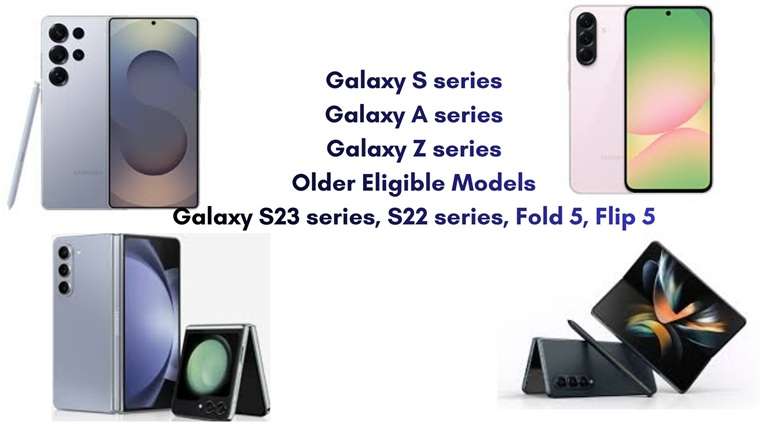
| Samsung Series | Examples |
|---|---|
| Galaxy S series | Galaxy S24, S24+, S24 Ultra, S24 FE; also newer S25 models that shipped with Android 15 |
| Galaxy A series | Galaxy A55, Galaxy A35, A56, A36, A26, depending on region and rollout |
| Galaxy Z series | Galaxy Z Fold 6, Galaxy Z Flip 6 |
| Older Eligible Models | Galaxy S23 series, S22 series, Fold 5, Flip 5, and more after the update |
What methods still work for Samsung FRP on Android 15?
Many free manual tricks now fail because One UI 7 blocks common setup-screen loopholes. As such, the best way is to first try to recover using official methods and only then, when that fails, jump to any service or professional tools.
What Is Patched or Unreliable Now?
Free manual methods have a very low success rate on Samsung FRP Android 15, especially on newer One UI 7 builds. These include:
- TalkBack shortcut tricks
- Browser-opening methods
- Hidden Settings routes
- Random FRP APK installs
- Old keyboard or emergency-call tricks
- Basic ADB methods when USB debugging is not enabled
4-1. Recover Your Google Account Password
If you are aware of the Gmail address utilized in the Samsung phone and want to recover the device, the first thing you need to do is recover the Google account. FRP is associated with the old Google account; recovering that account will be the cleanest way of bypassing the Android 15 FRP lock.
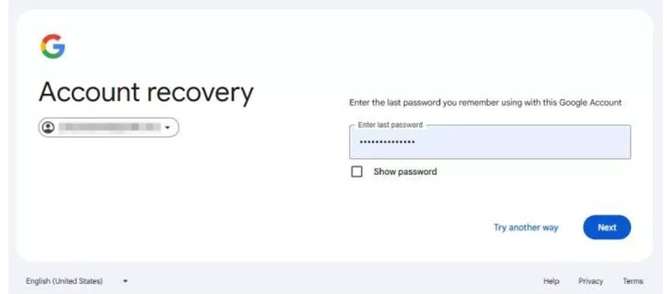
-
Step 1 Go to Google Account Recovery.
-
Step 2 Enter the email linked to your locked Samsung Android 15 phone.
-
Step 3 Click “Next.”
-
Step 4 Enter the last password you remember.
-
Step 5 If you do not remember any password, choose “Try another way.”
-
Step 6 Verify your identity using your recovery email or phone number.
-
Step 7 Enter the verification code you receive.
-
Step 8 Create a new strong password.
-
Step 9 Wait before trying it on the locked phone.
A new password may take time to sync across Google’s security system in some cases. The usual waiting time for Google to apply the newly set password to the locked Samsung phone is 24 to 72 hours. So, if you get a rejection for the newly set password, please be patient and try again later.
4-2. Contact the Previous Owner
The quickest safe option, if you have bought this Samsung phone from the second-hand market, is getting in touch with the seller or the previous owner. The Google lock screen on Android 15 always happens because they were still connected to their Google account before the reset.
Ask the previous owner to do one of these:
- Enter the original Google account during setup
- Enter the previous screen lock, PIN, pattern, or password
- Unlock the device in person
- Remove their Google account from the phone after setup
Once the phone is unlocked, they should remove their Google account from Settings. It is a necessary step because by removing the account, you will be disabling the FRP. Then you can reset the Google phone again and set it up on your own Google account.
If the seller refuses to assist or is unable to prove ownership, do not resort to any risky shortcuts, as it is possible that the device is not safe to use or sell.
4-3. Use IMEI-Based Online FRP Removal
If official recovery does not work, IMEI-based online services are one of the more practical options for Android 15. They do not depend on old TalkBack, browser, or APK tricks. That makes them more suitable for Samsung One UI 7 devices.
Dr.Fone Online Unlock is designed for Samsung FRP removal and uses device details such as IMEI or serial number. Since this approach is not based on Android version-specific loopholes, it is more useful for Samsung FRP Android 15 than old manual tricks.
This is the stronger first tool-based option for users who want an online method and have the device IMEI ready.
Step-by-Step: Dr.Fone Online Unlock
-
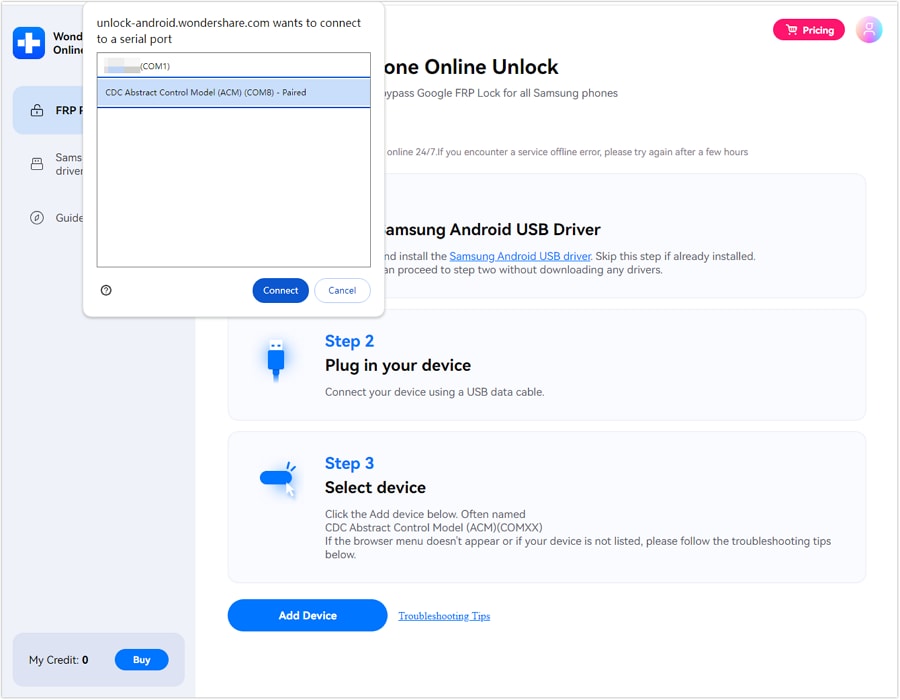
Step 1 On any Samsung handset, access Dr.Fone Online Unlock.
-
Step 2 Enter your locked Samsung Mobile IMEI so that the service can validate your handset.
-
Step 3 Submit your unlock request and proceed with the on-screen instructions.
-
Step 4 Keep your Samsung mobile on and linked to Wi-Fi or mobile data while Dr. Fone is removing the mobile FRP.
4-4. Use Dr.Fone Desktop – Screen Unlock Android
Dr.Fone - Screen Unlock (Android) is the better choice when a guided PC process is needed. Some Samsung models may require device-specific mode entry steps, USB connection, or guided handling. A desktop tool can make that easier than trying random manual steps.
Use this option if:
- The online method is not enough for your model
- You prefer guided steps on a computer
- Your Samsung phone needs mode-entry instructions
- You want a structured tool instead of random FRP APKs
 Unlock Android phone in seconds.
- Remove PIN, pattern, password, fingerprint.
- Bypass Google FRP lock easily.
- Works on all Android brands & models.
- No tech skills required – user-friendly.

This makes Dr.Fone Desktop a useful complement to Dr.Fone Online Unlock, especially for Android 15 Samsung models, where free manual methods are unreliable.
How to Use Dr.Fone – Screen Unlock
-
Step 1 Download and set up Dr. Fone - screen unlock on your PC. Link your Samsung device to the PC via USB.
-
Step 2 Navigate to the toolbox, select the screen unlock option and click on Android.
-
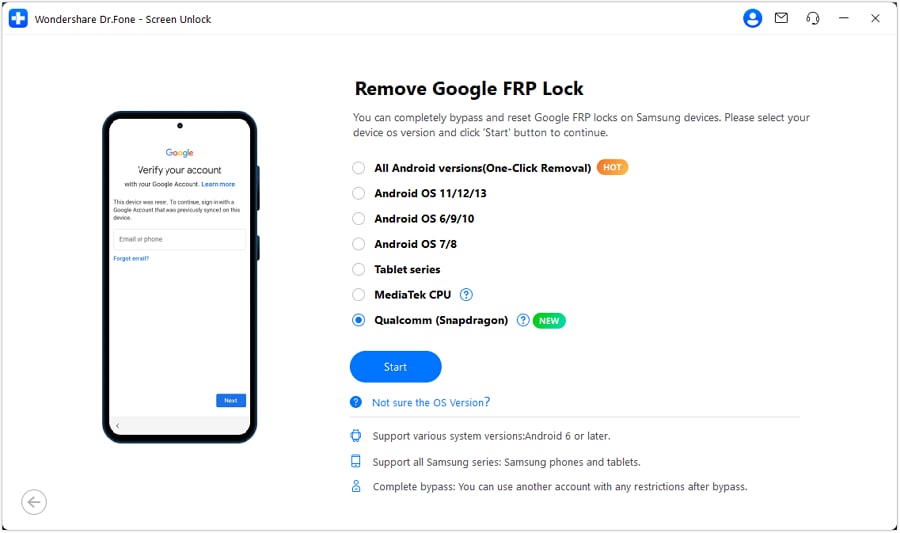
Step 3 Select ‘’remove Google FRP lock option, then choose Qualcomm for your Samsung mobile. Click ‘’start’’ button.

-
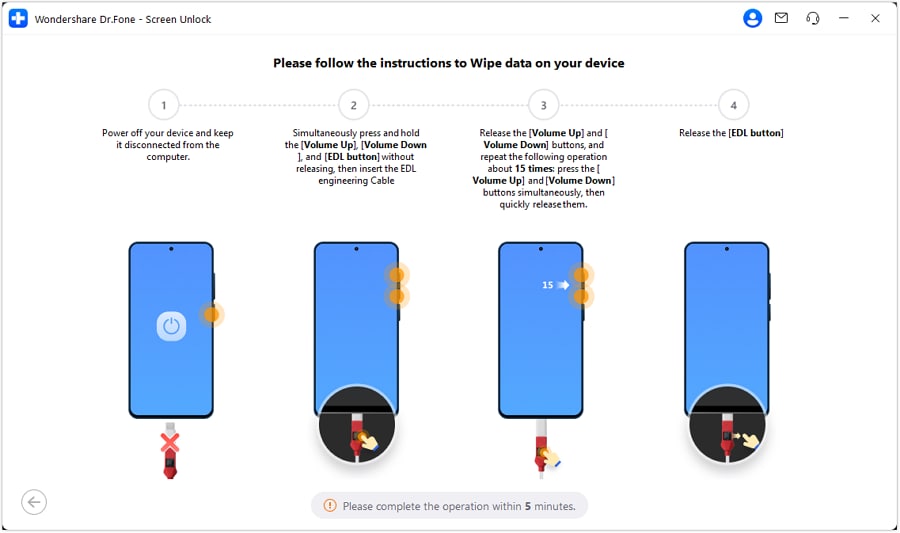
Step 4 Follow the on-screen instructions and Dr. Fone will automatically install the needed firmware for your phone.
-
Step 5 Select your exact Samsung model if the tool asks for it, then continue.
-
Step 6 Wait while Dr.Fone processes the FRP removal. Keep the phone connected during this step.
-
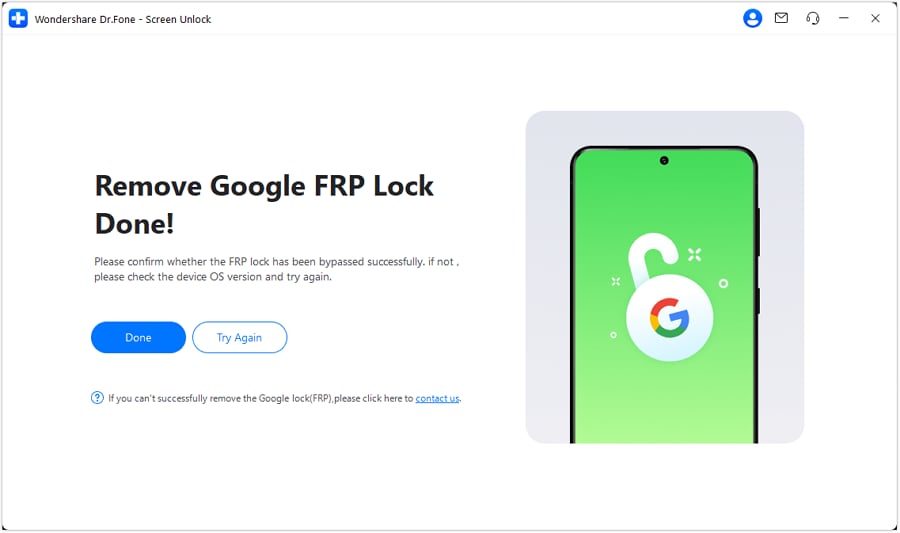
Step 7 When the process is complete, check your Samsung phone. If it works, click Done. If not, follow the retry option shown in the tool.
4-5. Remove Samsung FRP with Dr.Fone EDL Cable Mode
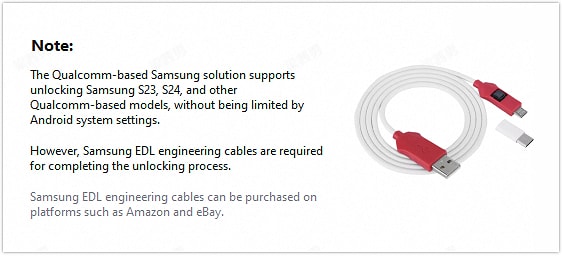
This method is for Samsung phones with Snapdragon processors. It uses a Samsung EDL Engineering Cable to put the phone into Emergency Download Mode. In this mode, Dr.Fone can connect with the phone’s firmware more deeply than normal recovery mode. This is useful when old FRP tricks fail, the phone is stuck in a loop, or the device needs a firmware-level process.
The EDL cable is mainly used for Qualcomm-based Samsung models, including Galaxy S21, S22, S23, S24, A52 5G, A71, A42 5G, and other Snapdragon devices.

-
Step 1 Prepare the EDL Cable
Get a Samsung EDL Engineering Cable from a trusted seller. A normal USB cable may not work because it cannot always trigger the required Emergency Download Mode.
-
Step 2 Open Dr.Fone Screen Unlock
Install Dr.Fone – Screen Unlock on a Windows PC. Open it, choose Screen Unlock, select Android, then click Remove Google FRP Lock. Choose Samsung as the brand.
-
Step 3 Select Snapdragon Mode
Choose Qualcomm or Snapdragon as the chipset option. Dr.Fone will then download and verify the required firmware for the phone.
-
Step 4 Connect the Phone in EDL Mode
Power off the Samsung phone. Connect the EDL cable to the PC first. Then follow Dr.Fone’s button instructions to place the device into EDL mode.
-
Step 5 Choose Model and Remove FRP
Select your Samsung model in Dr.Fone and continue. The tool will start the FRP removal process. Once done, restart the phone and complete setup without the Google lock Android 15 screen.
Conclusion
Samsung FRP on Android 15 is no longer a shortcut game. Start with Google Account Recovery when you remember your Gmail, and contact the previous owner when the phone was bought used. IMEI-based removal fits users who need an online route, while Dr.Fone Desktop is better when the phone needs guided PC steps.
For Snapdragon models, EDL Cable Mode helps in deeper firmware-level cases. Since free manual tricks fail often on Samsung FRP Android 15, Dr.Fone Online Unlock stands out because it gives both online and desktop paths instead of relying on patched loopholes. For serious Android 15 FRP lock cases, that flexibility matters.
FAQ
-
1. Is Samsung FRP bypass harder on Android 15 than Android 14?
Yes. Android 15 makes FRP harder because enforcement is deeper in the system, not just the setup wizard. That means old shortcut methods are less reliable on Samsung FRP Android 15 devices. According to Google, Android 15 comes with an improved factory reset feature that wraps security, which prevents setup without the owner’s device or Google credentials. -
2. Which Samsung A-series phones have Android 15?
Galaxy A56, A36, and A26 launched with One UI 7 / Android 15 in many markets. Other A-series models listed as eligible for Android 15 include Galaxy A73, A55, A54, A53, A35, A34, A33, A25, A24, A23, A16, A15, and A14. Rollout can vary by region, carrier, and model variant. -
3. Does Android 15 FRP bypass require a PC?
Not always. Google Account Recovery and previous-owner verification do not require a PC. Dr.Fone Online Unlock also says Samsung FRP can be handled online without a PC or data cable, using the IMEI number. For USB-based or model-specific steps, Dr.Fone Desktop – Screen Unlock is the better PC option and supports Android 16 and below, including Android 15.