ChatGPT
 Perplexity
 Gemini
 Claude
 Grok
Grok
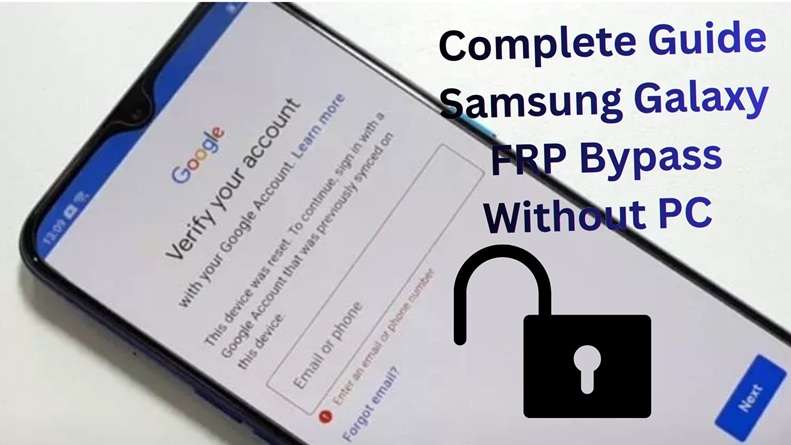
Samsung FRP Android 16 can turn a simple reset into a locked setup screen that asks for the last Google account. It might feel a bit sudden; however, it is Android's way of verifying ownership before letting anybody use the phone. Over Android 16 and Samsung One UI 8/8.5, this verification has become extra strict. Outdated cheats, APK modifications, and home screen jumps are no longer reliable. Hence, consumers are now seeking a safer route.
This article covers still-working Android 16 FRP bypass options in 2026, what has changed, and where trusted tools fit into the latest Android FRP process.
In this article
- Part 1. What Is Android 16, and Which Samsung Phones Run It?
- Part 2. Tested Methods for Android 16 FRP in 2026
- Part 3. What New FRP Restrictions Does Android 16
- Part 4. Android 14 vs Android 15 vs Android 16 FRP: Why the Lock Feels Harder Now
- Part 5. What bypass methods currently work on Android 16 (2026)?
What Is Android 16, and Which Samsung Phones Run It?
Android 16 is the codename for Google’s next major Android release planned for 2025–2026. Android 16 Initiatives include a multitude of upgrades in current security, privacy, accessibility, and productivity functionalities. The security sector also includes Identity Check, Trade-in Mode, and Advanced Protection to enhance account and device security.
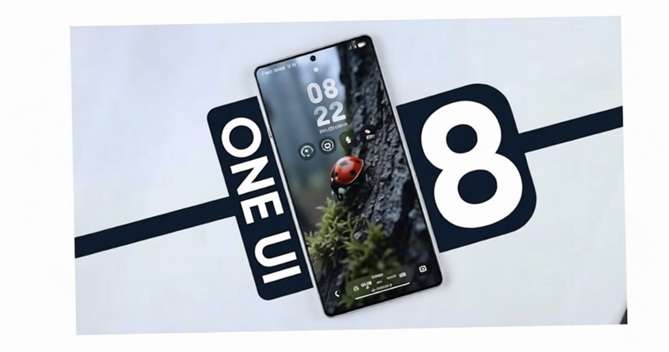
Samsung ships Android 16 through One UI 8 and later One UI 8.5. Samsung’s own One UI 8 support page says the update improves Galaxy AI, usability, and device protection. It also notes that One UI 8 first appeared on devices such as Galaxy Z Fold7, Z Flip7, Z Flip7 FE, S25 FE, Tab S11 Ultra, and Tab S11, with more Galaxy models added through rollout.
| Galaxy Line | Android 16 / One UI Status |
|---|---|
| Galaxy S25, S25+, S25 Ultra, S25 Edge | Major Android 16 / One UI 8 family |
| Galaxy Z Fold7 / Z Flip7 | Foldables tied to One UI 8 rollout |
| Galaxy S24 series | Eligible through phased update |
| Galaxy Z Fold6 / Z Flip6 | Expected or rolling out by region |
| Galaxy Tab S11 / Tab S10 series | Included in Samsung’s One UI expansion |
| Selected A/M/F series | Update depends on model, country, and carrier |
So, when writing about the latest Android FRP, one thing matters: not every Galaxy phone gets the same Android 16 build at the same time. Your exact model, chipset, region, security patch, and One UI version affect the unlocking path.
Tested Methods for Android 16 FRP in 2026
Android 16 has changed how Samsung FRP works. Old shortcut methods are no longer dependable. The safer options now focus on account recovery, verified device details, supported tools, or professional repair support.
| Method Tested | Status on Android 16 | Success Level | Best For | Notes |
|---|---|---|---|---|
| Google Account Recovery | Works | High, if account details are recoverable | Original phone owners | This is the safest and official method for Samsung FRP Android 16. It works when the user can verify the old Google account through phone code, recovery email, authenticator app, or backup codes. |
| Dr.Fone Online Unlock | Works on supported Samsung models | High, when IMEI/SN validation is supported | Users who want a browser-based option | This method is useful when official recovery fails. It avoids risky APK files and setup-screen tricks. It fits the latest Android FRP environment because Android 16 blocks many phone-side shortcuts. |
| Dr.Fone Screen Unlock Android | Works on supported models | High on supported Samsung Snapdragon devices | Galaxy S25 Snapdragon users and PC users | This is a strong desktop option for Android 16 FRP bypass. It is best for users who have a computer and a supported Samsung model. |
| Hardware-Level Repair | Works in limited cases | Medium, but device-specific | Repair labs and technicians | This method may work through EDL, test point, or board-level service routes. It is not suitable for normal users because it can damage the phone or void the warranty. |
| Old TalkBack/SIM/APK Tricks | Mostly fail | Low | Older Android versions only | These methods are not reliable on Android 16. Samsung and Google have patched most setup-screen shortcuts, APK installs, and hidden-menu routes. |
| USB/ADB Bypass During Setup | Mostly fail | Low | Rare outdated builds | Android 16 limits USB and debugging access before setup is complete. This makes ADB-style bypass methods unreliable on updated Samsung phones. |
What New FRP Restrictions Does Android 16
Samsung FRP Android 16 is more restricted because Android 16 gives less access during setup and checks ownership more tightly after a reset.
- Tighter setup wizard: Android 16 limits access to settings, browser pages, hidden menus, and app screens before Google verification is complete.
- Stronger account check: The phone usually asks for the Google account that was synced before the reset, not a new account.
- Old shortcuts patched: TalkBack routes, SIM menu tricks, emergency dialer paths, and browser redirection methods are far less reliable on updated Samsung builds.
- APK methods blocked: Random FRP APK files often cannot be installed during setup, and they may also create privacy or malware risks.
- Limited USB/ADB access: USB-based ADB methods usually fail because debugging access is not available before setup is completed.
- Patch-level changes: A method that works on one Android 16 security patch may fail after the next Samsung update.
Android 15 made Samsung FRP harder. Android 16 makes it more security-hardened, more patch-dependent, and less friendly to old public tricks. That is why Samsung FRP Android 16 needs official recovery first, then verified owner-based tools or services if recovery fails.
Android 14 vs Android 15 vs Android 16 FRP: Why the Lock Feels Harder Now
Samsung FRP Android 16 has become stricter with each Android update. Android 14 still left room for some setup-screen shortcuts. Android 15 reduced many of those paths. Android 16 goes further by limiting setup access, blocking old tricks, and tying FRP more closely to account and device security.
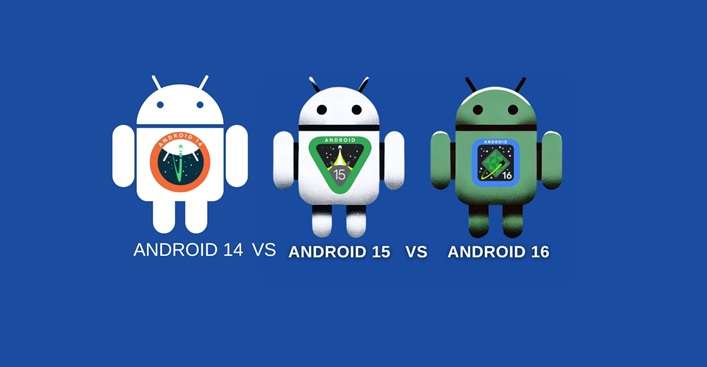
| Android Version | FRP Difficulty | What Usually Worked Before | Current Reality |
|---|---|---|---|
| Android 14 | Moderate to Hard | Some browser routes, test-mode steps, TalkBack tricks, and APK-based methods | Many methods are patched now, but older security patches may still respond to limited tricks. |
| Android 15 | Hard | Fewer setup shortcuts, limited APK routes, and weaker browser tricks | Most public methods became unreliable, especially on updated Samsung phones. |
| Android 16 | Very Hard | Very few manual shortcuts remain dependable | Setup access is tighter, APK installs are limited, and USB/ADB-style routes mostly fail before verification. |
What bypass methods currently work on Android 16 (2026)?
With Android 16, most old FRP tricks no longer work. Google has made the system smarter and safer. Still, a few legal and trusted options are available. These methods focus on showing ownership, official backing, and doing it safely. Here are the options that still work today.
Method 1: Google Account Recovery (Official Method)
This is the safest and most official way to handle Samsung FRP Android 16. If the phone belongs to you, account recovery should be your first step.
-
Step 1 Open a web browser and navigate to the Google Account Recovery website.
-
Step 2 Type in the Google email associated with the locked Android phone and press “Next.”
-
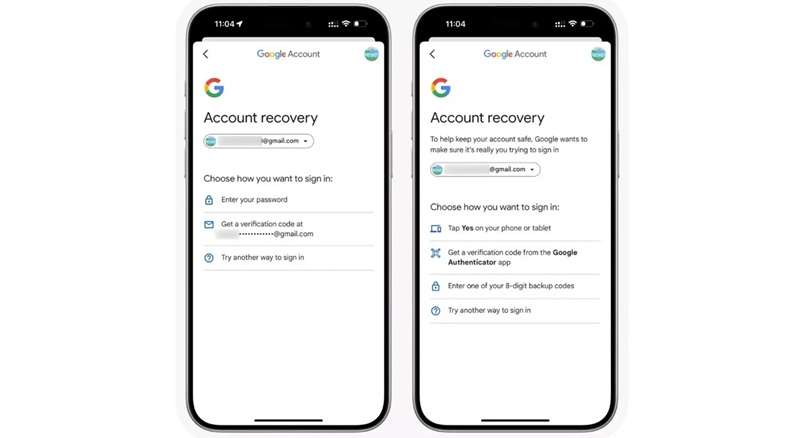
Step 3 Since the password is forgotten, tap “Try another way to sign in.” Google will prompt you to verify your identity via one of the available methods. This can be via a phone code, a recovery email, your authenticator app or some backup codes.
-
Step 4 After successful verification, return to your account dashboard and choose “Change or Update Password.”
-
Step 5 Create a strong new password and confirm it by clicking “Save.”
-
Step 6 Use this new password on your Android device to sign in and bypass the FRP lock.
Method 2: Recommended: Use an IMEI-Based Online Removal Service
When official recovery fails, an IMEI or serial-number-based online option can be the most practical route for genuine owners. This is where Dr.Fone Online Unlock fits naturally into the walkthrough.
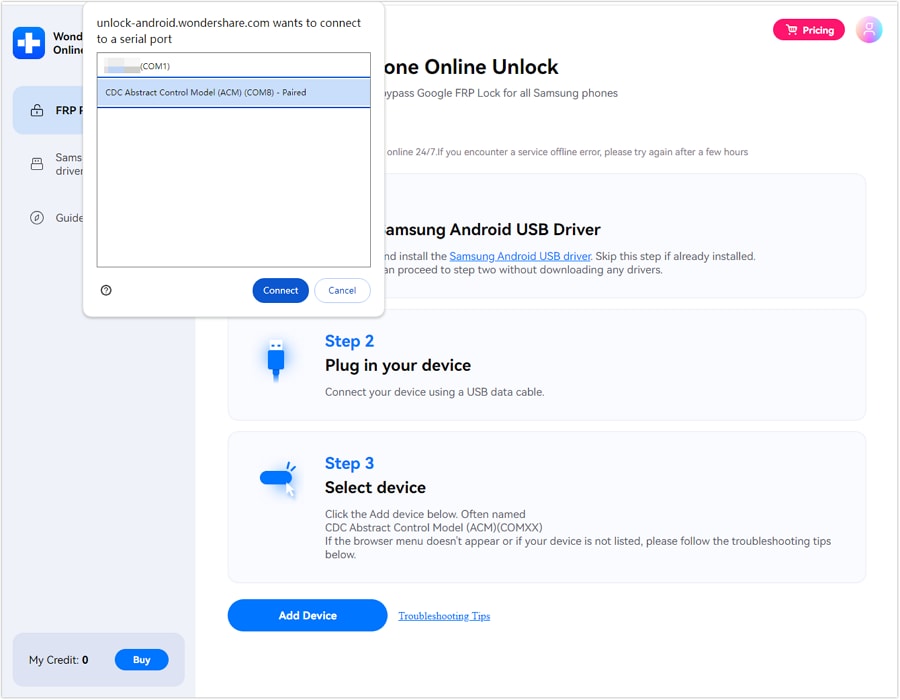
Dr.Fone Online Unlock lists Samsung FRP Removal as an online function. Its interface asks for device model, Android version, and device IMEI or SN. We don't store your device's IMEI/SN, but use it to check the device. This tool depicts software compatibility with Android 14, 15, 16, and 17. It shows that this DM tool can unlock the Samsung Google FRP Lock.

-
Step 1 On any Samsung handset, access Dr.Fone Online Unlock.
-
Step 2 Enter your locked Samsung Mobile IMEI so that the service can validate your handset.
-
Step 3 Submit your unlock request and proceed with the on-screen instructions.
-
Step 4 Keep your Samsung mobile on and linked to Wi-Fi or mobile data while Dr. Fone is removing the mobile FRP.
Method 3: Using Dr.Fone – Screen Unlock (Android)
The Galaxy S25 Snapdragon models are affected by the latest Android FRP changes. So Dr.Fone - Screen Unlock (Android) is one of the rare desktop tools updated for these changes. Wondershare also claims 100% success rate on supported Samsung Snapdragon models with dedicated support for Snapdragon FRP.
Every user can take advantage of this tool. It provides instructions on screen to the users, so nothing advanced is needed.
Supports Samsung FRP Android 16 and earlier versions
Works with Galaxy S25 series and supported Snapdragon Samsung models.
Guided on-screen instructions
Automatically detects device information and supports the removal of PIN, pattern, password, and fingerprint locks.
 Unlock Android phone in seconds.
- Remove PIN, pattern, password, fingerprint.
- Bypass Google FRP lock easily.
- Works on all Android brands & models.
- No tech skills required – user-friendly.

-
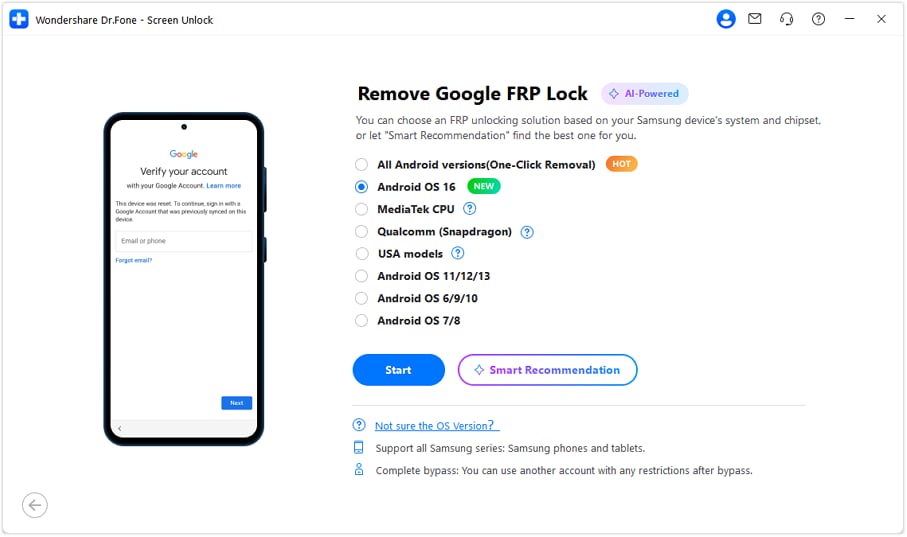
Step 1 Select Android 16 in Dr.Fone
Open Dr.Fone on your computer and go to the Screen Unlock module. Choose Remove Google FRP Lock, then select Android OS 16 from the version list. Click Start to begin.
-
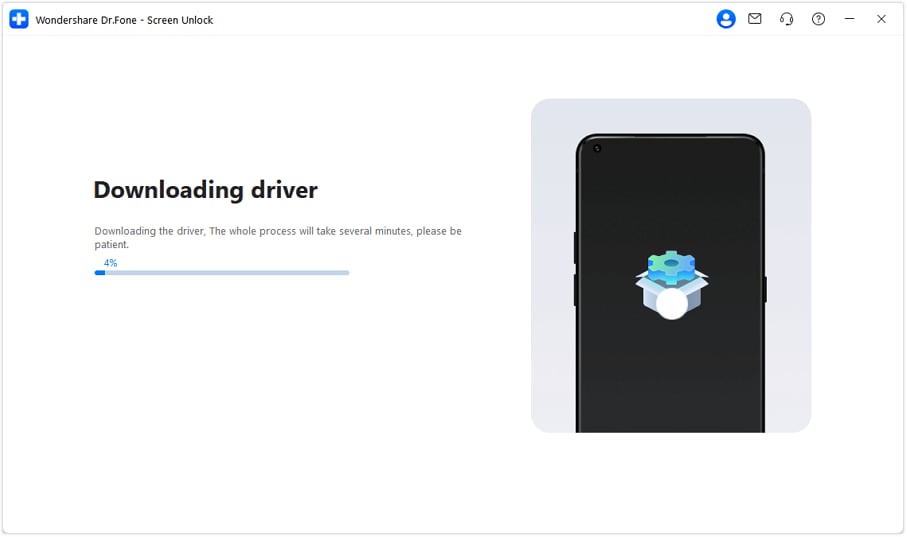
Step 2 Let Dr.Fone Download the Driver
Dr.Fone will detect your Samsung model and download the required USB driver. Wait until the driver download and installation process is complete.
-
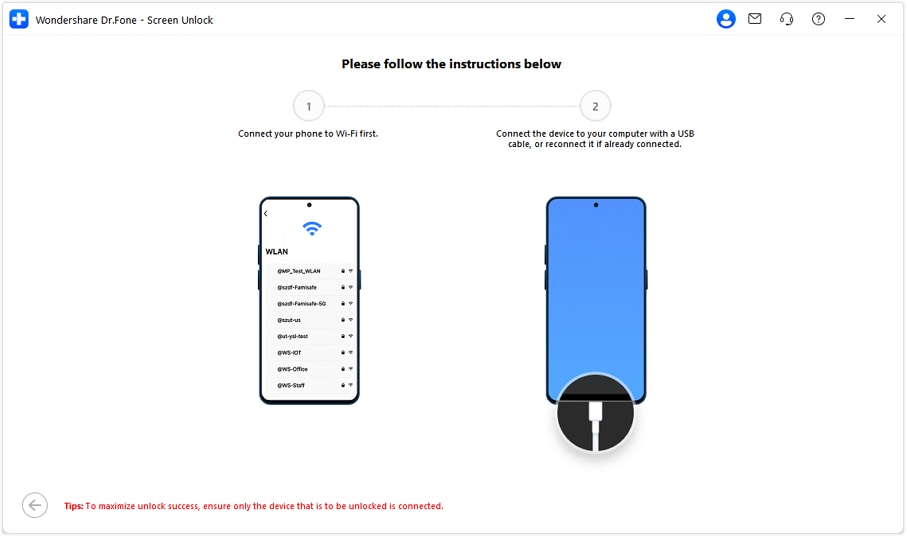
Step 3 Connect the Samsung Phone Correctly
Make sure the locked phone is connected to a stable Wi-Fi network. Then connect it to the computer with a USB cable. If it was already connected, unplug it and connect it again so Dr.Fone can detect it properly.
-
Step 4 Complete the FRP Removal Process
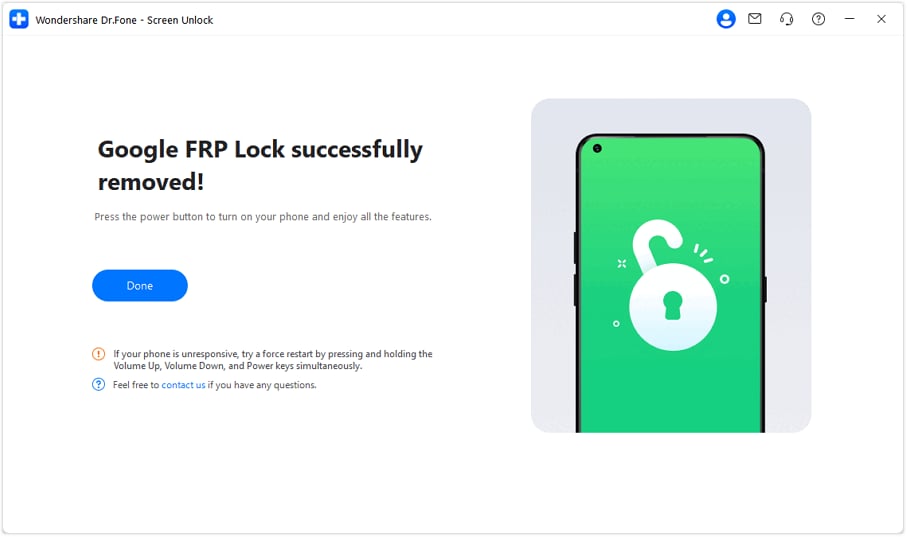
Once the phone is detected, Dr.Fone will enter the FRP removal process. Follow any on-screen prompts and keep the phone connected. When the success message appears, restart the device and complete setup without Google verification.




Method 4: Hardware-Level Repair Methods
Hardware methods include EDL, test point, and board-level service routes. These are not normal user methods. They may require opening the device, using professional boxes, or working with chipset-level modes.
- The device has a severe software fault
- Normal owner recovery fails
- The repair shop has proper tools
- The owner can prove that the device belongs to them
For Android 16, this path is device-specific and should not be treated as a general Android 16 FRP bypass method.
Conclusion
Samsung FRP Android 16 needs a careful path, not random tricks. Google Account Recovery is best for original owners who can verify the old account. Dr.Fone Online Unlock fits users who want an IMEI/SN-based route without risky APKs or setup-screen hacks. Dr.Fone Screen Unlock is stronger for Galaxy S25 Snapdragon users who prefer a guided desktop process. Hardware repair should stay with trained technicians only.
In the latest Android FRP landscape, Dr.Fone stands out because it keeps the process structured, model-focused, and easier for normal users when official recovery is no longer enough.
FAQ
-
1. Does Android 16 make FRP bypass impossible?
No. Android 16 makes FRP harder, not impossible. Old tricks like APKs, TalkBack routes, and USB shortcuts are less reliable now. Start with Google Account Recovery. If that fails, Dr.Fone can help on supported Samsung models. -
2. Which Samsung S25 models are supported by bypass tools?
Dr.Fone is most relevant for Galaxy S25 Snapdragon variants, including supported S25, S25+, S25 Ultra, and S25 Edge models. Actual support depends on the chipset, region, Android version, One UI version, and security patch. -
3. What is One UI 8.5, and does it affect FRP?
One UI 8.5 is Samsung’s newer Android 16-based software update. It can affect FRP because updates may change setup-screen access, account checks, and security patches. That is why the latest Android FRP methods must match the exact One UI version.