ChatGPT
 Perplexity
 Gemini
 Claude
 Grok
Grok
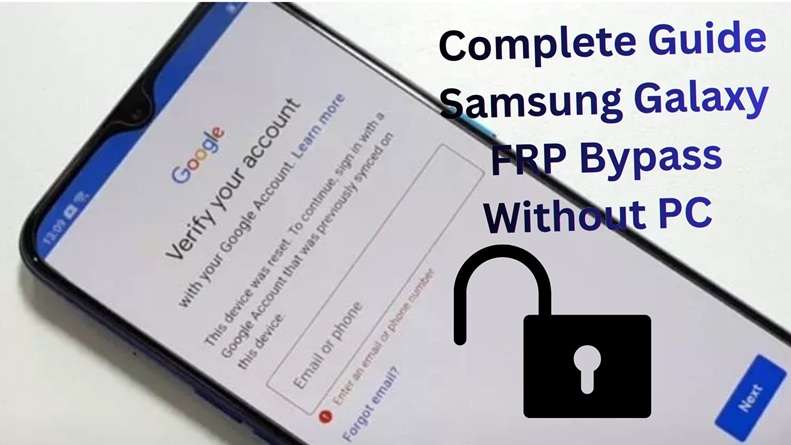
A Samsung phone can feel useless when the Google verification screen appears after a reset. You know the phone is yours. Still, Android 14 asks for the last Google account that was synced on it. That is FRP doing its job.
The unfortunate thing is that various traditional tricks no longer work on One UI 6.0 or 6.1. A few tutorials still repeat steps made for Android 10, 11, or 12. Those steps often fail on newer Samsung firmware.
This guide gives you a clear path. It shows what changed, which methods are still realistic, which tricks are dead, and which tools make sense for Samsung FRP Android 14 recovery.
In this article
What changed with Android 14's FRP security?
Android 14 made Samsung FRP harder to handle. On One UI 6.0 and One UI 6.1, many old routes are now blocked by firmware patches. The biggest change is the tighter setup wizard. It now gives users fewer ways to:
- Open a browser
- Enter settings
- Install APK files
- Trigger hidden screens before verification

SERP research shows that older bypass paths are now far less reliable. These include:
- The #0# test mode entry
- Browser redirection tricks
- Some ADB-over-network methods
- Shortcuts that depended on weak setup-screen behavior
Google’s own Android help also states that protected devices require either the screen lock or the Google account after a reset. This explains why these shortcuts are harder to use now.
Part 2. Samsung Models Where This Guide Is Most Relevant
Many Samsung phones received Android 14 through One UI 6.0 or One UI 6.1. Common models include:
- Galaxy S23, S23+, S23 Ultra, and S23 FE
- Galaxy S22, S22+, and S22 Ultra
- Galaxy S21, S21+, S21 Ultra, and S21 FE
- Galaxy Z Fold 5, Z Flip 5, Z Fold 4, Z Flip 4
- Galaxy A54, A53, A34, A33, A24, A14, and A14 5G
- Galaxy M and F series models that received One UI 6
- Galaxy Tab models that have been updated to Android 14
SamMobile’s One UI 6 list includes many of these models as Android 14 eligible devices, including the Galaxy S23 series, S22 series, S21 series, Z Fold/Flip models, and A-series phones.
To check your phone, go to Settings > About phone > Software information. Look for Android version 14 and One UI version 6.0 or 6.1.
What Still Works for FRP on Android 14?
Based on current SERP research and official support guidance, these are the realistic options:
- Google account recovery
Best when you know the original Google email but forgot the password. - Samsung Service Center unlock
Best when you have proof of purchase and want the official route. - ADB-based bypass via PC
Only possible if USB debugging was already enabled and the computer was trusted before the reset. This is rare for normal users. - Emergency Call to browser route
May still work on some old or unpatched builds, but it is often blocked on Android 14. I do not recommend relying on it. - IMEI-based online FRP removal
Useful for users who want a remote option and have the correct device details. - Desktop FRP tools with Android 14 support
Best when manual workarounds fail, and the user wants guided steps.
Methods That No Longer Work Well on Android 14
This part saves time. Do not spend hours on old FRP removal Android 14 YouTube tricks because your Samsung phone is patched.
- The Old #0# Test Mode Trick
Many older tutorials used the Samsung test mode code to trigger a hidden diagnostic screen. On Android 14, this path is often blocked during setup. Some firmware builds do not open the screen at all. Others open it but stop at the next step. - Random FRP APK Sideloading
Old guides often say to open a browser, download an APK, install it, and change settings. Android 14 makes this much harder. The setup wizard limits unknown app installs and blocks easy exits to system settings. - ADB Over Wi-Fi Tricks
Some older methods depended on network ADB access. Android 14 and newer Samsung security updates have patched many of these paths. If USB debugging was not enabled before the reset, this is usually not a real option. - Keyboard Settings Loops
Many Android 11 and Android 12 tricks used keyboard settings, voice typing, share menus, or YouTube links. On One UI 6, those routes are often closed or limited. - Emergency Call Browser Tricks on Updated Builds
The Emergency Call path still appears in search results. Yet it is highly firmware-dependent. Many Samsung Android 14 builds no longer allow the same browser jump, link opening, or APK flow.
Which Samsung FRP bypass methods still work on Android 14?
Android 14 Google bypass is harder, not impossible. The methods below are the most realistic options, but each one depends on your device state and update version.
5-1. ADB bypass via PC (for devices with USB debugging previously enabled)
ADB stands for Android Debug Bridge. It is a tool that lets your computer talk to your Android phone. With ADB, you can send actions from your PC to your device. The phone then runs those actions.
This method is only useful in a very specific case. USB debugging must have been turned on before the reset. Your computer must also have been trusted by the phone earlier. If USB debugging was not enabled, this method will not work for Samsung FRP Android 14.
-
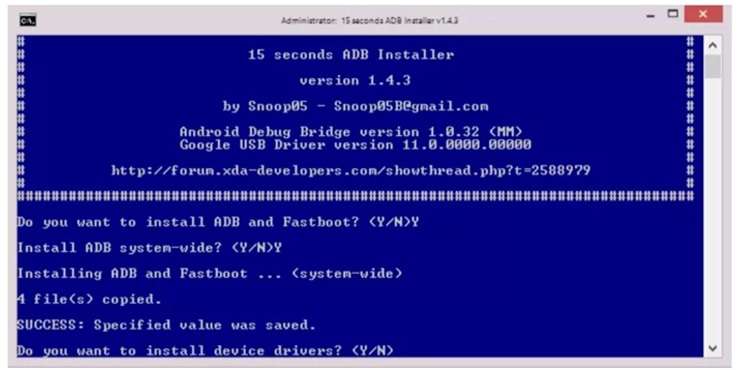
Step 1 Download the ADB Installer setup file from XDA member @Snoop05.
-
Step 2 First extract the files from the toolkit to your computer folder.
-
Step 3 Run the adb-setup.exe and type ‘Y’ for installing the ADB and fastboot driver.
-
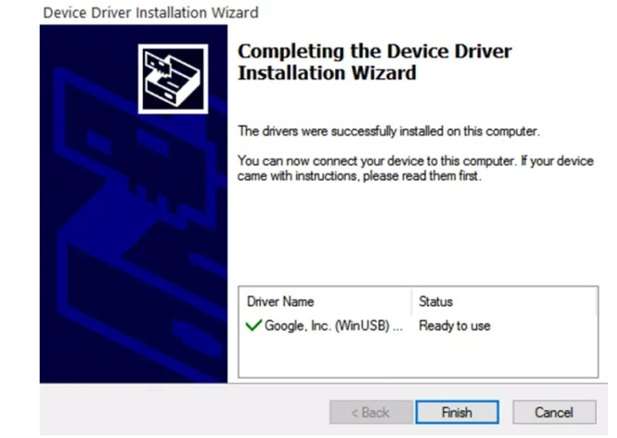
Step 4 Type ‘Y’ once again to install the device driver. The command window will close automatically after a few seconds of installation of the device drivers.
-
Step 5 Switch on your device again and connect to the PC using the USB cable as normal. Before jumping into the steps, make sure that your USB debugging mode is already enabled on your phone.
-
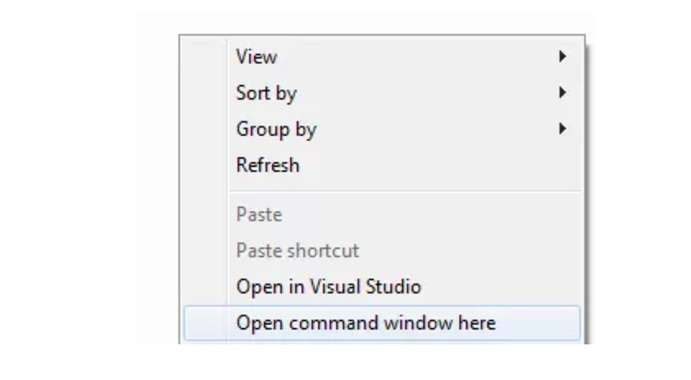
Step 6 To open the command window here, go to the ADB folder, click on a blank area, and right-click this shift.
-
Step 7 To remove FRP on a Samsung device via ADB commands: Enter the following ADB FRP bypass command in the command prompt window one by one, hitting Enter after every line.
adb shell am start -n com.google.android.gsf.login/
adb shell am start -n com.google.android.gsf.login.LoginActivit
adb shell content insert --uri content://settings/secure --bind name:s:user_setup_complete --bind value:s:1 -
Step 8 FRP Removal on Other Brands / MTK /SPD with ADB commands. Enter the following ADB FRP bypass command in the Command Prompt window and Hit Enter after each line.
adb shell content insert --uri content://settings/secure --bind name:s:user_setup_complete --bind value:s:1
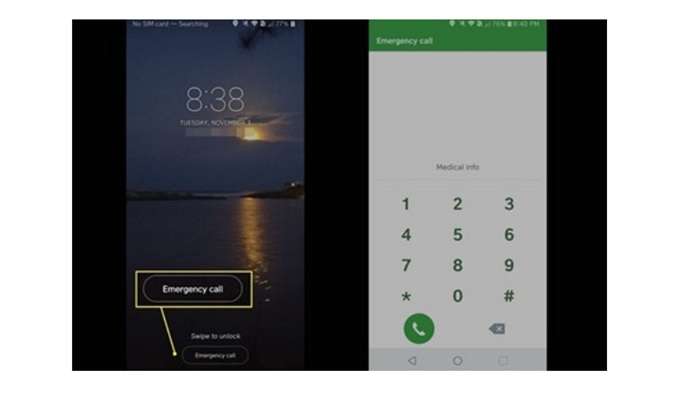
5-2. Emergency Call → browser exploit (if not patched on the specific build)
Some Samsung builds may allow limited settings access through Emergency Call, but most Samsung FRP Android 14 devices block this now. Older Android 11–13 mid-range models may still respond.
This old Android 14 Google bypass route used the emergency dialer to reach hidden menus and add a new Google account. It is not universal and depends on the model, patch, and firmware.
-
Step 1 On the FRP lock screen, tap Emergency Call.
-
Step 2 Dial #0# or a service code (varies by model).
-
Step 3 If the hidden diagnostic menu appears, navigate to settings or backdoor menus.
-
Step 4 Sometimes accessibility options can be triggered, enabling browser access.
-
Step 5 From the browser, sign in with a new Google account.
-
Step 6 Reboot the device—FRP may now allow setup with the newly added account.

- Works only on specific firmware builds.
- Samsung often patches this in monthly updates.
- Not recommended for beginners because menu behavior varies widely.
5-3. IMEI-Based Online Removal - Dr.Fone Online Unlock for Android 14 FRP (primary recommendation)
Dr.Fone Online Unlock is a practical choice when manual FRP tricks no longer work. It supports Samsung Galaxy devices on Android 14 and newer versions, including One UI 6.0 and 6.1.
It is useful for Android 14 Google bypass cases where Emergency Call, browser, or test mode methods are patched. Since it works through a guided online process, users do not need risky APK files or old setup-screen loopholes.
Step-by-Step: Dr.Fone Online Unlock
-
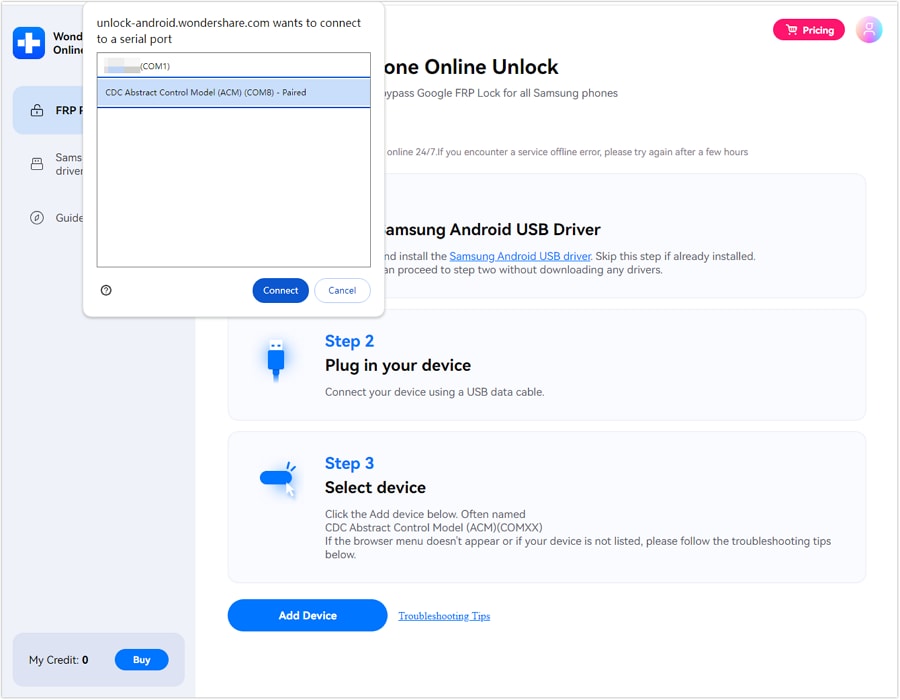
Step 1 On any Samsung handset, access Dr.Fone Online Unlock.
-
Step 2 Enter your locked Samsung Mobile IMEI so that the service can validate your handset.
-
Step 3 Submit your unlock request and proceed with the on-screen instructions.
-
Step 4 Keep your Samsung mobile on and linked to Wi-Fi or mobile data while Dr. Fone is removing the mobile FRP.
5-4. Secondary recommendation Tool: Dr.Fone Desktop – Screen Unlock Android
If the ADB bypass and the Emergency call methods do not unlock your phone, Dr.Fone - Screen Unlock (Android) is an excellent alternative. It benefits users who need to unlock specific Samsung Android 14 devices that do not depend on ADB. Furthermore, those who want a full desktop experience that guides them step-by-step through.
Dr.Fone is made for Android screens and FRP lock issues. It supports Google FRP, PIN, pattern, password, and fingerprint locks. It also claims a 100% success rate for Samsung Snapdragon FRP bypass. Always check your exact model before using it.
 Unlock Android phone in seconds.
- Remove PIN, pattern, password, fingerprint.
- Bypass Google FRP lock easily.
- Works on all Android brands & models.
- No tech skills required – user-friendly.

How to Use Dr.Fone – Screen Unlock
-
Step 1 Download and set up Dr. Fone - screen unlock on your PC. Link your Samsung device to the PC via USB.
-
Step 2 Navigate to the toolbox, select the screen unlock option and click on Android.
-
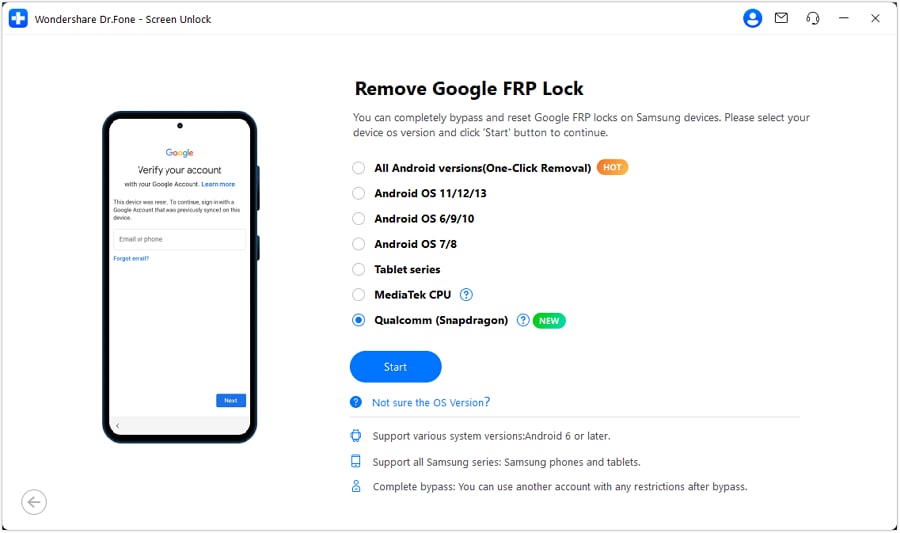
Step 3 Select ‘’remove Google FRP lock option, then choose Qualcomm for your Samsung mobile. Click ‘’start’’ button.

-
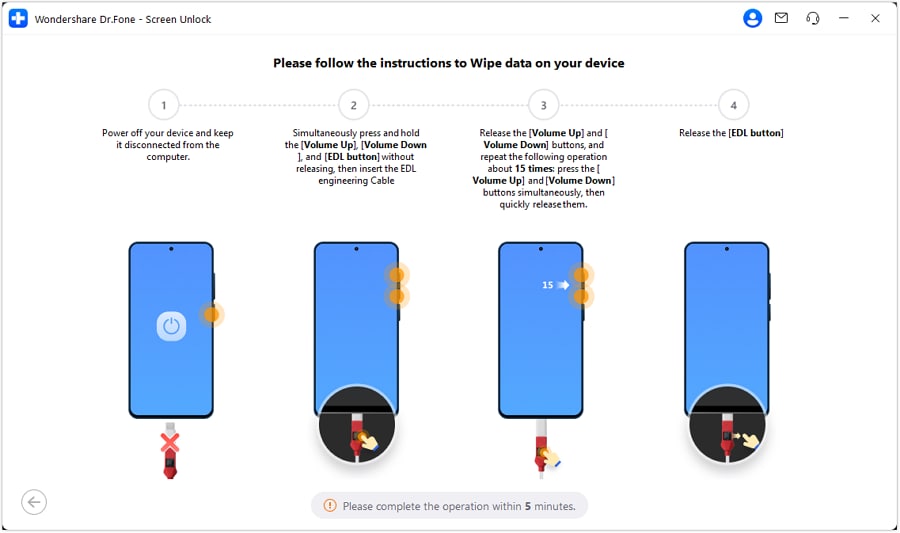
Step 4 Follow the on-screen instructions and Dr. Fone will automatically install the needed firmware for your phone.
-
Step 5 Select your exact Samsung model if the tool asks for it, then continue.
-
Step 6 Wait while Dr.Fone processes the FRP removal. Keep the phone connected during this step.
-
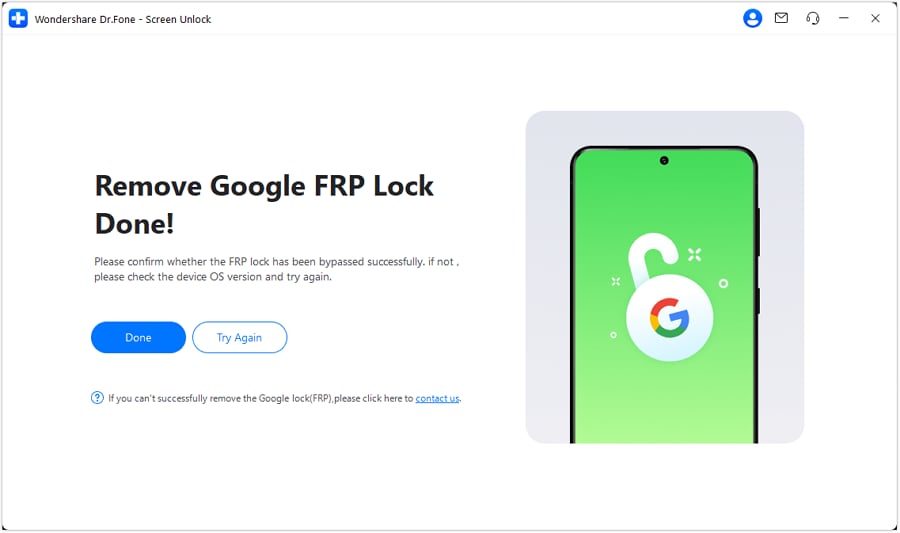
Step 7 When the process is complete, check your Samsung phone. If it works, click Done. If not, follow the retry option shown in the tool.
Conclusion
FRP on Android 14 is tougher because Samsung has closed many old gaps. Google account recovery is best when you still know the original email. Samsung Service Center support fits users with proof of purchase. ADB only helps when USB debugging was already active. Emergency Call tricks suit rare, unpatched builds, while IMEI-based services help users who want a remote path.
For many Samsung FRP Android 14 cases, manual methods fail because the phone is already patched. That is where Dr.Fone Online Unlock feels more practical. Its online and desktop options give guided FRP removal Android 14 steps without risky APKs or confusing loopholes.
FAQ
-
1. Why did the Emergency Call method stop working on Android 14?
The Emergency Call method stopped working because Samsung and Google keep closing setup-screen loopholes through security updates. Older Emergency Call, Browser, and hidden-menu tricks often don’t work after Android 14 and One UI 6. The reason: Firmware updates from Samsung, which bring in Google Android security fixes along with Samsung-specific fixes. -
2. Can I bypass FRP on Android 14 without a computer?
Yes, but only through limited and legitimate options. You can recover the original Google account, visit a Samsung Service Center with proof of purchase, or use an online FRP service. Dr.Fone Online Unlock is one option because its page says it supports Samsung FRP removal online and Android 14. -
3. How do I check which Android version my Samsung is running?
Open Settings, tap About phone, then tap Software information. Your Android version will appear there. On tablets, tap About tablet instead. Google also says you can check the Android version, security update, Google Play system update, and build number from the Android version page.