ChatGPT
 Perplexity
 Gemini
 Claude
 Grok
Grok
Google Account Lock on Samsung S24 and S25 is not a small setup issue. FRP refers to a security verification that comes after the device has been factory reset. When the old Google account is still linked, the FRP checker will appear.
Samsung's newest UI upgrades and Android security patches, along with repair and lock-up procedures, severely limit older bypasses on newer Galaxy models. That is why random tricks, unsafe APKs, and outdated videos often fail.
If you are dealing with Samsung S25 FRP bypass, or Samsung S24 Google lock, you need a safe order: official recovery first, model check next, and trusted tools only when needed. This article aims to show the safest working ways to remove the Google Account Lock on Samsung S24/S25.
Pro Tip: If Google Account Recovery and Samsung Find My Mobile fail, stop trying unsafe shortcuts. For Samsung S25 FRP bypass or Samsung S24 Google lock, a dedicated tool is the safer last-resort option. Wondershare Dr.Fone is recommended for guided online and desktop FRP removal support.
In this article
What makes FRP removal different on Samsung S25/S24?
Removing FRP from the Galaxy S24 and S25 is more difficult due to newer Android versions and One UI, as well as Samsung’s stronger security measures. Many Galaxy S24 phones are using Android 15 with One UI 7. Updated Galaxy S25 phones may run Android 16 with One UI 8.
This reflects that old shortcut tricks may not work. Bypassing the Galaxy S10 and Galaxy S20 techniques may not perform well for the Galaxy S25 FRP or the Samsung S24 Google lock.
1.1 Why Older FRP Tutorials Often Fail
- Knox Security Is Stronger
Samsung’s Knox security protects key phone data at a deeper level. This makes it harder for simple software tricks to change the FRP state. So, old “one-click” or hidden-menu tricks are much less reliable on S24 and S25. - Google Account Checks Are Stricter
FRP is tied to the Google account used before the reset. Newer Samsung phones do not rely on only one setup screen. Even if a shortcut opens a menu, the phone may still ask for the old Google account later. - Test Mode Tricks Are Patched
Many old guides used the Samsung test menu, opened with *#0*#. Some used it to turn on ADB and connect bypass tools. On newer Android and One UI versions, this path is often blocked or restricted. That is why many old Samsung S24 Google lock tutorials stop working halfway. - Bypass APKs Are Often Blocked
Older methods used browser tricks to download FRP APK files. Newer Samsung security can block unknown app installs during setup. This makes random APK-based Galaxy S25 FRP methods risky and unreliable. - Downgrading Firmware May Not Work
Some guides suggest installing old firmware. This is not a safe or dependable fix. New Samsung bootloaders may block downgrades. So you may not be able to go back to an older version where old FRP tricks worked.
What specific methods work for Galaxy S24 and S25?
Given that older FRP tricks are often blocked on Galaxy S24 and Galaxy S25, the best course of action is to use techniques that match the latest Samsung security. Begin with Samsung’s official account recovery method, then try Samsung’s remote options, and then proceed to a trusted FRP tool only if these fail.
2-1. The Official Google Account Recovery Route (If The User Still Has Access To The Account)
The safest way to remove Google verification is to sign in with the Google account used before the reset. If you know your Gmail account but forgot the password, use Google Account Recovery instead of risky bypass tricks.
This method can help with Samsung S25 FRP bypass, Samsung S24 Google lock, and Galaxy S25 FRP when you still have access to the recovery phone, recovery email, or security details.
This route can assist you with the Samsung S24/25 Google lock when you still have security information, recovery email address, or recovery phone.
-
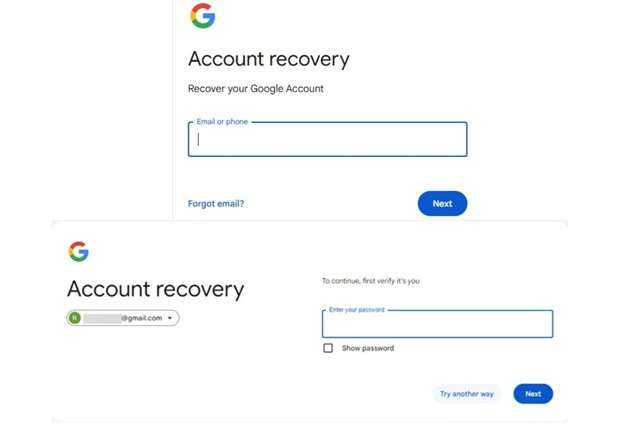
Step 1 Reset Your Google Password
Recover your Google Account using any phone, tablet, or computer. Provide the Gmail ID that was previously synced with your Samsung.
-
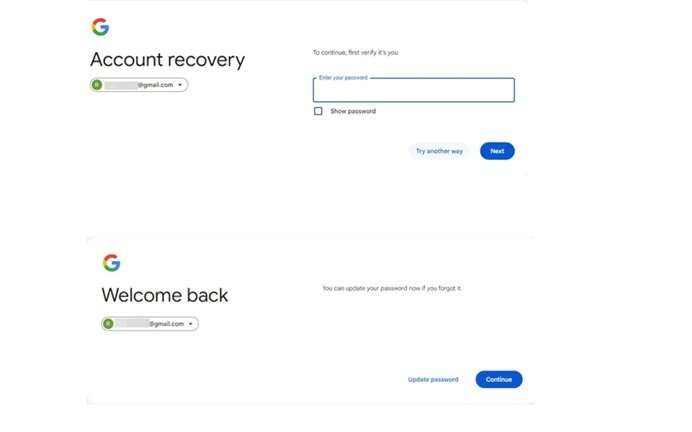
Step 2 Wait for Google Sync
After the password reset, wait 24 to 72 hours before using it on the locked Samsung. This wait is important. Google may need time to sync the new password with the device. If you try too soon, the phone may still reject the login.
-
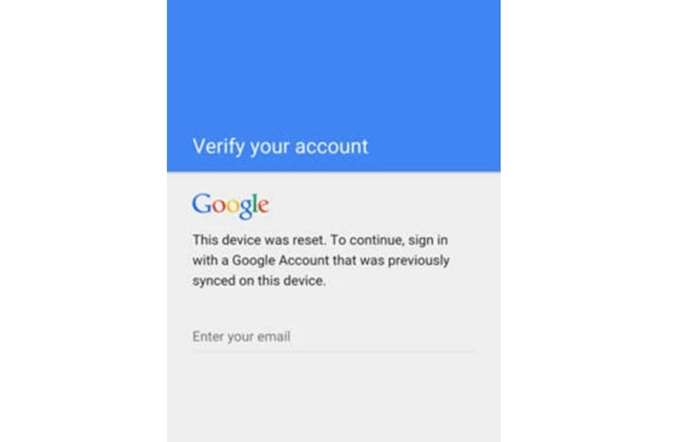
Step 3 Sign In on the Locked Samsung
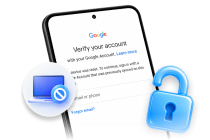
Turn on the Galaxy S24 or S25. Connect it to Wi-Fi. Go to the “Verify your account” screen.
-
Step 4 Secure the Account Again
After setup, update your recovery phone number and recovery email. Add a strong screen lock. This helps prevent the same Google lock issue after another reset.

2-2. The Samsung Find My Mobile Removal Method (If Previously Set Up)
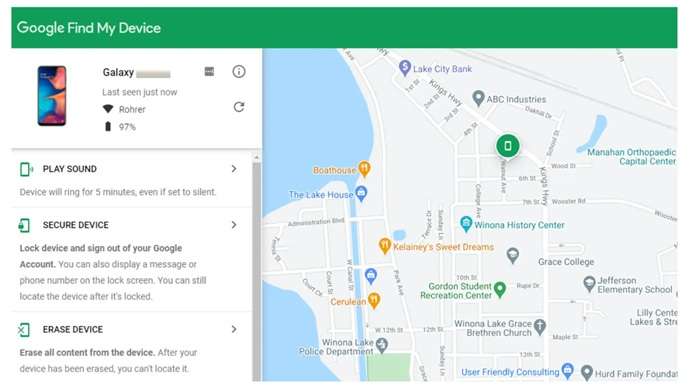
If you already had Find My Device turned on, you can use it from another phone to control your locked Samsung. This may help with some Samsung S24/25 FRP bypass cases, but it will only work if the conditions were active before formatting.
Ensure that these conditions are satisfied before you start.
- The Samsung phone has your Google account signed in.
- You still know the Google account details.
- Google Find My Device is enabled.
- Location is enabled on the phone.
- You still know the Google account details.
-
Step 1 Sign In from Another Device
Get another mobile, or switch to a PC. Access ‘‘Google Find MY Device’’. Log in with the same Google credentials used on your Samsung phone.
-
Step 2 Choose Your Samsung Phone
After logging in, choose your Samsung phone from the given list. Ensure you have selected the correct device before proceeding.
-
Step 3 Use the Erase Device Option
Choose the Erase Device option from the menu. This will start a remote wipe. It can remove phone data and screen lock from the device.
-
Step 4 Wait for the Process to Finish
Keep the phone connected to the internet. Wait until the erase process is complete. After that, restart the phone and begin setup again.
2-3. IMEI-Based Online Removal Services - Dr.Fone Online Unlock
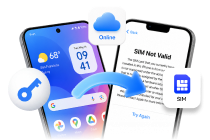
If your Galaxy S24 or S25 runs a newer Android or One UI version, old manual tricks may fail. Dr.Fone Online Unlock can be a cleaner choice for Samsung S25 FRP bypass, Samsung S24 Google lock, and Galaxy S25 FRP removal. It utilizes your Samsung phone’s IMEI or serial number to verify the device via a browser.
Wondershare supports Android 14, 15, 16, and 17 Samsung phones and tablets, including the latest Galaxy S and Z series. It does not require a PC program, USB cable, or OTG adapter, nor does it require an app install. It's useful when the official recovery fails.
How Dr.Fone Online Unlock Works
- Access Dr.Fone Online Unlock from any Samsung device.
- Insert the IMEI of your locked Samsung Mobile so the service is able to verify your device.
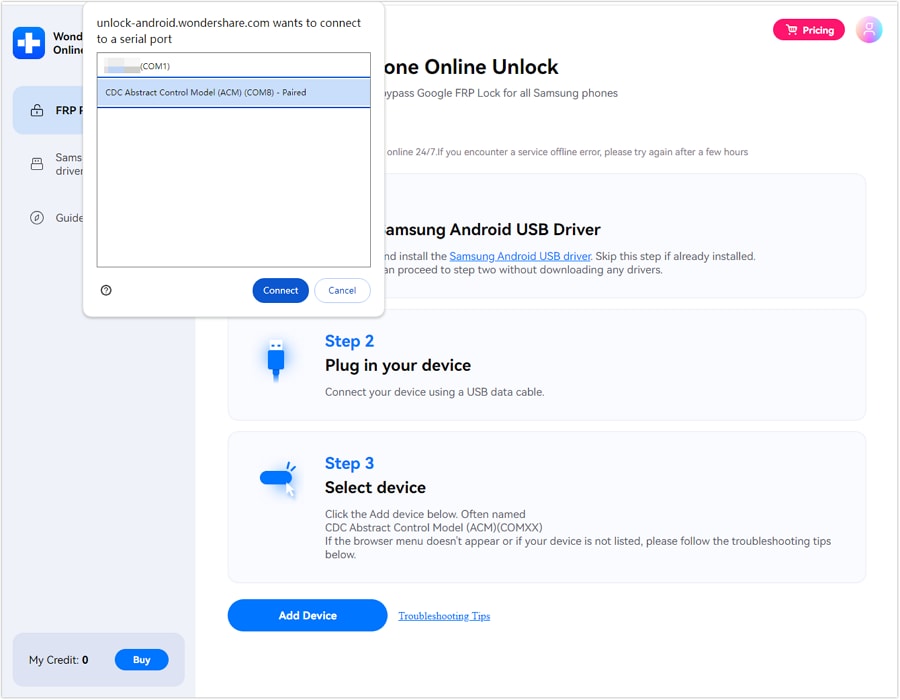
- Proceed by submitting your unlock request and follow the on-screen instructions.
- You need to keep your Samsung mobile on and connected to Wi-Fi or mobile data while Dr. Fone performs the mobile FRP removal.
2-4. Desktop Software With Model-Specific Snapdragon Support - Dr.Fone – Screen Unlock
If Google Account Recovery and Samsung Find My Mobile do not solve the lock, Dr.Fone - Screen Unlock (Android) can be used as the next option. It is useful for supporting Samsung Snapdragon models and tougher Galaxy S24/S25 FRP cases.
Dr.Fone is made for Android screens and FRP lock issues. It supports Google FRP, PIN, pattern, password, and fingerprint locks. It also claims a 100% success rate for Samsung Snapdragon FRP bypass. Always check your exact model before using it.
 Unlock Android phone in seconds.
- Remove PIN, pattern, password, fingerprint.
- Bypass Google FRP lock easily.
- Works on all Android brands & models.
- No tech skills required – user-friendly.

How to Use Dr.Fone – Screen Unlock
-
Step 1 Download and set up Dr. Fone - screen unlock on your PC. Link your Samsung device to the PC via USB.
-
Step 2 Navigate to the toolbox, select the screen unlock option and click on Android.
-
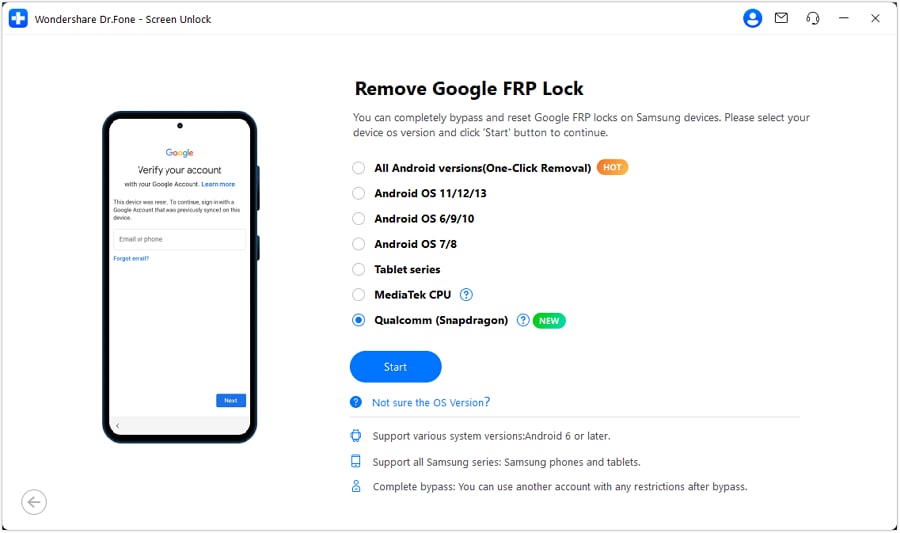
Step 3 Select ‘’remove Google FRP lock option, then choose Qualcomm for your Samsung mobile. Click ‘’start’’ button.

-
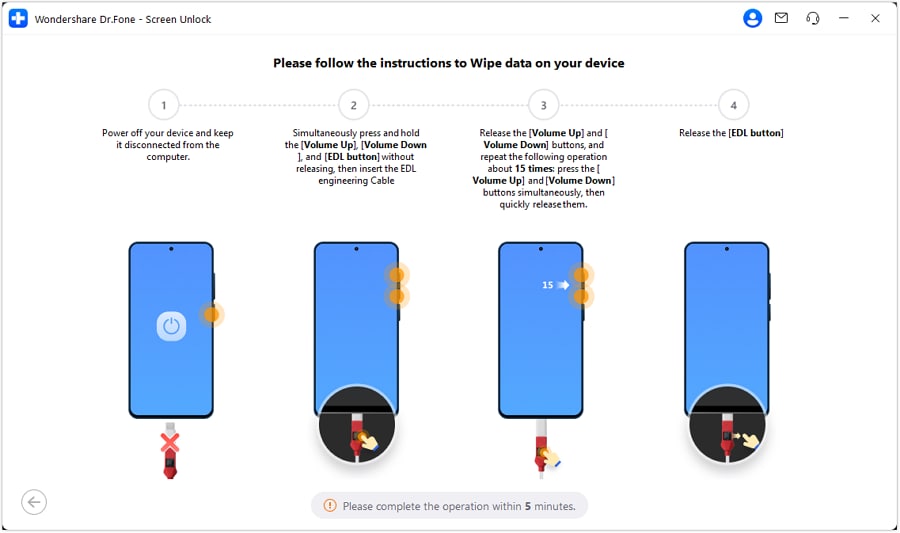
Step 4 Follow the on-screen instructions and Dr. Fone will automatically install the needed firmware for your phone.
-
Step 5 Select your exact Samsung model if the tool asks for it, then continue.
-
Step 6 Wait while Dr.Fone processes the FRP removal. Keep the phone connected during this step.
-
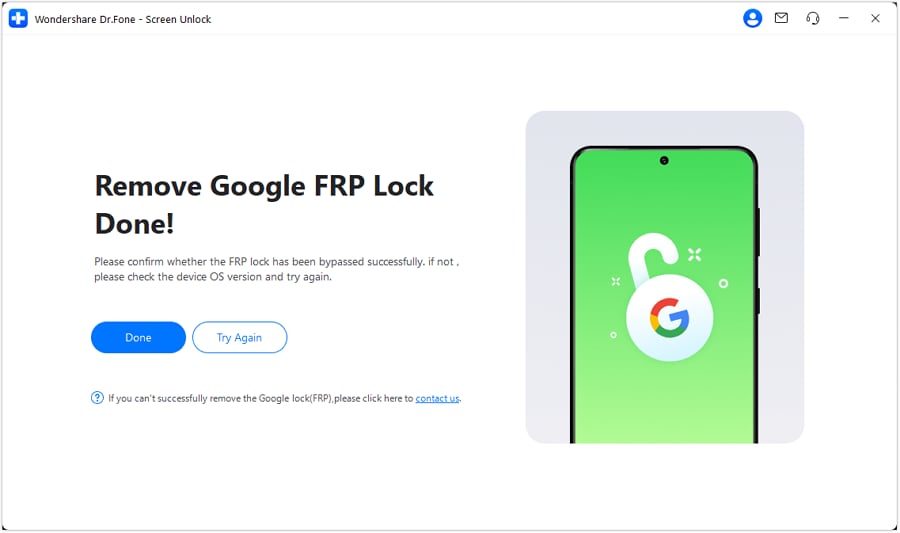
Step 7 When the process is complete, check your Samsung phone. If it works, click Done. If not, follow the retry option shown in the tool.
What are the model variants and their considerations?
Your Samsung model number matters because FRP tools often check the exact device variant, region, carrier build, and firmware path. For Samsung S25 FRP bypass, Samsung S24 Google lock, or Galaxy S25 FRP, do not choose a tool only by the phone name. Check the full SM model first.
| Model | What it usually means | Important note |
|---|---|---|
| SM-S928U | Galaxy S24 Ultra for the US market, often carrier-linked | Snapdragon 8 Gen 3 for Galaxy |
| SM-S928U1 | Galaxy S24 Ultra US unlocked model | Snapdragon 8 Gen 3 for Galaxy |
| SM-S928B/DS | Galaxy S24 Ultra international dual-SIM model | Snapdragon 8 Gen 3 for Galaxy |
Galaxy S25 Ultra Model Examples
For the Galaxy S25 Ultra, Samsung support pages list SM-S938B/DS as an international Galaxy S25 Ultra model. Samsung’s S25 Ultra product page also lists Snapdragon 8 Elite as the processor.
Common S25 Ultra model examples include:
| Model | What it usually means |
|---|---|
| SM-S938U | US Galaxy S25 Ultra variant |
| SM-S938U1 | US unlocked Galaxy S25 Ultra variant |
| SM-S938B/DS | International dual-SIM Galaxy S25 Ultra variant |
A brief model identification guide (how to check your exact Samsung S24/S25 model number in SM-XXXX format)
Before trying any third-party tool (Google account recovery, Samsung Find My Mobile sign-out), check your exact model number first. Samsung model numbers use an SM-XXXX format, such as SM-S928B/DS for some Galaxy S24 Ultra units or SM-S938B/DS for some Galaxy S25 Ultra units. Samsung’s own support pages list these model formats for the Galaxy S24 Ultra and Galaxy S25 Ultra.
Method 1: Check Through Settings
If you can access the phone, use Settings first.
- Open the Settings app.
- Tap About phone or About device.
- Check what is displayed on the screen.
- Take notes of the model number, IMEI and serial.
Samsung verified that the phone number, IMEI, model number, and serial number are shown on the About phone page.
Method 2: Check Through Samsung Members
Utilize this technique if your mobile was previously registered within Samsung Members.
- Access the Samsung Members application.
- Press Support
- Select My products.
- Hit the information icon beside your device.
- Verify the model, serial number, and IMEI.
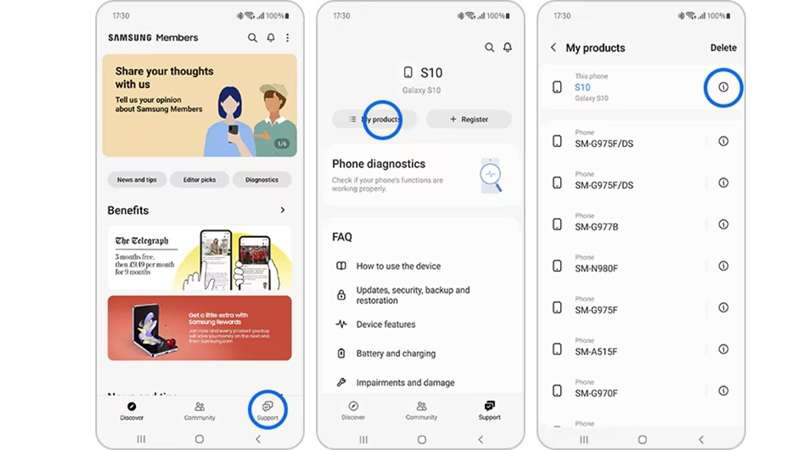
According to Samsung, registered items in Samsung Members can display the model, serial and IMEI of the phone.
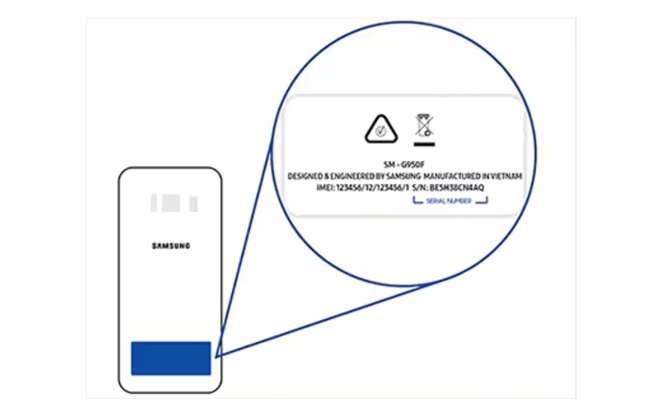
Method 3: Check the Original Box
Select this box when the phone is locked or ‘Settings’ cannot be opened. According to Samsung, the smartphone box has the IMEI and serial number above a barcode. The product label may also include the model code.
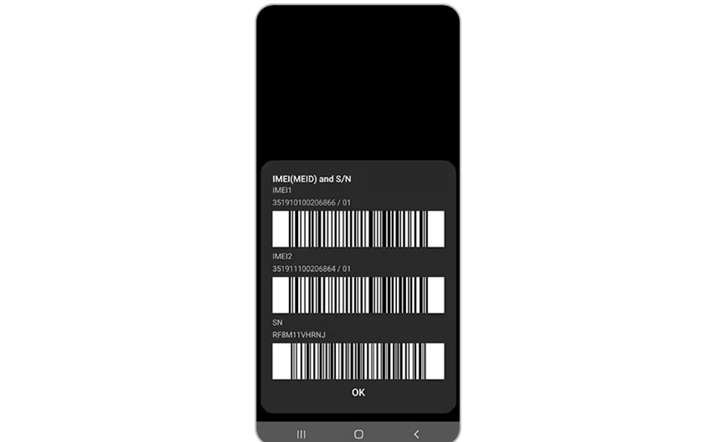
Method 4: Dial the IMEI Code
If the Phone app is available, use the dial code.
- Open the Phone application.
- Enter *#06# on your phone.
- Look over the IMEI and serial number on the screen.
Method 5: Check SmartThings Find
SmartThings Find could display your phone’s IMEI if it’s linked to your Samsung account.
- Revisit the SmartThings Find website.
- Log in using your Samsung account.
- Select the options menu next to your device.
- Select IMEI info.
- When prompted, insert the verification number.
- Access the IMEI shown on the interface.
Conclusion
FRP removal on Galaxy S24 and S25 needs a careful order. Google Account Recovery is best when you still know the linked Gmail. Find My Device helps only if it was enabled before the lock. Model checking is essential because FRP tools depend on the exact SM code, region, and firmware.
For cases where official routes fail, Dr.Fone Online Unlock offers a cleaner browser-based path for Samsung S25 FRP bypass without cables or APK files. Dr.Fone - Screen Unlock (Android) is better for tougher Snapdragon cases. For the Samsung S24 Google lock, the strongest plan is simple: recover first, verify the model, then use Dr.Fone when needed.
FAQ
-
1. Does FRP removal on S25 erase all data?
Yes, in practice, because FRP emerges after a factory reset, and factory resetting erases phone data. The Google verification lock will be removed with FRP removal, not previous data recovery. Google and Samsung both confirm factory reset deletes phone data. -
2. Which S25 variants are supported by bypass tools?
The exact SM model, area, Android version, and One UI version define the support. Common S25 types are SM-S931, SM-S936, and SM-S938 series. Dr.Fone claims compatibility with Samsung FRP solutions for recent Android variants, but users should first check their exact models. -
3. Can I use Samsung Find My Mobile to remove FRP remotely?
Not directly. SmartThings Find can locate, lock, or erase supported Samsung devices, but remote erase may still trigger Google verification after reset. It is not a guaranteed FRP removal method.