ChatGPT
 Perplexity
 Gemini
 Claude
 Grok
Grok
A Samsung phone stuck on Google verification can turn into a guessing game. Some users open YouTube and try a free shortcut. Others pay for a guided tool and hope it works. The problem is that both choices can look tempting at first. Free tools cost nothing, but they often depend on old loopholes. Paid tools cost money, but they usually offer cleaner steps, updates, support, and refund terms.
This FRP tool comparison breaks down free Samsung FRP bypass tools and premium options in plain words. You will see where free tools make sense, where they fail, and when paying for an FRP tool is the smarter move.
In this article
- Part 1. What FRP Means Before You Pick Any Tool
- Part 2. The Big Difference: Free Tools Use Shortcuts, Paid Tools Use Guided Steps
- Part 3. Free Samsung FRP Bypass Tools in 2026: What Still Exists?
- Part 4. Paid Samsung FRP Removal Tools: What You Pay For
- Part 5. What are the key risk factors of using free tools?
- Part 6. Free vs Paid Samsung FRP Tools: Side-by-Side Comparison
- Final Verdict: Paid vs Free FRP Tools
Part 1. What FRP Means Before You Pick Any Tool
FRP means Factory Reset Protection. It is not a normal screen lock. It is a Google security feature used on Android phones, including Samsung Galaxy devices.
When a Google account and screen lock are added to a Samsung phone, FRP turns on. After a reset, the phone may ask for the last Google account used on it. Without that account, setup may stop.
This is why free Samsung FRP bypass or paid removal methods should only be used on a phone you own or have legal permission to unlock.
A factory reset does not always remove FRP. In many cases, it triggers the lock.
Real owners may face FRP when:
- They forgot the old Google account.
- They bought a used Samsung phone that was not reset properly.
- They reset the phone from recovery mode.
- A family member gave them the phone, but did not remove the account.
- They changed the Google password and need to wait for the account sync.
Part 2. The Big Difference: Free Tools Use Shortcuts, Paid Tools Use Guided Steps
Free Samsung FRP tools often rely on old shortcuts. These may include:
- ADB access
- Test mode codes
- Setup wizard gaps
- APK sideloading
- Firmware flashing
These methods may work on older Samsung phones. But new Android security updates block many of them.
Paid tools work in a more guided way. They may:
- Detect your Samsung model
- Ask for the Android version
- Install needed drivers
- Start a supported unlock process
- Show step-by-step instructions
The main benefit is not just the unlock button. Paid tools often offer updates, support, refund options, and clearer device support.
Part 3. Free Samsung FRP Bypass Tools in 2026: What Still Exists?
Free tools are popular because users want a quick fix without paying. But “free” often comes with hidden costs: time, risk, and failed attempts.
1. SamFw FRP Tool: Still Popular, But Not Fully Free for Every Case
SamFw FRP Tool is a well-known Samsung utility used for FRP removal after a factory reset. It is popular because it offers a simple interface and can handle many basic Samsung unlock cases without cost.
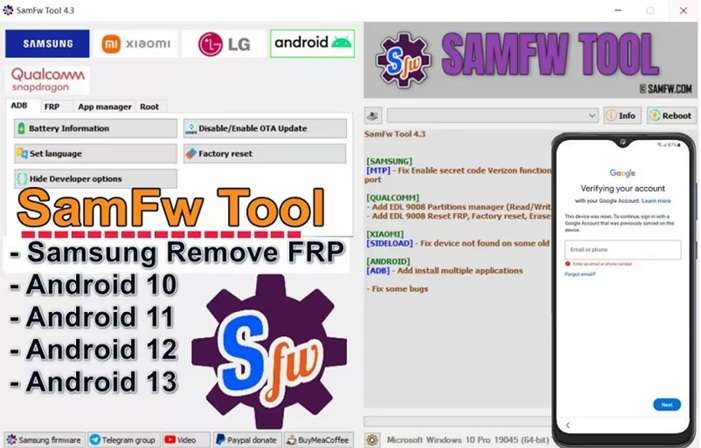
Features:
- One-click FRP removal on selected models
- Samsung factory reset and CSC change options
- Odin-related firmware support
- Windows 10 and Windows 11 support
Pros:
- Free for many standard FRP cases
- Beginner-friendly layout
- Useful extra Samsung service functions
- Updated from time to time
Cons:
- Limited official help if the process fails
- May need manual steps on some models
- Third-party use may affect warranty terms
- Wrong use can cause software errors
Pricing:
The main tool is free. More complex Samsung FRP cases may require paid server services.
Compatibility:
It may work with Samsung devices running Android 5 to Android 15, depending on the model and security patch.
Limitations:
It is less reliable on newer Samsung phones, especially Android 14, Android 15, and Android 16 models with recent security updates.
2. GSM Flasher ADB Bypass FRP: Old-School and Limited
GSM Flasher ADB Bypass FRP is an old Android utility that removes FRP through ADB mode. It sends commands to the phone when ADB access is available. It is often listed as a free Samsung FRP bypass option, but it is mostly useful for older Samsung phones and some other Android brands.
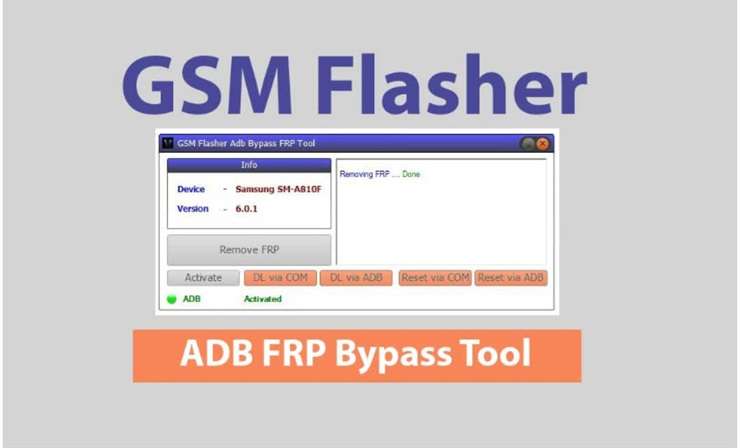
Features:
- Removes FRP through ADB commands
- Can help with screen lock removal on some versions
- Portable and lightweight tool
- May include bootloader or pattern lock options
Pros:
- Simple interface for basic users
- Does not need rooting or full firmware flashing
- Works quickly when ADB is already enabled
- Supports more than one Android brand
Cons:
- May trigger antivirus warnings
- Results are not stable on all devices
- Often downloaded from unofficial sources
- Not ideal for beginners with no ADB knowledge
Pricing:
GSM Flasher ADB Bypass FRP is usually available as a free tool.
Compatibility:
It works best on older Android phones where ADB mode can be accessed. It may support Samsung, HTC, LG, and selected Android devices.
Limitations:
It depends on ADB being enabled. New Android security patches often block this route, so it is not reliable for recent Samsung phones on Android 14, 15, or 16.
3. Pangu FRP Bypass: Once Famous, Now Unreliable for Modern Samsung Phones
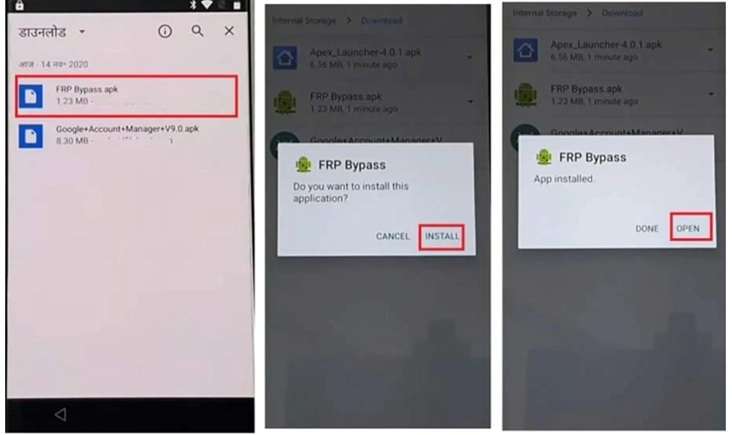
Pangu FRP Bypass is an APK-based Android FRP tool used to bypass Google account verification after a factory reset. It became popular because some versions can run directly on the locked phone without a PC. It is mainly useful for older Samsung models and legacy Android devices. In any FRP tool comparison, it fits better as an older-device option, not a modern Samsung solution.
Features:
- Uses APK or browser-based bypass routes
- Can remove the previous Google account verification
- Allows users to add a new Google account after accessing
- Works with or without a PC in selected cases
Pros:
- Free option for older Android phones
- Useful when a computer is not available
- Supports several legacy brands, including Samsung, LG, OPPO, Vivo, HTC, Lenovo, and Motorola
- Simple process when APK installation is allowed
Cons:
- Unstable on many patched devices
- No verified official support channel
- APK downloads may include malware if taken from unsafe sites
- Success depends heavily on the Android version and the setup wizard access
Pricing:
Pangu FRP Bypass is usually available as a free APK tool.
Compatibility:
It is mostly linked with older Android versions such as Android 5, 6, 7, 8, 9, and 10. Some sources claim support up to Android 11 or 12, but results vary by device, brand, and patch level.
Limitations:
Pangu is not suitable for most modern Samsung FRP cases. Newer Samsung phones on Android 14, Android 15, and Android 16 often block APK installation, browser tricks, and setup-screen shortcuts before verification.
4. Odin3: Useful for Firmware Work, Not a Simple FRP Remover
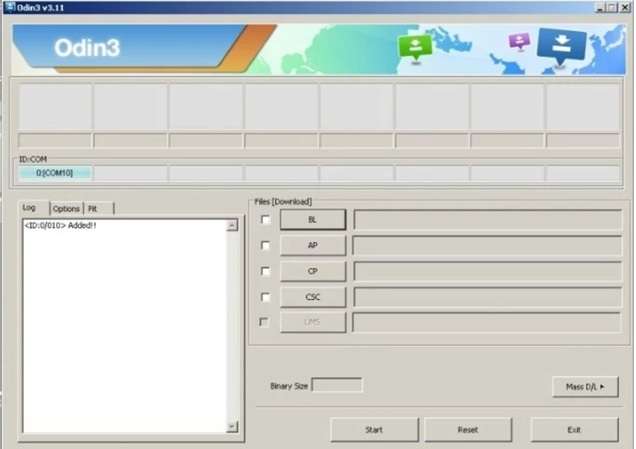
Odin3 is a Windows flashing tool used for Samsung firmware tasks. It is not a dedicated FRP remover, but some advanced users use it in older Samsung FRP cases. In a free Samsung FRP bypass list, it should be treated as a firmware method, not a simple unlock tool.
Features:
- Flashes official Samsung firmware files
- Supports firmware repair and manual updates
- Can install selected Samsung system packages
- Works with Download Mode on Samsung devices
Pros:
- Free to use
- Useful for firmware recovery
- Trusted by advanced Samsung users
- Helps fix some software-level issues
Cons:
- Not beginner-friendly
- Requires exact firmware matching
- Wrong use can soft-brick the phone
- No simple customer support for FRP cases
Pricing:
Odin3 is free.
Compatibility:
It is mainly used on Samsung devices through Windows. It works best on older models and firmware builds where flashing can still help with setup or repair issues.
Limitations:
Odin3 is not reliable for modern FRP removal. Newer Samsung phones on Android 14, 15, and 16 have a stronger bootloader and security checks. It is mostly effective for older Android versions, especially Android 9 or earlier, in some FRP-related cases.
Part 4. Paid Samsung FRP Removal Tools: What You Pay For
Paid tools are not just “free tools with a price tag.” The better ones offer updated device support, guided steps, drivers, technical support, and refund terms. This matters a lot for newer Samsung models.
1. Dr.Fone Online Unlock: The Top Paid Choice for One-Time Samsung FRP Removal
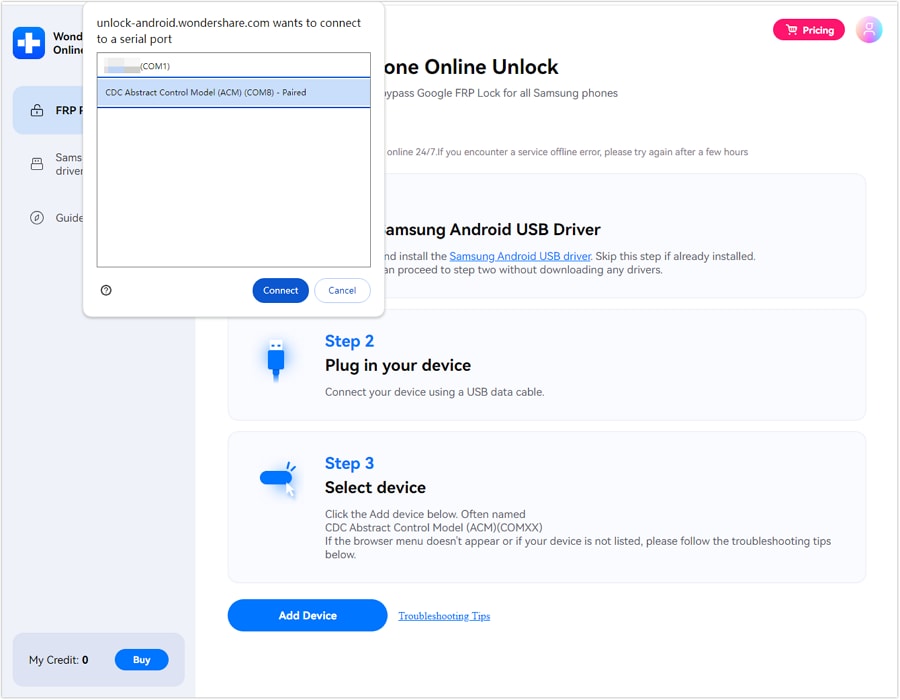
Dr.Fone Online Unlock by Wondershare is the strongest paid option for users who want a clean, browser-based Samsung FRP removal path. Wondershare claims Dr.Fone Online can remove Samsung FRP from all Samsung models and systems, supports Android 14/15/16/17, offers professional technical support, and gives a full refund if unlocking fails. The page also offers 100% money-back guarantee.
That refund point is important. Many paid tools ask users to pay first and then argue later. Dr.Fone Online Unlock is easier to justify because the promise is simple: if it does not work, users can get a full refund under the stated policy.
Key Features
- Version Compatibility: This app runs with all major versions of Android so far, including Android 16.
- One UI Support: It works with all the recent major One UI systems, from 5.0 to the latest 7 version.
- Safe Operation: Maintains data security and avoids software corruption during the entire process.
-
Step 1 Open the official DrFone Online Unlock platform in your browser. Sign in to the dashboard and select FRP Removal.
-
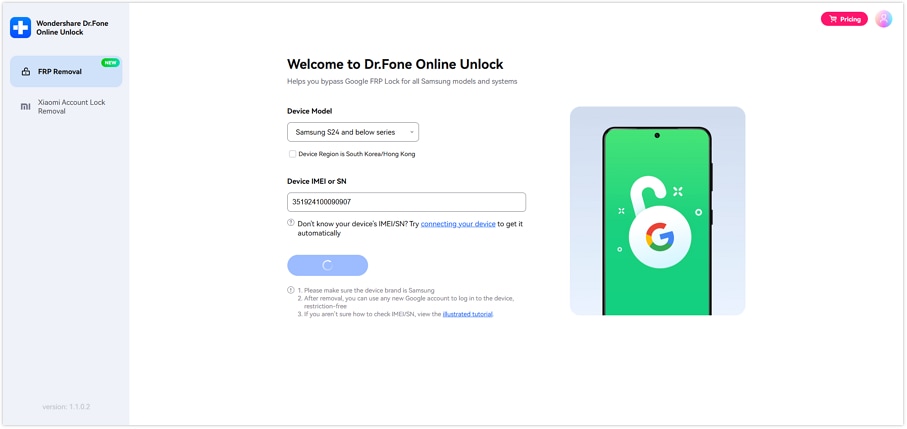
Step 2 Choose the mode for your Samsung devices. Then, you can type the device IMEI or serial number. You can obtain from the box, SIM tray, device label or plug to a PC for auto-detect.
-
Step 3 Verify the device info that is displayed on the screen. When every detail is correct, click Unlock and the FRP lock removal process will begin.
-
Step 4 Wait while your device is being unlocked via the internet by Dr.Fone. Cloud-based, the process simply follows the prompts on your screen.
-
Step 5 Once unlocked, do the Samsung setup steps on your phone and activate it.
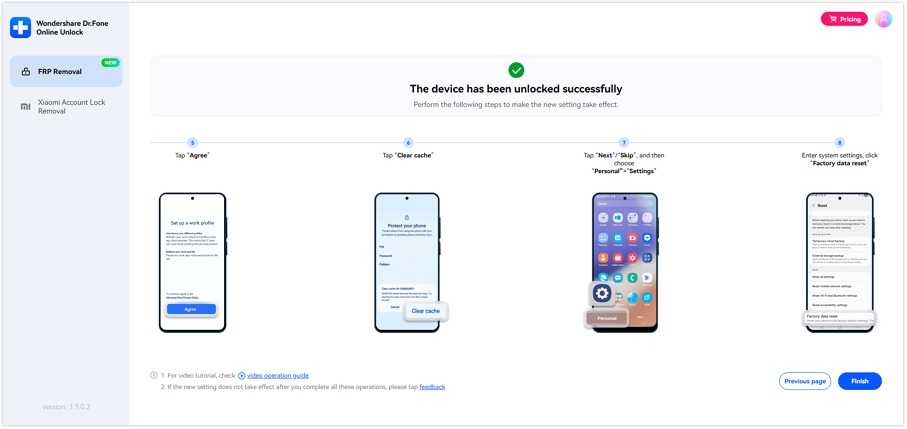
It is helpful for non-technical people who want a simplified Google account bypassing experience after a reset. This should only be used on a Samsung device that you own or have permission to unlock.
Pricing:
Dr.Fone Online Unlock is a paid Samsung FRP service. Its main page says plans start from US$0.99, but actual FRP pricing changes by device type and Android version.
2. Dr.Fone Desktop – Screen Unlock (Android): Best Value for Ongoing Use
Dr.Fone - Screen Unlock (Android) is better for users who may need more than one unlock-related feature. Wondershare says the desktop Screen Unlock tool can remove Android screen locks and bypass FRP. Its Android 16 Samsung guide shows a desktop process: open Dr.Fone, go to Screen Unlock, choose Android, select Remove Google FRP Lock, then follow the guided workflow.
This version makes sense if you manage devices, repair phones, handle family devices, or want a wider phone management toolkit. It may cost more than a single online unlock, but it gives better long-term value.
 Unlock Android phone in seconds.
- Remove PIN, pattern, password, fingerprint.
- Bypass Google FRP lock easily.
- Works on all Android brands & models.
- No tech skills required – user-friendly.

Features:
- Remove existing Android screen locks, including PIN, pattern, password, fingerprint & face lock.
- Samsung FRP bypass for users locked out after completing a reset
- Compatible with all major Android brands, including Samsung, Huawei, Xiaomi, OPPO, Vivo, LG Electronics Inc., OnePlus, Nokia, Moto, Lenovo, and Honor.
- Works with most Android smartphones & tablets. Includes 30 brands and more than 2000 models.
- On the official page, it supports new versions of Android, starting from Android 16. Allows FRP bypass for some Samsung Snapdragon devices & newer Samsung models mentioned in the page.
- Doesn’t involve any advanced technical skills and can suit users desirous of a guided desktop process.
Pricing:
Dr.Fone – Screen Unlock (Android) costs US$29.95/month, US$39.95/year, or US$49.95 one-time. Each plan supports 5 devices and 2 PCs. Monthly and annual plans auto-renew.
Compatibility:
Dr.Fone works with almost all iOS and Android devices, including the latest flagship ones. It supports Windows and also Mac operating systems, along with Android 15 and older versions, as well as iOS 17 and also older versions. It also supports Microsoft Windows 11/10/8/7 and Mac OS 10.15–12.
Limitations:
If Google updates the security patch to close the loopholes, Dr.Fone might temporarily stop bypassing the lock.
3. MagFone Android Unlocker: Simple Paid Unlocker With Trial and Refund Terms
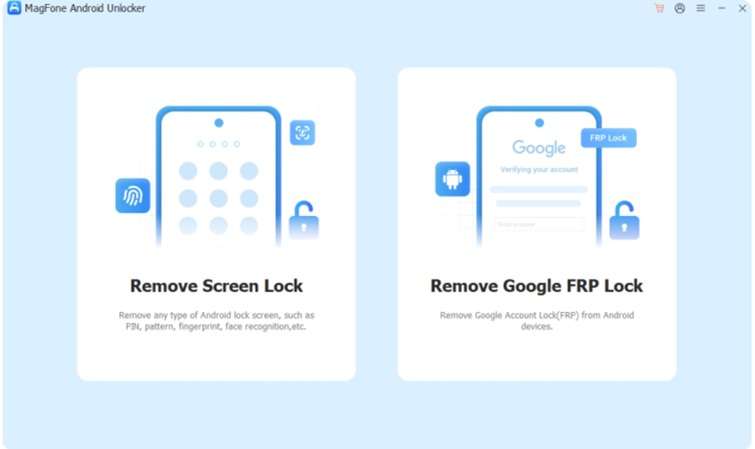
MagFone Android Unlocker is a paid Android unlock tool for FRP and screen locks. It gives step-by-step instructions, so users do not need advanced phone repair skills. In a paid vs free FRP tools comparison, it fits as a simple premium option for users who want fewer manual steps.
Features:
- Removes Google FRP lock on supported Android phones
- Unlocks PIN, pattern, fingerprint, and face lock in some cases
- Gives model-based on-screen instructions
- Works on Windows and macOS
Pros:
- Easy process for beginners
- Supports many Android brands
- Handles most steps through guided software
- Useful for both FRP and screen lock issues
Cons:
- Not free after trial limits
- Success may depend on the model and the security patch
- Requires a computer
- Refund terms should be checked before purchase
Pricing:
MagFone Android Unlocker costs US$29.95/month, US$39.95/year, or US$59.95 lifetime.
Compatibility:
It supports Android 5 to Android 16 on brands such as Samsung, Xiaomi, Vivo, Motorola, OPPO, Realme, and Redmi.
Limitations:
Not applicable for all devices and carrier versions. Security patches released in 2026 can also distort outcomes. Users must check model compatibility before purchasing.
4. iMobie AnyUnlock: Strong Android Toolkit, but Check the Exact Product
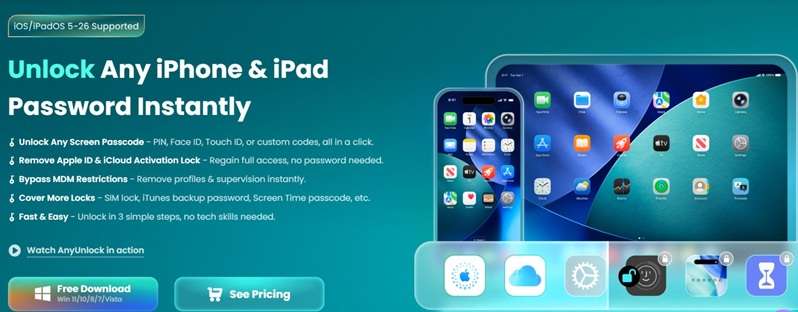
iMobie offers different unlock tools, so users must choose the right product. AnyUnlock is mainly for iPhone locks, Apple ID, SIM lock, and iCloud-related issues. For Samsung FRP, DroidKit is the most relevant Android tool in this FRP tool comparison.
Features:
- AnyUnlock removes iPhone screen passcodes
- Can help with Apple ID and SIM lock issues
- DroidKit is the Android-focused option for FRP tasks
- A free trial is available for checking basic access
Pros:
- Clean and easy interface
- Multiple unlock modules under one brand
- Useful for users managing both iOS and Android devices
- Paid plans are clearly listed
Cons:
- AnyUnlock is not a Samsung FRP tool
- Most key features need a paid license
- iCloud Activation Lock support has limits on newer iPhones
- Users may buy the wrong product if they do not check first
Pricing:
AnyUnlock pricing starts at US$35.99/month, US$39.99/year, or US$49.99 lifetime for 1 device.
Compatibility:
AnyUnlock supports iPhone, iPad, and iPod touch lock issues. For Samsung FRP removal, users should check iMobie DroidKit instead of AnyUnlock.
Limitations:
AnyUnlock should not be listed as a direct free Samsung FRP bypass tool. It is mainly an iOS unlock tool, while DroidKit is the product users should review for Android and Samsung FRP cases.
5. Tenorshare 4uKey for Android: Popular, Paid, and Easy to Use
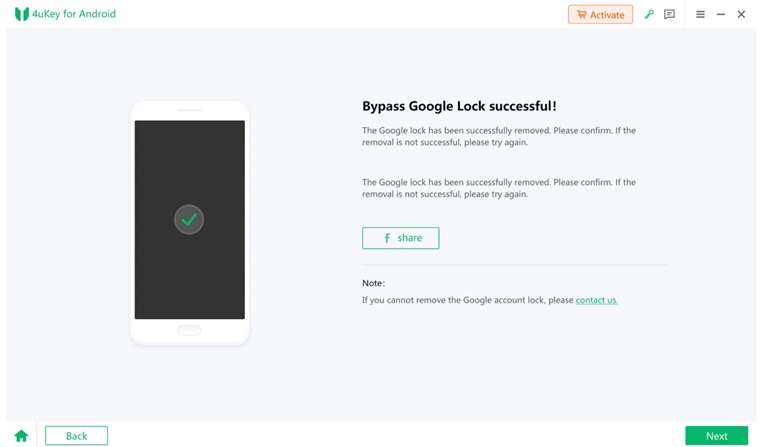
Tenorshare 4uKey for Android is a paid unlock tool for Android screen locks and Samsung FRP. It gives clear device-based steps and supports many popular Android brands. In a paid vs free FRP tools comparison, it fits users who want a guided tool but can follow some manual steps.
Features:
- Removes PIN, pattern, fingerprint, and face lock
- Bypasses Samsung FRP without the old Google account
- Supports FRP removal on several Android brands
- Works on Windows and macOS
Pros:
- Easy interface for normal users
- Covers both screen lock and FRP issues
- Supports many Samsung models
- Gives model-specific instructions
Cons:
- Some cases may need extra manual steps
- Newer 2026 devices may need version-based methods
- Unlock speed may vary by model
- Full features require a paid license
Pricing:
Tenorshare 4uKey for Android costs US$24.95/month, US$39.95/year, or US$49.95 lifetime.
Compatibility:
It supports Android 6 to Android 16 and works with Samsung, Xiaomi, Redmi, OPPO, Realme, OnePlus, Huawei, Vivo, and Motorola.
Limitations:
It might not run identically across all Android versions, carrier models, or security patches. Certain recent Samsung devices might require certain measures for FRP removal to complete.
Part 5. What are the key risk factors of using free tools?
While free programs may function on outdated Samsung handsets, they come with dangers for newer Android versions. Check These Points Before Using Any Samsung FRP Bypass Tool.
- The official downloaded versions of software you use will always be safe. But unofficially downloaded files can install viruses, malware, adware, bundled ads, and fake installers.
- No support: Most free tools offer no real customer help if the process fails.
- Low success on new Android: Android 14, 15, and 16 often block old ADB, APK, and setup-wizard tricks.
- Soft-brick risk: Wrong firmware, drivers, or flashing steps can damage the phone's software.
- No refund safety: Free tools have no money-back guarantee or recovery support.
Part 6. Free vs Paid Samsung FRP Tools: Side-by-Side Comparison
Free tools are better for older Samsung phones and low-risk cases. Paid tools make more sense for newer Android versions, support, and refund safety.
| Factor | Free Tools | Paid Tools |
|---|---|---|
| Tools covered | SamFw, GSM Flasher, Pangu, Odin3 | Dr.Fone Online Unlock, Dr.Fone Desktop, MagFone, DroidKit/AnyUnlock, 4uKey |
| Android version support | Better for older Android versions, mainly Android 5–12. Less reliable on Android 14/15/16. | Better support for newer Android versions, depending on the tool and model. |
| Samsung model range | Limited by model, carrier, security patch, and connection mode. | Wider model support, especially for newer Galaxy A, S, Z, Fold, and Flip models. |
| Safety level | Riskier if downloaded from unofficial sites. APK and cracked files may carry malware. | Safer when downloaded from official websites. Most offer secure checkout and support. |
| PC required | Usually yes. SamFw, GSM Flasher, and Odin need a PC. Pangu may work without a PC in old cases. | Usually, yes, for desktop tools. Dr.Fone Online Unlock is web-based. |
| Customer support | Very limited or none. Users depend on videos, forums, or guides. | Support is usually available through email, chat, tickets, or help pages. |
| Success rate | Unstable on newer Samsung phones. Better on old models and old patches. | Higher on supported devices, but still not guaranteed for every case. |
| Price | Mostly free. Some advanced SamFw cases may require paid server credits. | Paid plans usually start around US$24.95–US$59.95, based on license type. |
| Refund option | No refund or service protection. | Many tools offer refund policies or money-back terms. |
Final Verdict: Paid vs Free FRP Tools
The answer depends on your phone. Free tools are fine for older Samsung models and users with technical skills. But they are risky for newer phones. Paid tools are not perfect, but they offer a cleaner path, better support, and refund terms.
For 2026, the safest recommendation is this:
Start with official recovery. Try Google account recovery, contact the previous owner, or visit Samsung support with proof of purchase. If that fails, use a trusted paid tool instead of downloading unknown APKs. Dr.Fone Online Unlock is the top-paid choice for one-time Samsung FRP removal. Dr.Fone - Screen Unlock (Android) is better if you need ongoing value.




Conclusion
This FRP tool comparison shows that each option has a clear place. SamFw is useful for basic Samsung cases. GSM Flasher and Pangu fit older Android phones. Odin3 is better for firmware-skilled users, not casual unlocking. Free tools can help with old models, but they often fail on Android 14, 15, and 16.
In the paid vs free FRP tools choice, paid tools are stronger when support, safety, and refund terms matter. Dr.Fone Online Unlock stands out for one-time FRP removal, while Dr.Fone Desktop gives better long-term value for users who want a guided Samsung unlock tool.
FAQ
-
1. Are free FRP bypass tools safe to download?
Not always. Only download free tools from official sources to stay safe. APKs, cracked files, and mirror links may cause malware or adware on Android. The FTC advises that if it’s free, then it could be malware, so avoid unknown sites. -
2. Which is the best free Samsung FRP tool in 2026?
SamFw is one of the better free options for older Samsung phones because it is still active and focused on Samsung firmware/tools. But it is not guaranteed for every model. Newer Android 14/15/16 phones may need paid server or guided options instead. -
3. Is it worth paying for an FRP bypass tool?
Yes, if your Samsung phone is newer or if the free tools have failed. Paid tools provide steps and support, broader version coverage, and refund terms. Dr.Fone Online Unlock is a strong paid tool that lists Samsung FRP support for Android 14/15/16/17. Also, we will give you a full refund if the unlocking fails.