ChatGPT
 Perplexity
 Gemini
 Claude
 Grok
Grok
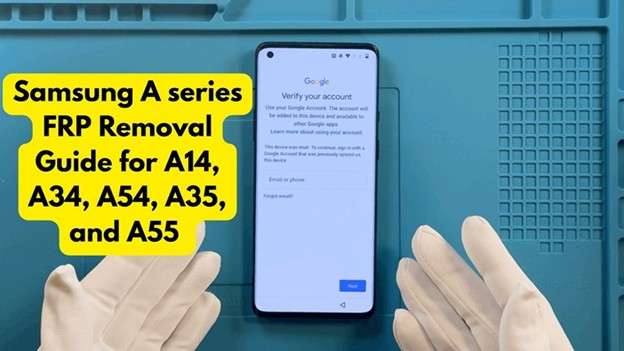
Samsung A series FRP lock often appears after a factory reset, especially on used Galaxy A14, A34, A54, A35, and A55 phones. These models are widely sold on the second-hand market, so many buyers receive devices that still carry the previous owner’s Google account. The phone may be genuine, but setup cannot continue until that account is verified. Newer Android and One UI updates also make old TalkBack, APK, and shortcut tricks less dependable.
This guide explains why FRP happens on A-Series phones, which models are affected, and which removal methods are practical today. It also compares online IMEI-based unlocking, desktop software, ADB, OTG/APK methods, and the safest route for Galaxy A54 FRP and Galaxy A34 FRP bypass cases.
In this article
- Part 1. Why is the Samsung A-Series especially prone to FRP lock issues?
- Part 2. A-Series Models Covered in This Guide
- Part 3. Before Any FRP Method: Try the Official Route First
- Part 4. Does TalkBack FRP Bypass Still Work on Samsung A-Series?
- Part 5. MTK vs Exynos vs Qualcomm: Why Chipset Matters
- Part 6. Best Method by Situation
Why is the Samsung A-Series especially prone to FRP lock issues?
The Samsung A-Series is not weaker than premium Galaxy phones. The issue is volume. A14, A25, A34, A35, A54, and A55 models are sold in huge numbers and often resold. That makes Samsung A series FRP a common problem for second-hand buyers.
- Heavy resale activity: A-Series phones are popular budget and mid-range devices. Many are sold, traded, or gifted. If the old Google account is not removed before resetting, the new user may get stuck at verification.
- Hard reset triggers FRP: Many users reset the phone with hardware buttons after forgetting the screen lock. Android treats this as an untrusted reset. This often leads to Galaxy A54 FRP or A14 FRP lock after setup restarts.
- Knox and security updates block shortcuts: The device is protected by Samsung Knox and is frequently updated with security patches. That is why a Galaxy A34 FRP bypass trick may work on one firmware but fail on another.
- Failed updates can cause lock checks: A broken system update may also trigger verification. The phone may treat the failed update as a security risk and ask for the previous Google account.
A-Series Models Covered in This Guide
Samsung A-Series phones do not all run the same Android build. A Galaxy A14, A34, A54, A35, or A55 may show a different version depending on region, carrier, and update history. That matters because Samsung A series FRP methods can change after each Android and One UI security update.
| Samsung A-Series Model | Original Android Version | Current Update Status to Check | Why It Matters for FRP |
|---|---|---|---|
| Galaxy A14 / A14 5G | Android 13 | Many units may now run Android 14 or Android 15, depending on variant and region | Older A14 builds may allow more methods, while newer patches block shortcuts. |
| Galaxy A34 5G | Android 13 | Many units have received Android 14 or Android 15 updates | A Galaxy A34 FRP bypass method may change after a major update. |
| Galaxy A54 5G | Android 13 | Many units have received Android 14 or Android 15 updates; some regions may move further | Galaxy A54 FRP cases depend heavily on the installed firmware and patch level. |
| Galaxy A35 5G | Android 14 | Many units have received Android 15 updates | Newer software reduces the success of old TalkBack and APK tricks. |
| Galaxy A55 5G | Android 14 | Many units have received Android 15 updates; newer updates may vary by market | Do not treat A55 as an Android 15 launch phone. It launched with Android 14. |
Before Any FRP Method: Try the Official Route First
Before using any tool, try the cleanest path.
-
1 Enter the original Google account
Use the Google account that was on the phone before the reset. This is the safest method. It does not need extra tools.
-
2 Ask the previous owner to remove the account
For a used phone, ask the seller to remove the device from their Google account. They should also remove the phone from Samsung account services if linked.
-
3 Wait if the password was recently changed
If you reset your Google password, wait before trying again. Google may block immediate setup for security reasons.
-
4 Use Samsung account tools for screen lock cases
If your issue is only a forgotten PIN, Samsung’s SmartThings Find or remote unlock options may help, but they must be enabled before the lockout. Samsung also states that a factory reset can erase data if no remote unlock method is available.

Method 1. Remove Samsung A-Series FRP with Dr.Fone Online Unlock
This is the best fit for many A-Series users because it does not need complex commands, APK tricks, or a PC connection. Dr.Fone Online Unlock says its Samsung FRP unlock process can work without connecting the phone to a computer and uses the IMEI number instead.
This matters because many A-Series buyers are not technicians. They bought a second-hand Galaxy A14, A34, or A54 and only want the phone to start normally.
If you just picked up a Galaxy A54 and the previous owner’s account is blocking access, you do not need to act like a phone repair expert. A no-PC IMEI-based route is usually the simplest option to check first.
- Used Galaxy A14, buyers
- Galaxy A54 FRP lock after reset
- Galaxy A34 FRP bypass cases where manual tricks fail
- Users with no PC
- Users who want a guided process
- Non-technical users
-
Step 1 Open the official DrFone Online Unlock platform in your browser. Sign in to the dashboard and select FRP Removal.
-
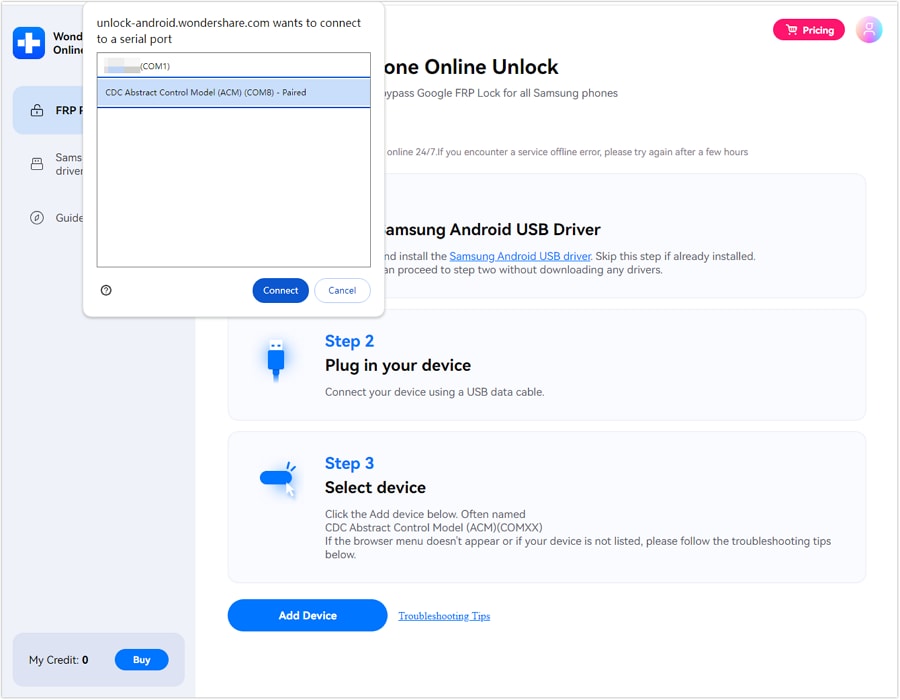
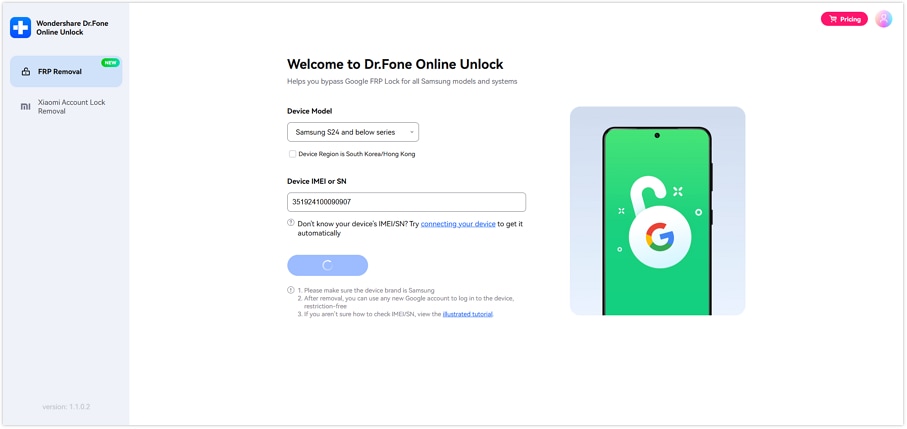
Step 2 Choose the mode for your Samsung devices. Then, you can type the device IMEI or serial number. You can obtain from the box, SIM tray, device label, or plug to a PC for auto-detect.
-
Step 3 Verify the device info that is displayed on the screen. When every detail is correct, click Unlock and the FRP lock removal process will begin.
-
Step 4 Wait while your device is being unlocked via the internet by Dr.Fone. In the cloud, the process simply follows the prompts on your screen.
-
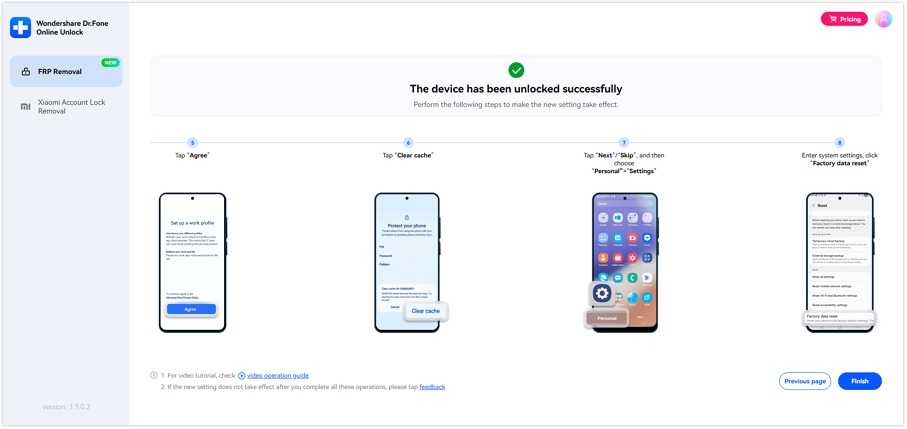
Step 5 Once unlocked, do the Samsung setup steps on your phone and activate it.
Method 2. Use Dr.Fone Desktop – Screen Unlock (Android)
Dr.Fone - Screen Unlock (Android) is a better choice when the issue is not only FRP. Some users face two problems at once:
- The phone has a forgotten PIN, pattern, or password.
- After reset, the phone also asks for Google verification.
Wondershare’s Screen Unlock page presents the desktop tool as an Android screen lock removal option and also points users toward Samsung FRP unlocking options.
- Forgotten screen lock
- Pattern or PIN lock
- FRP plus screen lock cases
- Users who have access to a PC
- Users who want a guided desktop workflow
 Unlock Android phone in seconds.
- Remove PIN, pattern, password, fingerprint.
- Bypass Google FRP lock easily.
- Works on all Android brands & models.
- No tech skills required – user-friendly.

-
1 Download and set up Dr. Fone - screen unlock on your PC. Link your Samsung device to the PC via USB.
-
2 Navigate to the toolbox, select the screen unlock option and click on Android.
-
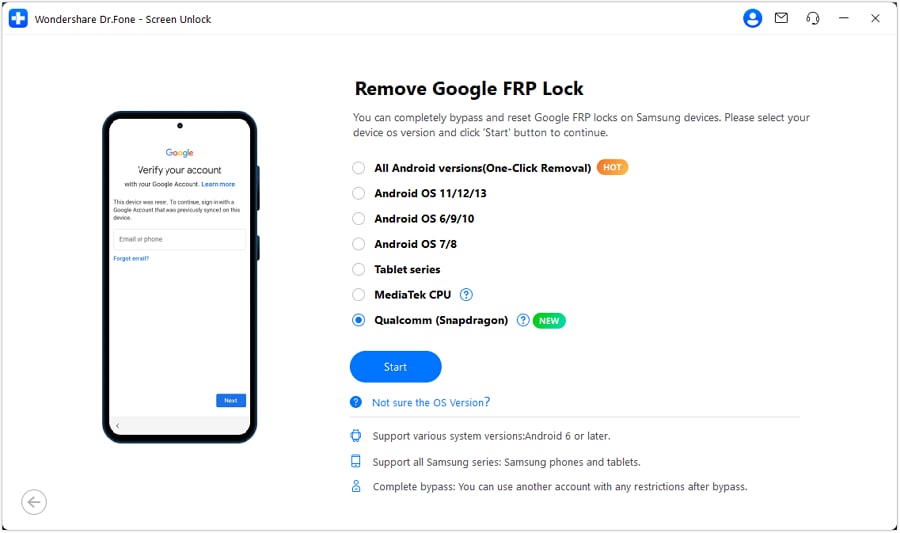
3 Select ‘’remove Google FRP lock option, then choose Qualcomm for your Samsung mobile. Click ‘’start’’ button.

-
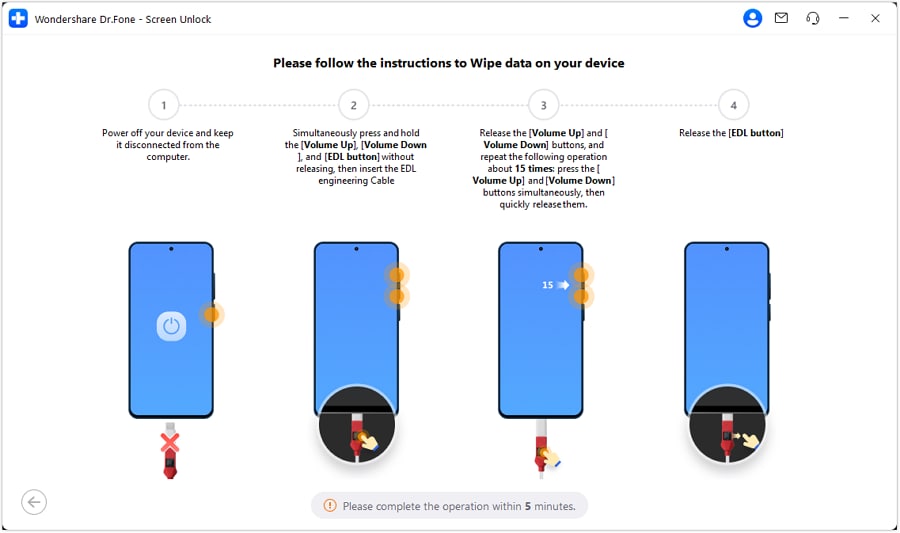
4 Do follow the on-screen instructions and Dr. Fone will automatically install the needed firmware for your phone.
-
5 Select your exact Samsung model if the tool asks for it, then continue.
-
6 Wait while Dr.Fone processes the FRP removal. Keep the phone connected during this step.
-
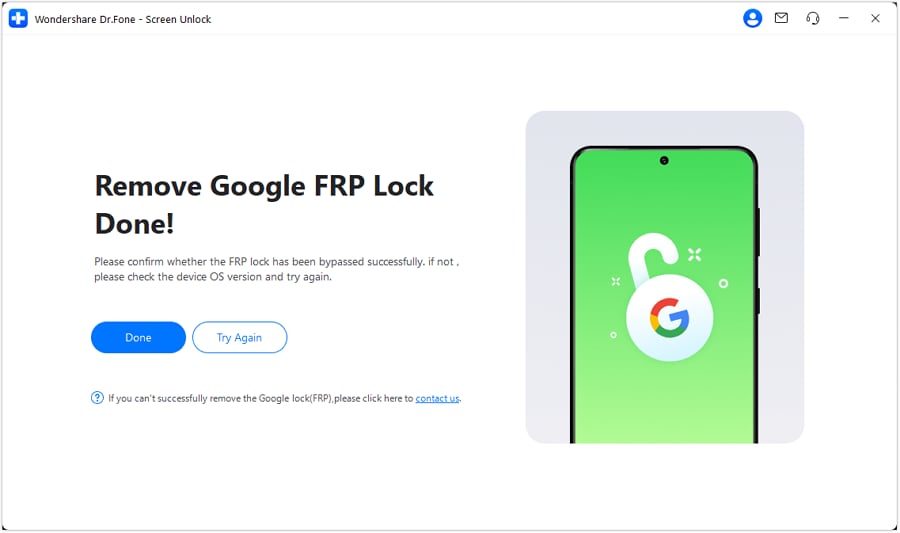
7 When the process is complete, check your Samsung phone. If it works, click Done. If not, follow the retry option shown in the tool.




Method 3. ADB Bypass via PC — Only Works in Limited Cases
Numerous older FRP guides reference ADB, but it is more complicated than this for Samsung A-Series phone owners. ADB refers to Android Debug Bridge. It is a PC-based command tool that lets a computer communicate with an Android device for testing, debugging, app installation, and system-level tasks.
For Samsung A series FRP, ADB only works in very limited situations.
-
Step 1 Download ADB on PC
Download the ADB setup file on your Windows computer. Open the file and run adb.setup.exe.
-
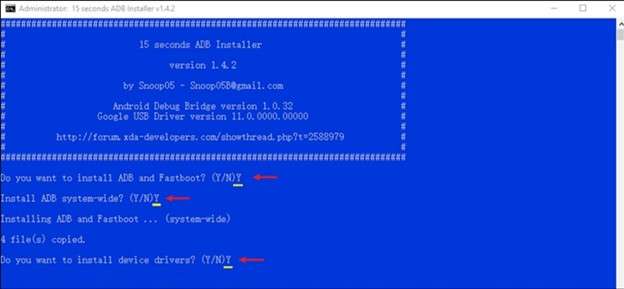
Step 2 Install ADB
When the setup window appears, type Y and press Enter. Repeat this three times when asked to install ADB, Fastboot, and drivers.
-
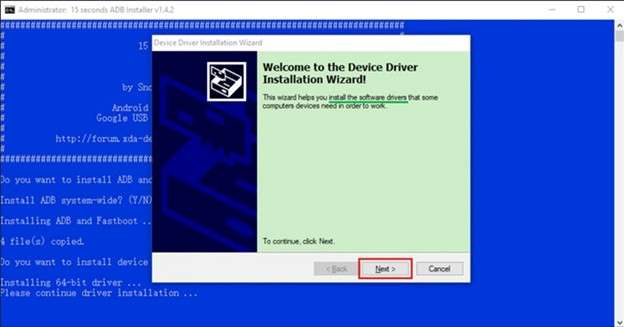
Step 3 Get the Device Driver Installed
Install the phone driver from the instructions displayed on screen. Allow the driver setup procedure to finish.
-
Step 4 Connect Your Samsung Phone
Using a USB cable, connect your Galaxy phone to the PC. Enable USB debugging first on your device.
-
Step 5 Open Command Window
Go to the ADB installation folder. Hold Shift, right-click on a blank area, and select Open Command Window Here.
-
Step 6 Enter ADB Commands
Type the required ADB commands one by one. Press Enter after each command line. These commands are usually used to open the Google login activity or mark setup as complete.
For Samsung phones:
- adb shell am start -n com.google.android.gsf.login/
- adb shell am start -n com.google.android.gsf.login.LoginActivity
- adb shell content insert --uri content://settings/secure --bind name:s:user_setup_complete --bind value:s:1
🤔 Why does it often fail on A-Series phones?
Most Samsung Galaxy A series users face Google Account Verification after a factory reset or hard reset. At that point, USB debugging is usually disabled. The setup screen also blocks access to many internal settings. That is why ADB is rarely useful for normal Galaxy A54 FRP cases.
Method 4. OTG + APK Method — Mostly for Older Builds
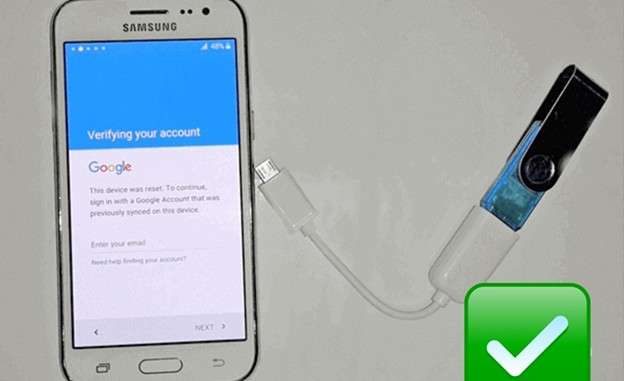
The OTG + APK method is an old Samsung FRP route. Older Android Lollipop devices will mainly see this issue (5.0/5.1). The method isn’t a reliable fix for things like Galaxy A34, A54, and Galaxy A35 or A55 because of the recent Android and One UI updates blocking many APK-based shortcuts.
-
Step 1 To start with, download the Samsung FRP bypass APK file on your computer or laptop.
-
Step 2 Copy the APK file and paste it on a USB flash drive.
-
Step 3 Plug the flash drive into the Samsung phone using an OTG cable.
-
Step 4 You will see File Manager on your device. Go to its USB storage and choose the APK file.
-
Step 5 Set up the application on the device. Install an unknown source only when you trust the file.
-
Step 6 After installation, the APK may allow access to Android Settings.
-
Step 7 Choose Backup and reset and after that Factory data reset and click on Reset device or Erase Everything.
-
Step 8 After resetting your device, reboot the phone and complete the setup with your own Google account.
Does TalkBack FRP Bypass Still Work on Samsung A-Series?
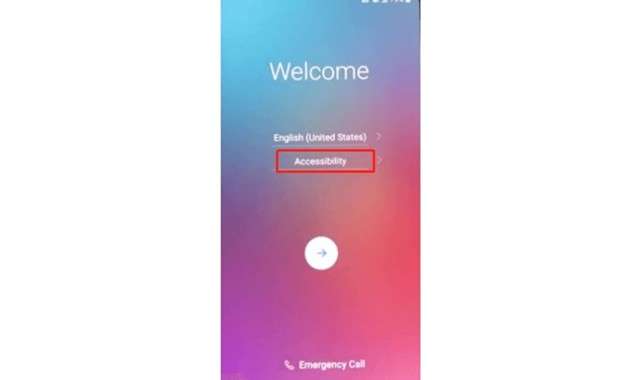
The TalkBack bypass no longer works for modern Samsung A-Series phones. On certain earlier versions of Android, accessibility shortcuts could, for example, open hidden menus, browsers, and settings from setup. Many of those routes have now been blocked by newer Android One UI updates.
| Samsung A-Series Model | TalkBack Bypass Status | What It Means |
|---|---|---|
| Galaxy A14 / A14 5G | Low chance of updated builds | May only work on older firmware. Newer patches often block it. |
| Galaxy A34 5G | Not reliable | A Galaxy A34 FRP bypass using TalkBack may fail after Android 14 or Android 15 updates. |
| Galaxy A54 5G | Not reliable | Galaxy A54 FRP cases usually need a more stable method than TalkBack tricks. |
| Galaxy A35 5G | Very unlikely | It launched with newer Android/One UI security, so old accessibility routes are mostly closed. |
| Galaxy A55 5G | Very unlikely | Newer firmware makes TalkBack-based FRP methods poor choices. |
MTK vs Exynos vs Qualcomm: Why Chipset Matters
Samsung A-series phone models use different chipsets, which is why FRP tool support is different. Specific drivers, connection modes, or unlock paths are needed.
| Model | Common Chipset | Why It Matters for FRP |
|---|---|---|
| Galaxy A14 / A14 5G | Varies by variant and region | Some variants use MediaTek, while others use Exynos. Tool support should be checked for the exact model number. |
| Galaxy A25 5G | Exynos 1280 | Needs Exynos-compatible drivers or tool flow. |
| Galaxy A34 5G | MediaTek Dimensity 1080 | MTK-based tools may follow a different path than Exynos models. |
| Galaxy A54 5G | Exynos 1380 | Galaxy A54 FRP support should be checked under Exynos-compatible methods. |
| Galaxy A35 5G | Exynos 1380 | Newer firmware matters more than the chipset alone. |
| Galaxy A55 5G | Exynos 1480 | Newer chipsets and software make old manual methods less useful. |
Best Method by Situation
For most A-Series users, the safest order is: original Google account, Google recovery, then a guided unlock method. ADB and OTG/APK should remain limited options because they rely on older firmware, USB debugging, or outdated Android builds.
| User Situation | Best Method | Reliability | Best For |
|---|---|---|---|
| You know the old Google account | Google account verification | Very High | Original owners |
| You forgot the Google password, but still own the account | Google Account Recovery | High | Genuine owners |
| You bought a used A14, A34, or A54 with unknown Google account | Dr.Fone Online Unlock | High | Second-hand buyers |
| You need a no-PC Samsung A series FRP removal | Dr.Fone Online Unlock | High | Non-technical users |
| You need Galaxy A54 FRP removal on newer firmware | IMEI-based online unlock | High | Updated A54 units |
| You need Galaxy A34 FRP bypass on an MTK model | Online unlock or MTK-compatible tool | Medium–High | A34 users |
| You forgot the screen PIN/pattern, too | Dr.Fone Desktop – Screen Unlock | High | FRP + screen lock cases |
| USB debugging was enabled before the reset | ADB via PC | Low–Medium | Advanced users |
| Phone runs very old Android 5.0/5.1 | OTG + APK method | Low–Medium | Legacy Samsung phones |
| Phone is A35 or A55 on the latest updates | Guided online/desktop tool | High | Newer A-Series models |
Conclusion
Samsung A-Series FRP removal works best when the method matches the phone’s real condition. Google verification is the cleanest route for original owners. ADB only makes sense when USB debugging is already active. OTG/APK belongs mostly to older Android builds, while TalkBack is no longer dependent on updated A-Series firmware.
For second-hand buyers stuck after reset, Dr.Fone Online Unlock fits better because it avoids risky shortcuts and works through a simpler IMEI-based process. For users with both FRP and screen lock issues, Dr.Fone Desktop is a stronger backup. That makes Dr.Fone a practical choice for modern Samsung A-series FRP and Galaxy A54 FRP cases.
FAQ
-
1. Can I bypass FRP on Galaxy A54 without a computer?
Yes, if a supported online service is available for your exact model. Samsung FRP normally requires the previously synced Google account after reset. Dr.Fone Online Unlock can help with no-PC, IMEI-based Galaxy A54 FRP removal. -
2. Does the A14 FRP bypass method work on A34?
Not always. The chipsets, Android versions, firmware, and security patch may differ on the Galaxy A14 and A34. Just because a method works on A14 doesn’t mean it would work on Galaxy A34 FRP bypass cases. Always check the exact model first. -
3. Will my data be deleted when removing FRP on Samsung A-Series?
Usually, yes. FRP appears after a factory reset, so local phone data is normally already erased. Cloud backups may be restored after setup. Dr.Fone can help remove access barriers, but it cannot restore data erased by reset.