

How To Bypass FRP on Samsung Phones and Tablets Online?
Stuck on the Google Account Verification screen after a factory reset your Samsung device? Whether you've forgotten your Google credentials, purchased a second-hand phone that's still locked, or simply need to regain access to your own device, Factory Reset Protection (FRP) can leave you completely locked out.
With the Dr.Fone Online Unlock platform, you can remove the Google account lock remotely through a cloud-based process — no complicated APK tricks, no risky manual exploits. Simply provide your device's IMEI or serial number, and let the system handle the FRP removal automatically in the cloud.
This guide walks you through how to bypass Samsung FRP online step by step — quickly, safely, and without needing the original Google account.
Device Compatibility
- Compatible Models: All Samsung phones and tablets, including Galaxy A/M/F/S/Z/Fold/Flip models and the latest Galaxy S26 series.
- Supported Android Versions: Android 15, Android 16, Android 17 Beta and earlier.
Online FRP Unlock, Fast and Secure
Step-by-Step Guide to Using Samsung FRP Bypass Online
Open your browser and head over to the official Dr.Fone Online Unlock . On the main screen, click “FRP Removal” to start the unlocking process.
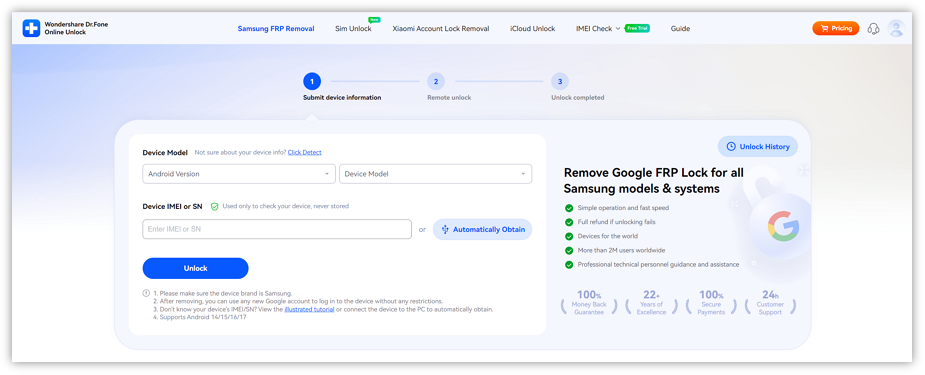
Select the correct Samsung model from the available options, then enter your device's IMEI or Serial Number (SN) for identification. Not sure where to find your IMEI or SN? Try one of the methods below:
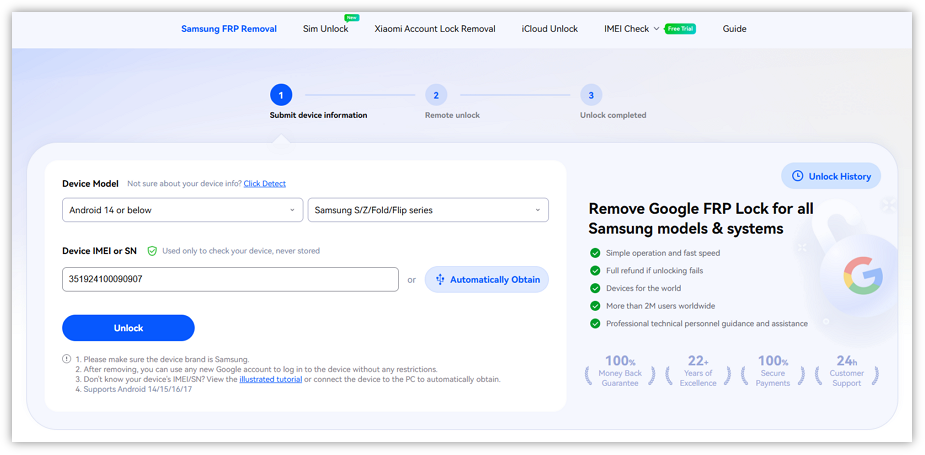
2.1 Manual Lookup for IMEI or SN
- Method 1: Find it in your phone settings Please open the dial pad and type *#06# to display the IMEI or SN.
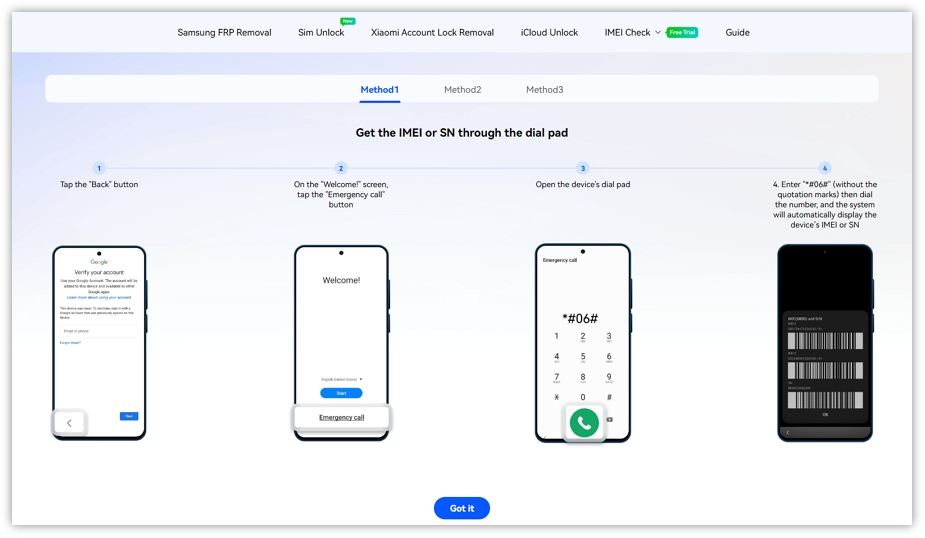
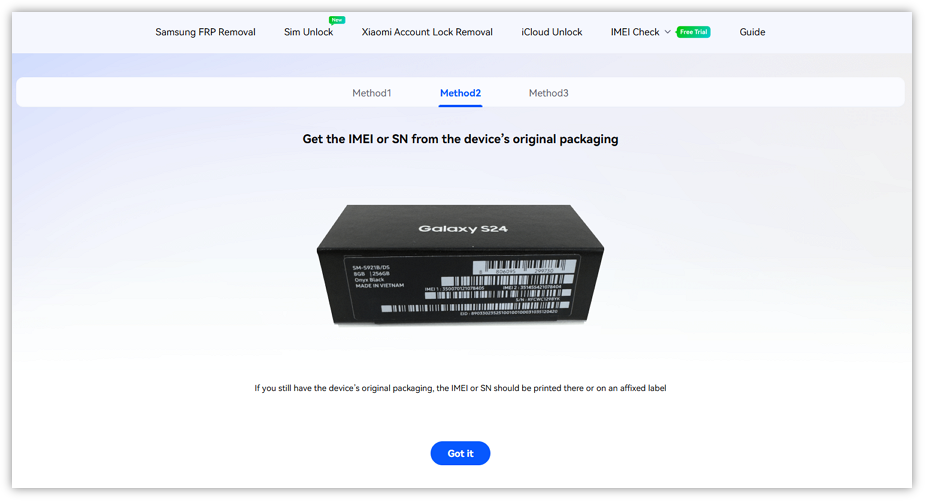
- Method 2: Check the Original Packaging Your IMEI and SN are usually printed on a barcode label,plese check the original box your device came in.
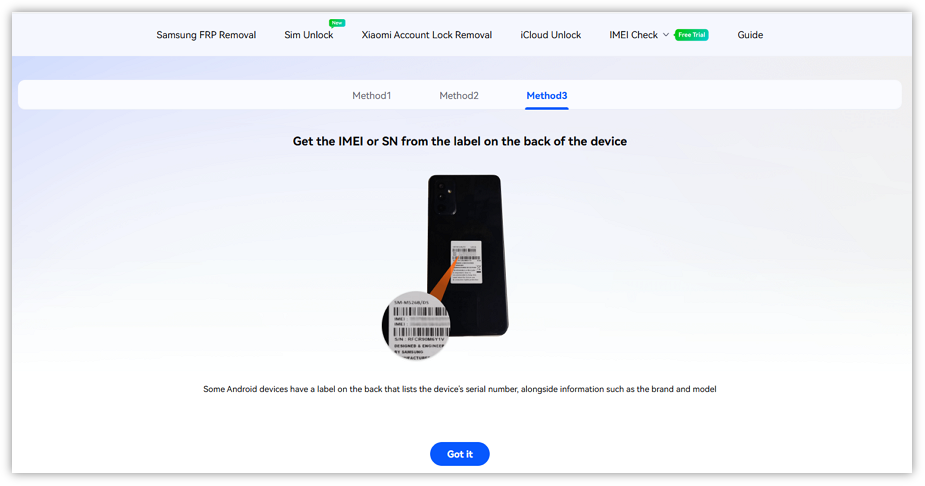
- Method 3: Inspect the Device Back or SIM Tray IMEI or SN also can be found on a sticker at the back of some Samsung devices, or tucked inside on the SIM card tray.
2.2 Auto-Detect IMEI or SN
For quicker and more precise detection, hook your device up to a computer:
- Step 1: Install the Samsung Android USB Driver on your computer.
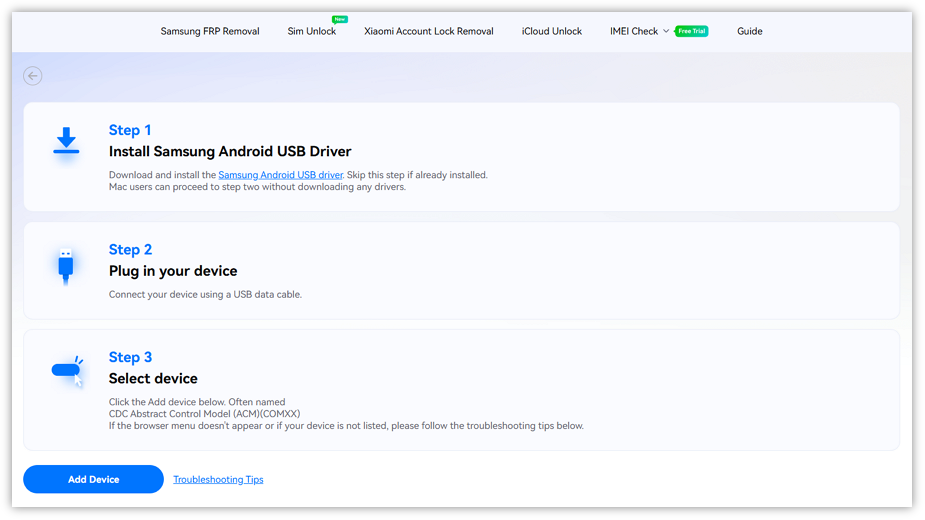
- Step 2: Plug your device into the computer with a USB cable. A connection window will appear.
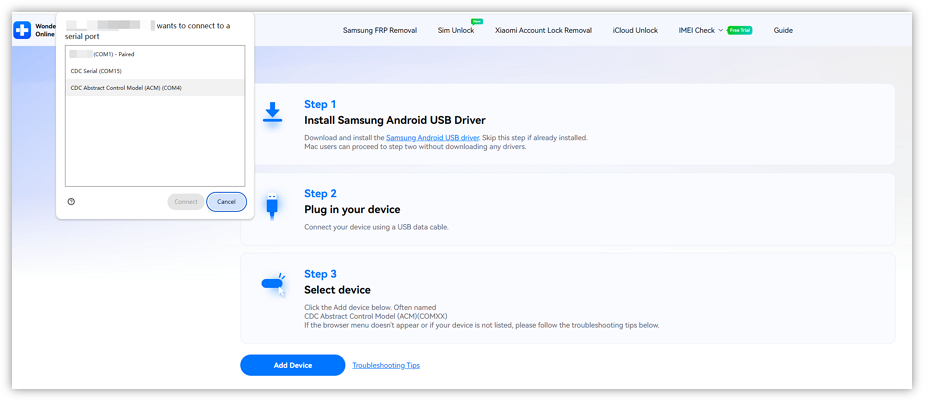
- Step 3: Pick your device from the list using the suggested naming format, then click "Connect". The system will read your device info — please wait a moment.
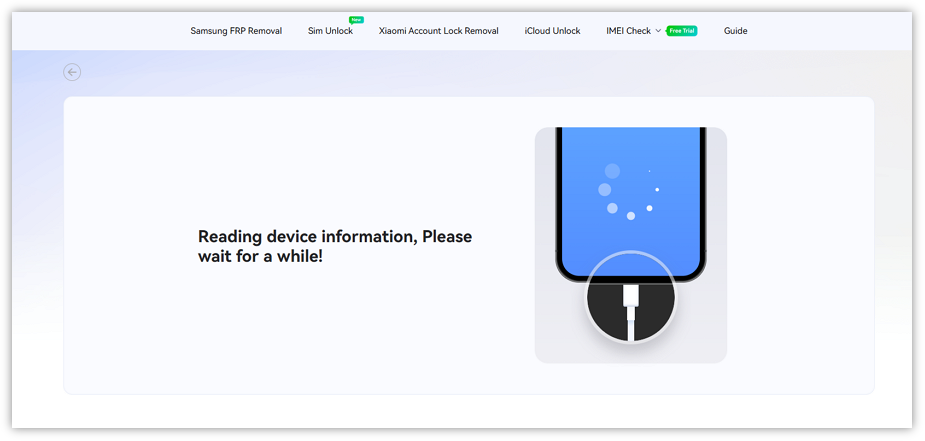
- Step 4: The system will auto-detect and populate your device's IMEI or SN.
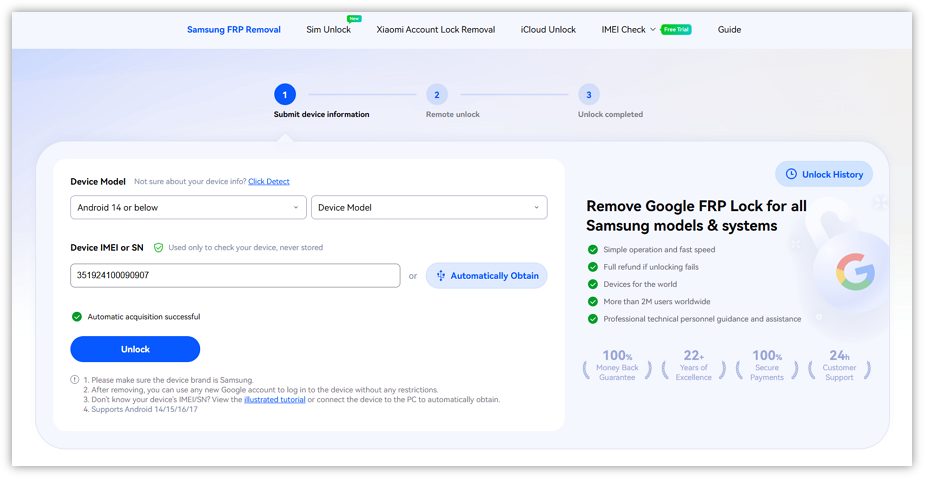
Once your device information is confirmed, click the "Unlock" button to initiate the FRP removal process. The unlock will be performed automatically in the cloud — no further action is required on your part.
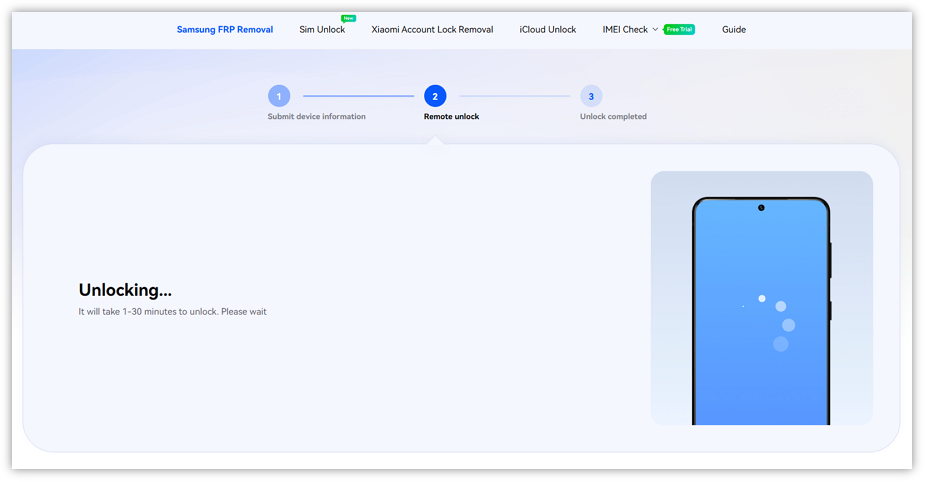
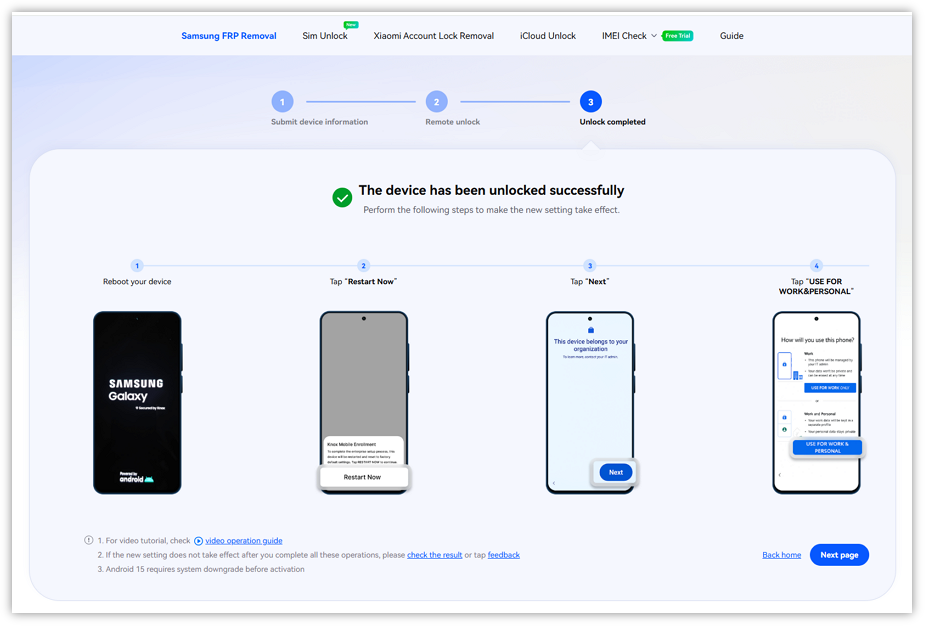
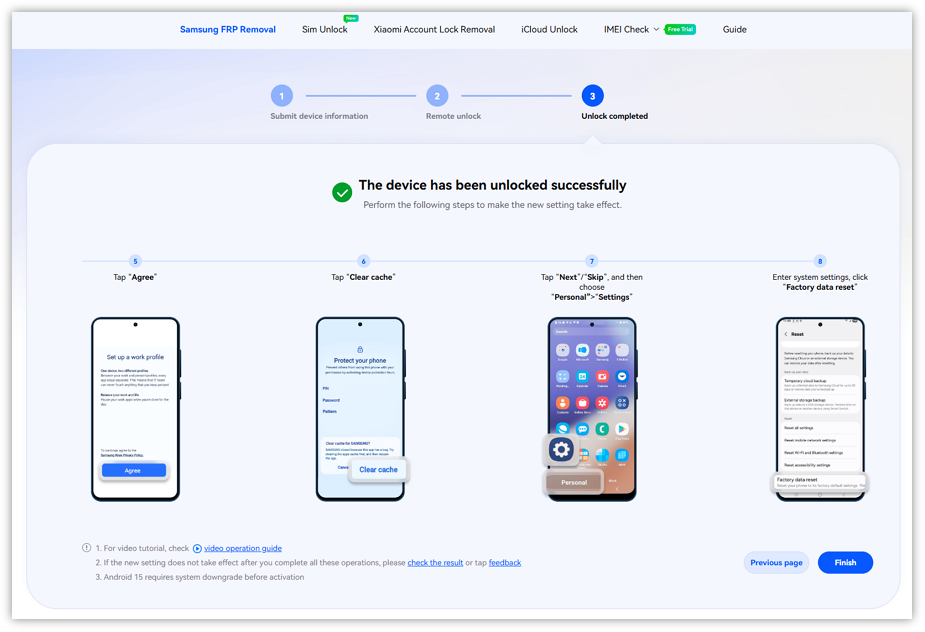
Once the system verifies that the FRP lock has been cleared, simply follow the prompts to finish setting up your device. Your Samsung phone or tablet is now ready to configure with a new Google account.
WHAT YOU'LL NEED
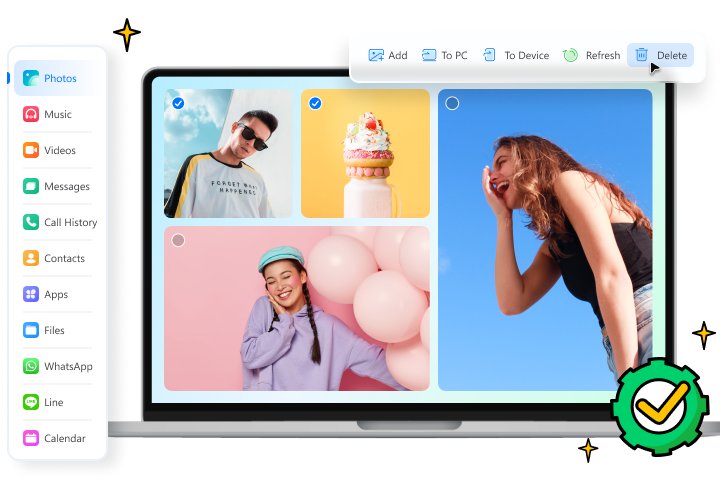
Dr.Fone provides a complete set of tools for solving all iOS/Android phone problems.
Frequent Asked Quesitons about Samsung FRP Bypass
 How long does the FRP unlock process take?Do I need the original Google account to bypass FRP on Motorola?What exactly is FRP lock on a Motorola phone?How many times can I use this FRP bypass service on the same device?Is a computer needed to use this online FRP bypass service?