ChatGPT
 Perplexity
 Gemini
 Claude
 Grok
Grok
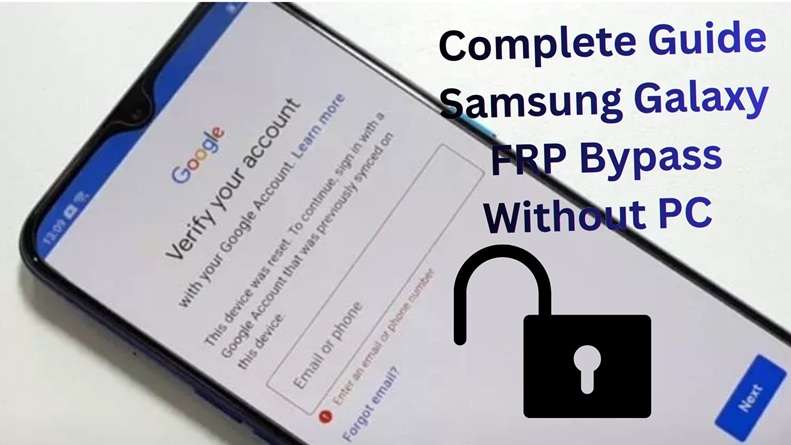
A reset Samsung phone can look ready to use, but one screen can stop everything: “Verify your Google Account.” This happens when Factory Reset Protection is active. It is meant to block thieves, but it can also trap real owners who lost an old Gmail password, changed phone numbers, or no longer have access to a recovery email. That is where Samsung FRP no password cases become difficult.
The phone is not broken. It is waiting for proof that you are the rightful user. This guide explains what Google can do, where recovery may fail, and which safe options still exist when you face FRP without email or a forgotten Google password FRP problem.
In this article
- Part 1. Why Samsung Users Get Locked Out Without a Password or Recovery Email
- Part 2. Official Google Recovery Option Before Any FRP Bypass
- Part 3. What bypass methods work when neither the password nor the recovery email is available?
- Part 4. A decision flowchart or decision tree: "Which method should I use?"
Why Samsung Users Get Locked Out Without a Password or Recovery Email
Most Samsung FRP locks start after a factory reset. If the phone underwent a reset via recovery mode or was reset without initially removing the Google account, Samsung will ask for the same Google account along with its password as before. According to Samsung, this protection stops other people from using the phone after an unauthorized reset.
Common reasons include:
- Old Gmail password is forgotten: The Google account was added years ago, but the user no longer remembers the password.
- Recovery email is gone: The linked recovery email has been closed or deleted, or it cannot receive Google verification codes.
- The phone was not properly cleared: The previous owner reset the Samsung phone without first removing their Google account.
- The account was only used for setup: some users created Gmail accounts to start the phone and never used them again.
- Google cannot verify the user: Google recovery asks questions to confirm ownership, but recovery may fail if the answers, device, or recovery details are not enough.
- This becomes a real FRP issue: When the password is lost, it becomes a forgotten Google password FRP case.
- It gets harder without recovery access: If the backup email is also unavailable, it turns into an FRP without email.
- The toughest case: When the email, password, and recovery details are all missing, it becomes a Samsung FRP no password situation.
Official Google Recovery Option Before Any FRP Bypass
The first official option is Google Account Recovery. This works best when you know the Gmail address used on the Samsung phone but forgot the password.
Google’s recovery page is:
https://accounts.google.com/signin/recovery
This method is useful for a forgotten Google password FRP case because it tries to restore access to the same Google account that FRP is asking for.
Step-by-Step: Recover Your Google Account
-
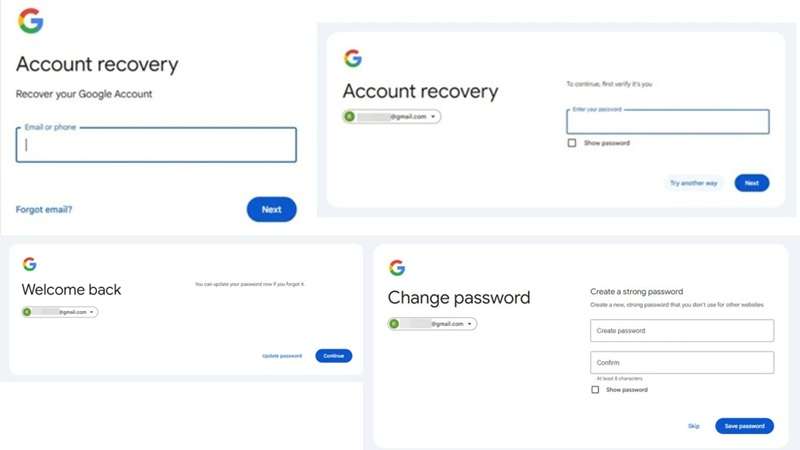
Step 1 Use a Different Phone or Computer and visit the recovery page.
-
Step 2 Type the Google account which was synced on the Samsung phone before the factory reset.
-
Step 3 Choose Try another way if unable to recall the password. Google might request a recovery phone or email address, the last password you remember, a trusted device, or other account options.
-
Step 4 Simply follow the prompts, and just reply to as much as you can. Google may verify your ownership if you use a familiar device like a phone or laptop, browser, a Wi-Fi network or a location.
-
Step 5 If it is confirmed by Google that the account is yours, create a new password and save it.
-
Step 6 It may take 24 to 72 hours for your Google password to sync after you modify it before you can continue using it on the FRP screen Samsung. It’s a security measure to wait.
-
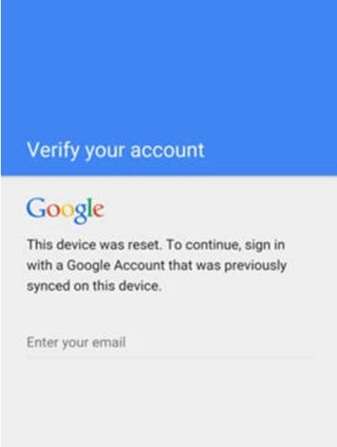
Step 7 Once you’re done waiting, connect your Samsung phone to Wifi. On the “Verify your account” screen, enter the same Gmail address and the new password.
Limits of Google Account Recovery
- Recovery is not guaranteed: Google may deny access if it cannot verify you as the real account owner.
- You need enough proof: A recovery phone, recovery email, old password, trusted device, or familiar location can help.
- No recovery details means low success: If you have no password, no recovery email, and no phone number, recovery becomes hard.
- A new Google account will not unlock FRP: Samsung will still ask for the old synced Google account after reset.
- Password reset may need waiting time: After changing the Google password, you may need to wait 24 to 72 hours before using it on the FRP screen.
- Official options can stop there: If Google cannot verify you, you may stay locked out through official Google recovery methods.
What bypass methods work when neither the password nor the recovery email is available?
When Google’s recovery process doesn’t work, which is more common than you’d think, a credential-free removal service is the practical solution most people turn to. Still, each method has a different use case. Some are simple. Some are technical. Some work only on certain Android versions or Samsung patch levels.
3.1 IMEI-based professional removal service (works independently of Google credentials)
An IMEI-based FRP removal service is useful because it does not depend on the old Gmail password or recovery email. Instead, it uses the phone’s IMEI or serial number to process the unlock request. This fits the core problem of this article: Samsung FRP no password and FRP without email.
Primary Option: Dr.Fone Online Unlock
Dr.Fone Online Unlock is the most natural fit when the user cannot access any Google credentials. The Samsung FRP online service works on Samsung devices. The phone's IMEI can be used with Samsung FRP online – no PC or data cable required.
This step is vital, as many FRP (Factory Reset Protection) tools still require users to connect the device, follow technical prompts, or use device-specific tricks. DrFone Online Unlock is for those seeking a guided route without credentials.
-
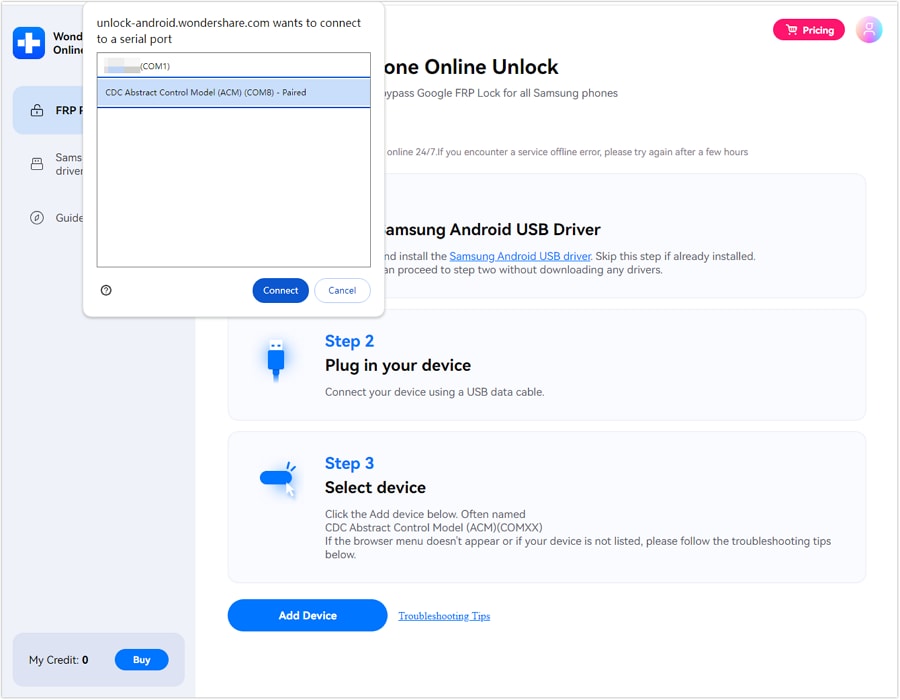
Step 1 Access the FRP Unlock Tool Online
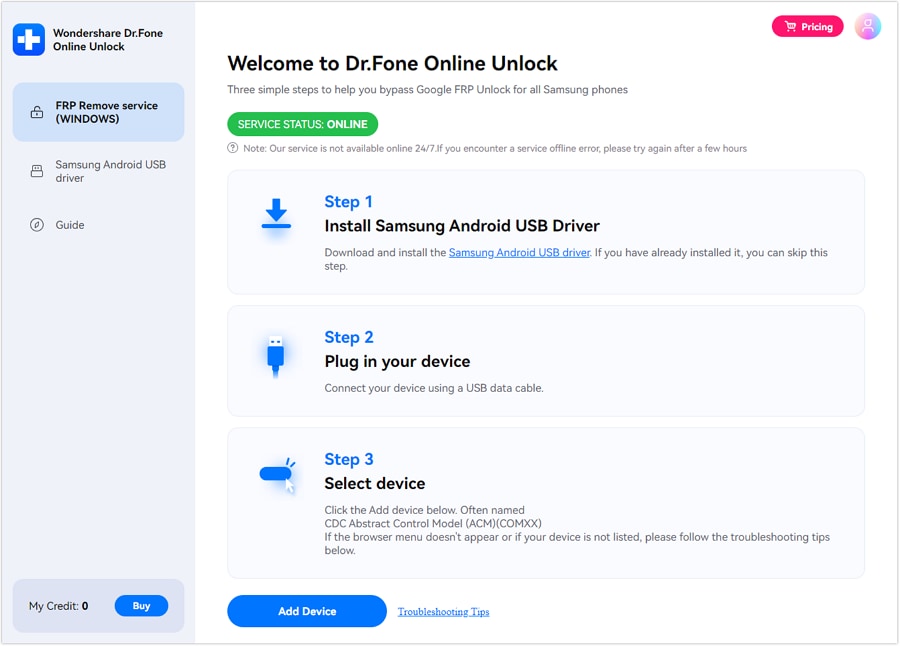
Upon accessing the “Dr.Fone Online Unlock” website, sign in to your account. Select the feature “FRP Removal”, then enter your device IMEI or serial number. Either you may enter the information yourself or connect the device to your PC so that the system can detect it automatically.
-
Step 2 Confirm Details and Complete FRP Removal
As your device’s required details are added, review them and click the “Unlock” button. After the online FRP removal begins, follow the visual guide to complete the process.
3.2 If You Also Forgot the Screen Lock: Use Dr.Fone Desktop – Screen Unlock (Android)
Dr.Fone Online Unlock is the better fit when the main issue is FRP after reset. But some users face a second problem: they also forgot the phone’s PIN, pattern, fingerprint, face lock, or screen password.
In that case, FRP bypass is the more logical option. It is built for local Android lock-screen problems as well as FRP-related unlocking.
 Unlock Android phone in seconds.
- Remove PIN, pattern, password, fingerprint.
- Bypass Google FRP lock easily.
- Works on all Android brands & models.
- No tech skills required – user-friendly.

Key Features:
- Removes Android screen locks, including password, PIN, pattern, fingerprint, and face lock.
- Supports Google FRP removal on Samsung and other Android brands.
- Wondershare states FRP support covers Android OS 16 and below on the Screen Unlock page.
- Supports Samsung, Xiaomi, Redmi, Oppo, Realme, OnePlus, Motorola, Lenovo, Vivo, Huawei, POCO, Honor, Tecno, Infinix, iTel, Sony, and more.
How to Use Dr.Fone – Screen Unlock
-
1. Download and set up Dr. Fone - screen unlock on your PC. Link your Samsung device to the PC via USB.
-
2. Navigate to the toolbox, select the screen unlock option and click on Android.
-
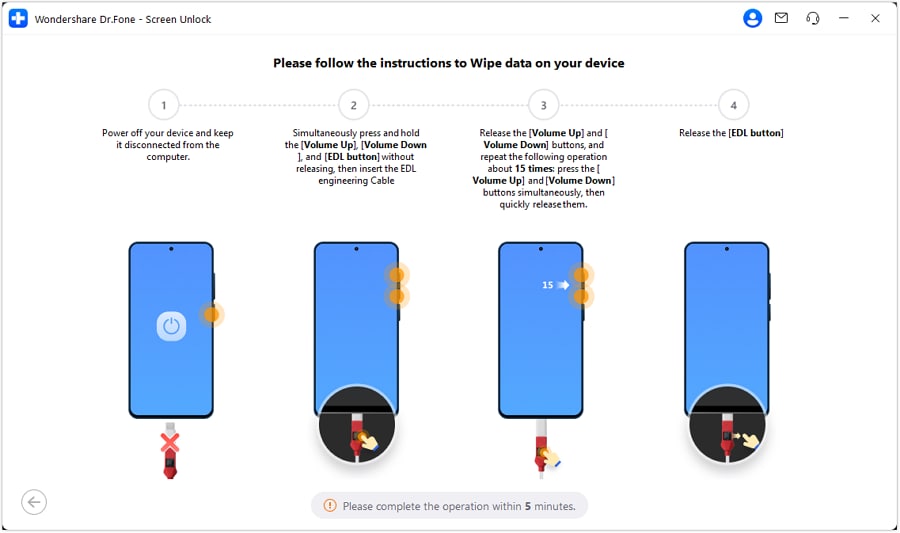
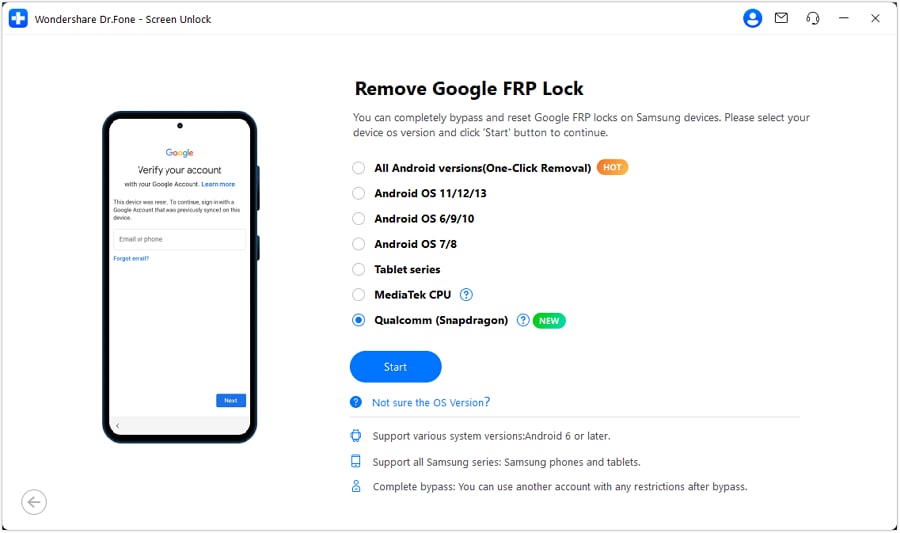
3. Select remove Google FRP lock option, then choose Qualcomm for your Samsung mobile. Click ‘’start’’ button.

-
4. Follow the on-screen instructions and Dr. Fone will automatically install the needed firmware for your phone.
-
5. Select your exact Samsung model if the tool asks for it, then continue.
-
6. Wait while Dr.Fone processes the FRP removal. Keep the phone connected during this step.
-
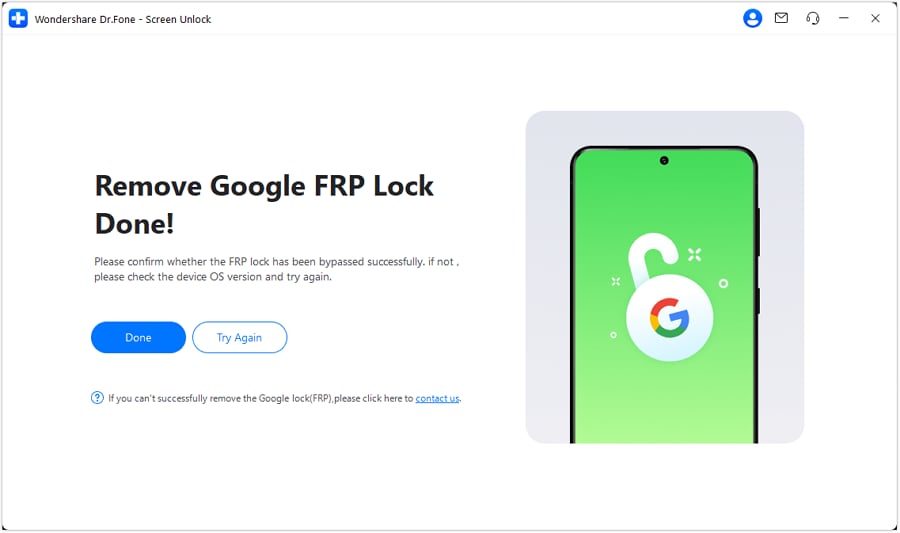
7. When the process is complete, check your Samsung phone. If it works, click Done. If not, follow the retry option shown in the tool.




3.3 ADB-Based Bypass: PC Required and Not Reliable on New Android Versions
Bypassing Factory Reset Protection (FRP) using ADB when the forgotten password and recovery email are also lost is done by sending commands to disable the security check or enable the settings menu and so on.
In most cases, a computer and USB drivers are needed for these methods. USB Debugging must also be activated; this can sometimes be done through the emergency call menu or by enabling accessibility on the locked phone. For most users with FRP without email, ADB is not the practical path.
-
1. Download the ADB Installer setup file from XDA member @Snoop05.
-
2. First extract the files from the toolkit to your computer folder.
-
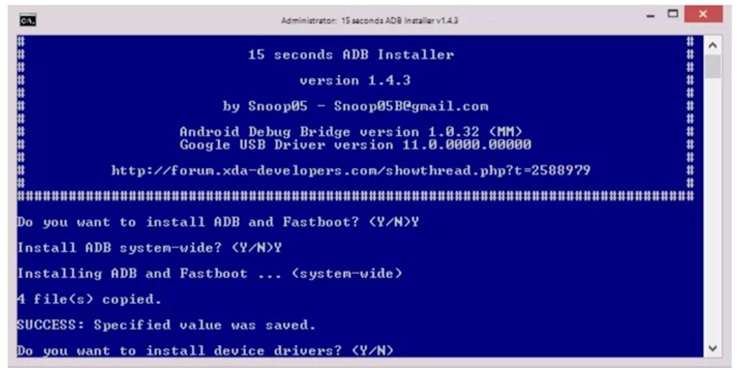
3. Run the adb-setup.exe and type ‘Y’ for installing the ADB and fastboot driver.
-
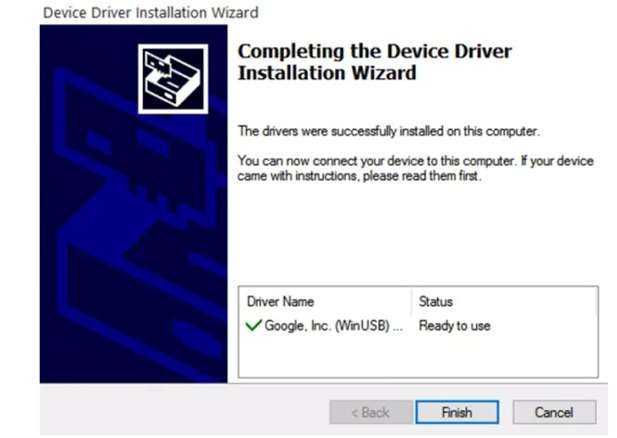
4. Type ‘Y’ once again to install the device driver. The command window will close automatically after a few seconds of installation of the device drivers.
-
5. Turn on the device again and connect it to your PC using a USB cable as usual. Before we take a look at the steps, ensure your phone has USB debugging mode enabled already.
-
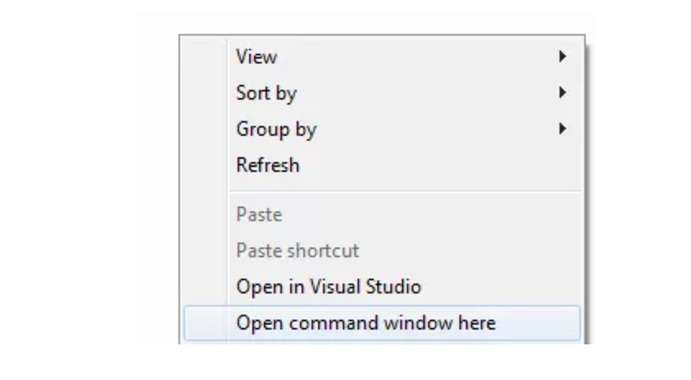
6. In the ADB folder to open the command window here, go to a blank area and Right-click this shift.
-
7. To get rid of FRP from Samsung device we will use ADB Commands. So enter the following ADB FRP Bypass Command in the Command Prompt Window one by one hitting enter after every line.

- Enable USB Debugging: You need to be able to trigger USB Debugging. This is most often done from the phone’s emergency call dialer or through typing certain codes like *#0*# for Samsung, bringing up the Enable ADB prompt.
- Android Versions: These methods usually work on Android 5.1 to 16, but may patch particular commands on newer security patches.
- Data Loss: These methods usually perform a factory reset, which causes data loss.
3.4 EDL/download mode tools for advanced users
If Google recovery and simple FRP options fail, EDL can be used as an advanced route. EDL means Emergency Download Mode. It is a low-level Qualcomm mode used for repair and firmware-level tasks. Cheetah Tool explains that EDL helps tools connect to Qualcomm devices when normal access is blocked.
This method primarily works with Samsung phones with Qualcomm Snapdragon processors. Dr.Fone’s EDL cable method supports Samsung Snapdragon devices on Android 11–15.
Use it only if:
- Your Samsung has a Snapdragon chipset
- You have a Windows PC
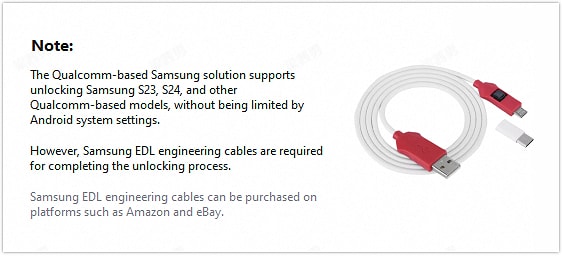
- You have a Samsung EDL Engineering Cable
- You accept that the process may erase data
- You are using your own device
-
Step 1 Prepare the EDL Cable
Get a Samsung EDL Engineering Cable from a trusted seller. A normal USB cable may not work because it cannot always trigger the required Emergency Download Mode.
-
Step 2 Open Dr.Fone Screen Unlock
Install Dr.Fone – Screen Unlock on a Windows PC. Open it, choose Screen Unlock, select Android, then click Remove Google FRP Lock. Choose Samsung as the brand.
-
Step 3 Select Snapdragon Mode
Choose Qualcomm or Snapdragon as the chipset option. Dr.Fone will then download and verify the required firmware for the phone.
-
Step 4 Connect the Phone in EDL Mode
Power off the Samsung phone. Connect the EDL cable to the PC first. Then follow Dr.Fone’s button instructions to place the device into EDL mode.
-
Step 5 Choose Model and Remove FRP
Select your Samsung model in Dr.Fone and continue. The tool will start the FRP removal process. Once done, restart the phone and complete setup without the Google lock Android 15 screen.
A decision flowchart or decision tree: "Which method should I use?"
Not every Samsung FRP no password case needs the same fix. Start with the safest official option first, then move to a tool only if recovery fails.
Quick Decision Tree
| Your Situation | Best Method | Why This Fits |
|---|---|---|
| You know the old Gmail address, but forgot the password | Google Account Recovery | It can restore the same Google account that FRP is asking for. |
| You reset the Google password recently | Wait 24–72 hours, then try again | Samsung says a new Google password may need 24–72 hours to sync before it works on the reset device. |
| You know Gmail, but the recovery email/phone is gone | Try Google Recovery first, then Dr.Fone Online Unlock if it fails | Google may still verify you through other details, but success is not guaranteed. |
| You do not know the password or recovery email | Dr.Fone Online Unlock | It is the better fit for FRP without email because it does not depend on old Google credentials. |
| You bought a used Samsung phone | Contact the seller first | The previous owner should remove the Google account. If they cannot help, use a professional FRP option with proof of ownership. |
| You also forgot the phone PIN, pattern, or password | Dr.Fone Desktop – Screen Unlock (Android) | It handles screen lock issues and FRP-related unlocking in one guided desktop workflow. |
| You have an older phone, and USB debugging is already enabled | ADB method | ADB may work only in limited, device-specific cases. It is not reliable on newer security patches. |
| You have a Snapdragon Samsung, a Windows PC, and an EDL cable | EDL/Download Mode method | This is for advanced Qualcomm-based repair cases, not normal users. |
| You have no proof of ownership | Do not use FRP removal tools | FRP is a security feature. Use only legal recovery or seller/service-center help. |
Conclusion
Samsung FRP is easier to handle when you match the method to your case. Google Account Recovery is best when you know the old Gmail account and can prove ownership. Waiting 24–72 hours helps if you recently changed the password. Seller help is best for used phones. ADB and EDL fit only advanced, device-specific cases.
For most Samsung FRP no password users, the real gap appears when Google cannot verify the account. That is where Dr.Fone Online Unlock feels practical, because it works without old credentials. If the screen lock is also forgotten, Dr.Fone - Screen Unlock (Android) is the better route for FRP without email and lock issues together.
FAQ
-
1. Can Google permanently unlock my Samsung if I contact them directly?
No. Google only helps through Account Recovery. If it cannot verify you, it may deny recovery. Samsung says you can visit an authorized Samsung Service Center with proof of purchase if you cannot remember any Google account details. -
2. Is it possible to bypass FRP without any Google account information?
Yes, for genuine owners. Official recovery may not work without account proof, but services like Dr.Fone Online Unlock offer Samsung FRP removal using IMEI/SN, without the old Google login. -
3. Will bypassing FRP without credentials delete my data?
Usually, yes. FRP appears after a factory reset, and Samsung says factory reset permanently deletes personal data, apps, messages, contacts, and photos.