ChatGPT
 Perplexity
 Gemini
 Claude
 Grok
Grok
Samsung S series FRP is not the same as a normal screen lock. After a factory reset, it still shows up even though the phone still needs the previously synced Google account. Samsung’s latest flagship devices, including the Galaxy S22, S23, S24, and S25, undergo a more stringent process because they get faster security updates and stricter One UI controls. Varieties of chipsets count.
A US Snapdragon model and an international Exynos model may not support the same unlock route. That is why a random method can fail, even on the same Galaxy S model. This guide explains how S-Series FRP works, why it is harder, how to check your exact model, and which safe methods fit each device, from Galaxy S23 FRP to Galaxy S22 FRP bypass.
In this article
- Part 1. Why is S-Series FRP bypass more challenging than other Samsung models?
- Part 2. First Rule: Confirm Ownership Before Any FRP Method
- Part 3. Samsung Galaxy S-Series FRP Bypass Method Comparison
- Part 4. How to Identify Your Galaxy S-Series Variant Before Choosing a Method
- Part 5. Model-by-model breakdown: What FRP bypass methods work for each S-series phone?
- What are the differences between US (Snapdragon) and international (Exynos) S-series for FRP?
Why is the S-Series FRP bypass more challenging than other Samsung models?
S-Series phones are Samsung’s premium devices, so FRP removal is affected by faster updates, stronger system checks, and model-specific hardware differences.
- Security patches: Galaxy S22–S25 models often run newer Android and One UI versions. These updates close old FRP routes faster than many mid-range Galaxy phones.
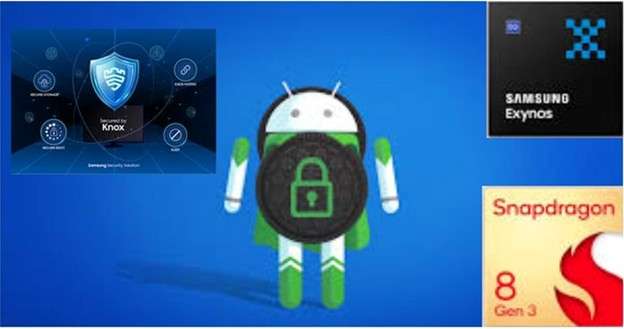
- Snapdragon vs. Exynos differences: Some S-Series models use Snapdragon in the US, while some international models use Exynos. This can change tool support, driver behavior, and bypass compatibility.
- Stronger Knox protection: Samsung Knox adds extra system-level protection. It can detect unsafe changes and block older tricks that try to modify the setup process.
- Tighter setup-screen limits: Newer One UI builds often restrict access to browser links, settings menus, APK installs, and hidden shortcuts during setup. This makes manual methods less reliable.
- Android 15/16 changes: Newer versions keep changing the FRP process. That is why Samsung S series FRP needs a method based on the exact model, One UI version, chipset, and security patch.
First Rule: Confirm Ownership Before Any FRP Method
FRP exists to stop stolen phones from being reused. Only remove FRP on a device you own or have legal permission to repair.
Before using any bypass method, try these safer steps first:
- Enter the last synced Google account.
- Try the previous screen lock PIN if Android offers that option.
- Use Google account recovery.
- Wait after a password reset because Google/Samsung may apply a cool-down period.
- Visit Samsung support with proof of purchase.
Samsung Galaxy S-Series FRP Bypass Method Comparison
Before choosing any FRP method, it helps to see which route fits each Galaxy S model. The table below gives a quick glance at the Android version, possible method, and best practical choice for S22 to S25 users.
| Galaxy Model | Android Version | Method to Consider | Best Use Case |
|---|---|---|---|
| Galaxy S22 / S22+ | Android 13–14 | ADB method | For advanced users, when ADB access is possible |
| Galaxy S22 / S22+ | Android 13–14 | Guided FRP unlock software | Better for most users after compatibility check |
| Galaxy S23 / S23+ | Android 14 | Emergency call method | Not reliable as the main method |
| Galaxy S23 / S23+ | Android 14 | Guided FRP unlock software | Better option for recent Android 14 builds |
| Galaxy S24 / S24+ | Android 15 | IMEI-based online unlock | Good first choice, especially before paying for the service |
| Galaxy S24 / S24+ | Android 15 | Dr.Fone Desktop | Best for supported Snapdragon variants |
| Galaxy S25 / S25+ | Android 16 | Online IMEI-based service | Better than old manual tricks on Android 16 |
| Galaxy S25 / S25+ | Android 16 | Dr.Fone updated support | Best after confirming S25 and Android 16 support |

How to Identify Your Galaxy S-Series Variant Before Choosing a Method
Always check your concrete phone variant before selecting the Samsung S series FRP method. Variants for the S22, S23, S24, and S25 can differ based on region, chipset, carrier, Android version, and One UI versions.
1. Check the SM Model Number
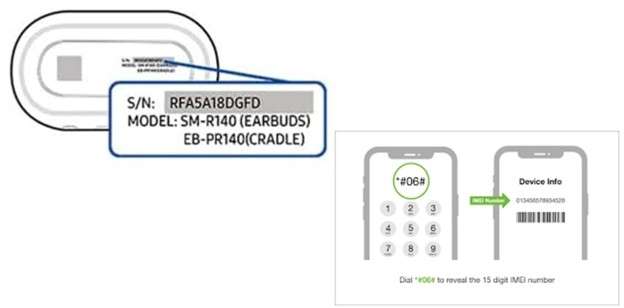
The SM model number is the most important detail. According to Samsung, you can find the model number by going to Settings > About phone. Otherwise, it can also be found from the phone box or from the back of the device. If the device is registered, it will also show up on Samsung Members. Samsung says that model numbers differ by year, color, carrier and more.
Where to check:
- Phone box: Look for “Model” or “Model Code.”
- Back label/device label: Some devices show model, IMEI, and serial details.
- Settings: Settings > About phone.
- Dial code: Dial *#06# to show IMEI and serial number.
2. Check Android and One UI Version
FRP methods depend heavily on Android and One UI versions. Samsung says the Android version can be checked from Settings > About phone > Software information. Samsung also says the software information screen shows the current Android version.
Check this path:
Settings > About phone > Software information
Look for:
- Android version
- One UI version
- Security patch level
- Build number
3. Confirm Snapdragon or Exynos Variant
Chipset matters because some FRP tools support only certain hardware paths.
- According to Samsung’s official Galaxy S23 specs, this year’s Snapdragon 8 Gen 2 for Galaxy will appear in all three models.
- According to S25 Samsung’s Galaxy page, it has a Snapdragon 8 Elite processor.
- The Galaxy S24/S24+ varies by region. The S24 Ultra is usually Snapdragon-powered, but various Exynos and Snapdragon models exist. SamMobile’s S24 chipset breakdown notes that S24/S24+ Snapdragon availability was limited to markets such as the US, China, Canada, and possibly Japan, while Exynos was used in many other regions.
4. Use IMEI or Model Lookup Before Paying for Any Service
IMEI helps confirm device identity and eligibility. Samsung confirms IMEI can be found through *#06#, Settings, the back of the device, or the official box.
Use IMEI lookup when:
- The phone is FRP locked, and you cannot open Settings.
- You are using an online unlock service.
- You need to confirm the carrier or region details.
- You are checking Dr.Fone Online Unlock support.
Model-by-model breakdown: What FRP bypass methods work for each S-series phone?
Different Galaxy S phones require different methods of FRP. Due to the constant evolution of the tech landscape, which includes Android versions, chipsets, One UI versions, and security patch levels, the result can differ. Check your exact model first, and then follow the method that fits your device.
5.1: Remove FRP Account on Galaxy S22/S22+ — Android 13–14
Galaxy S22 FRP bypass can be a common case for Galaxy S22 and S22+. Though there are still some ADB-based methods available online, they are mostly technical and depend on your phone’s current state. If ADB access is blocked, the method will not help.
-
1 Download the ADB Installer setup file from XDA member @Snoop05.
-
2 First, extract the files from the toolkit to your computer folder.
-
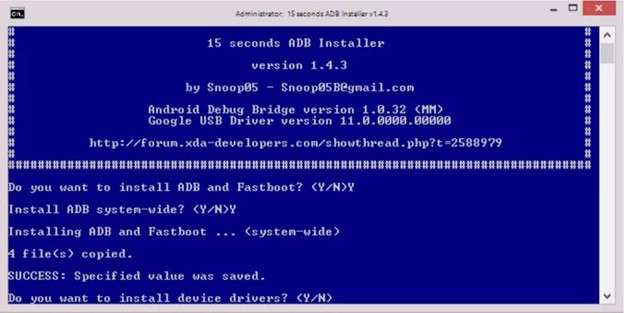
3 Run the adb-setup.exe and type ‘Y’ for installing the ADB and fastboot driver.
-
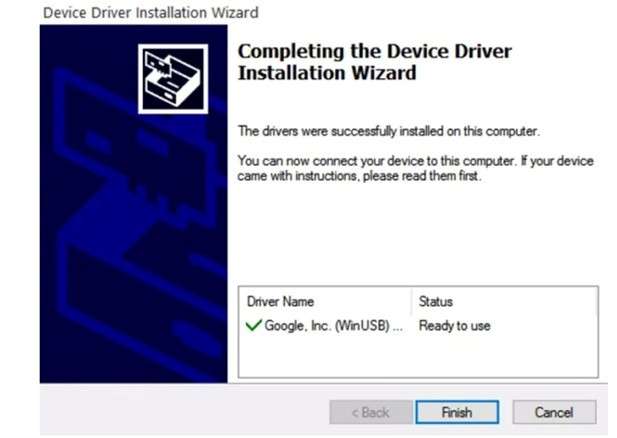
4 Type ‘Y’ once again to install the device driver. The command window will close automatically after a few seconds of installation of the device drivers.
-
5 Reconnect your Windows 11 device to the PC using a USB cable and turn on the device. Before you proceed, ensure that the USB debugging mode is already activated on your device.
-
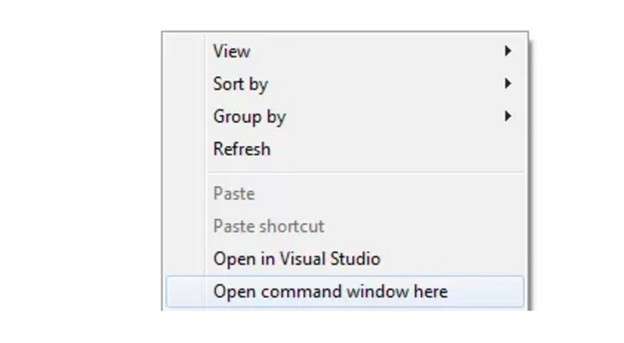
6 To open command windows here, go to the ADB folder and click on a blank area and right-click this shift.
-
7 To remove FRP on a Samsung device by using ADB commands, just type in the following ADB FRP bypass command in the command prompt window one by one, hitting Enter after every line.
- adb shell am start -n com.google.android.gsf.login/
- adb shell am start -n com.google.android.gsf.login.LoginActivit
- adb shell content insert --uri content://settings/secure --bind name:s:user_setup_complete --bind value:s:1
5.2: Remove FRP Account on Galaxy S23/S23+ — Android 14
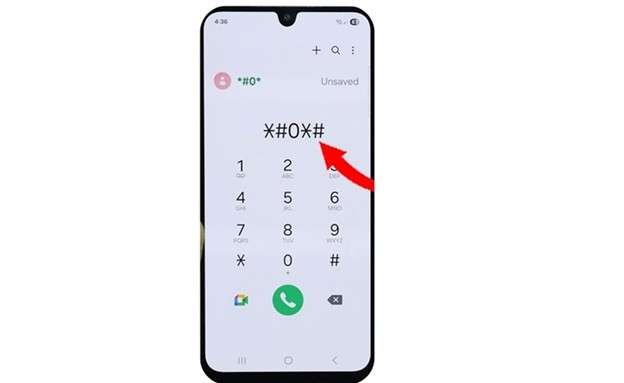
The Emergency Call method tries to open Samsung’s test mode from the setup screen using the *#0*# code. On older Samsung phones, this helped a PC tool detect the device and continue the FRP process at times. On the other hand, using Galaxy S23/S23+ on Android 14, this path no longer works independently. Newer One UI updates and security patches often block access to test mode during setup.
5.3: Remove FRP Account on Galaxy S24/S24+ and S25/S25+
Galaxy S24 and S25 models need a more precise FRP method than older Samsung phones. These flagship devices run newer Android and One UI versions, so old shortcuts may fail after security patches. For this reason, the better choices are an IMEI-based online service first, and Dr.Fone Desktop – Screen Unlock (Android) for supported Snapdragon variants.
| Model | Android Version | Main Method | Best Tool Route |
|---|---|---|---|
| Galaxy S24 / S24+ | Android 15 | IMEI-based online unlock | Dr.Fone Online Unlock |
| Galaxy S24 / S24+ Snapdragon | Android 15 | Desktop FRP unlock | Dr.Fone Desktop – Screen Unlock |
| Galaxy S25 / S25+ | Android 16 | Online IMEI-based service | Dr.Fone Online Unlock |
| Galaxy S25 / S25+ Snapdragon | Android 16 | Updated desktop support | Dr.Fone Desktop – Screen Unlock |
Dr.Fone Online Unlock is the stronger first choice for this section as it supports Galaxy S-Series models such as S25, S24, S22, and more. One UI 5.0 to One UI 8.5 for the S-Series are more suited than older manual approaches, which are also listed.
It is the better second option for all supported Qualcomm models. According to its official page, it supports Android 16, 15, 14, and earlier for Samsung S25, S24, and S23. It states a 100% success rate in FRP bypass on Samsung Snapdragon devices.
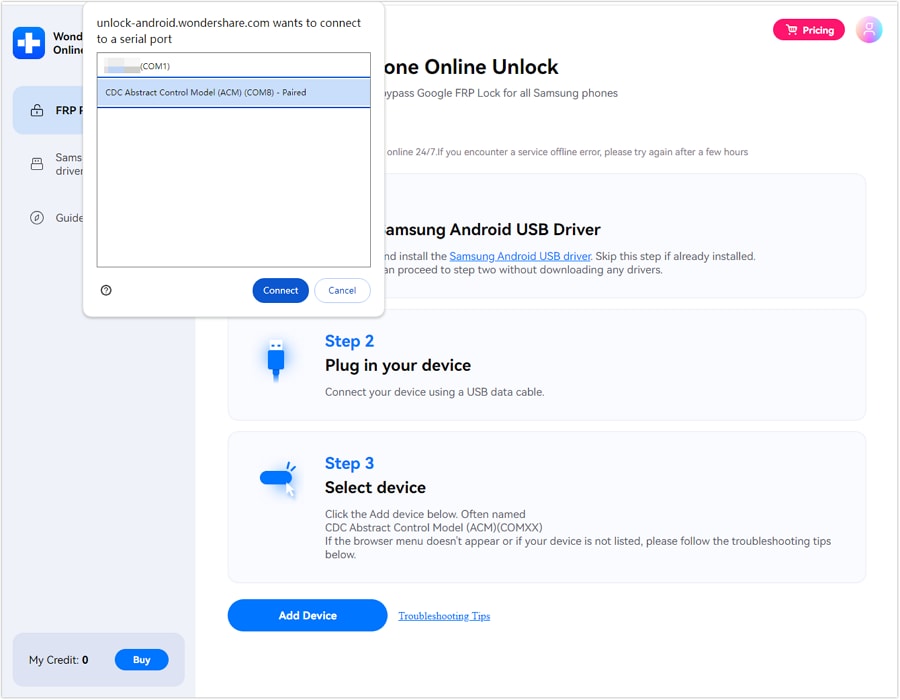
Method 1. IMEI-Based Online FRP Unlock for Galaxy S24/S25
When you want a straightforward online route before testing out a process based on a computer, then this is the method for you. This process checks your device using the IMEI or the serial number of your device before starting the Samsung S series FRP bypass.
-
1 Access Dr.Fone Online Unlock from any Samsung mobile device or web browser.
-
2 Input the IMEI number of the Samsung phone which is locked to enable service to check and verify the device.
-
3 Please send the unlock request and follow the instructions you see on the page.
-
4 Make sure the Samsung phone is on and connected to the internet (wifi or mobile data) while Dr.Fone FRP removal takes place.
Method 2. Dr.Fone Desktop FRP Unlock for S24/S25 Snapdragon Variants
This method is best for Galaxy S24/S25 users with supported Snapdragon models. It is a PC-based route and may require a USB cable or EDL cable, depending on the device and build.
 Unlock Android phone in seconds.
- Remove PIN, pattern, password, fingerprint.
- Bypass Google FRP lock easily.
- Works on all Android brands & models.
- No tech skills required – user-friendly.

-
1 To unlock the screen of your Samsung phone, connect it to your computer using a USB cable. Then, download and install Dr.Fone – Screen Unlock on your computer.
-
2 Select Android - First, open the program and go to the Toolbox section.
-
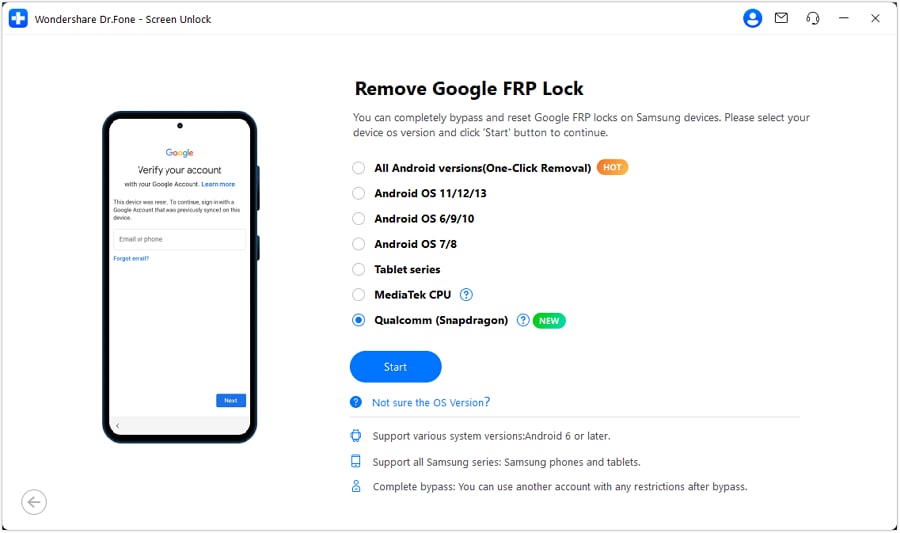
3 Choose the Qualcomm/Snapdragon for your Samsung and press Start to Remove Google FRP Lock.

-
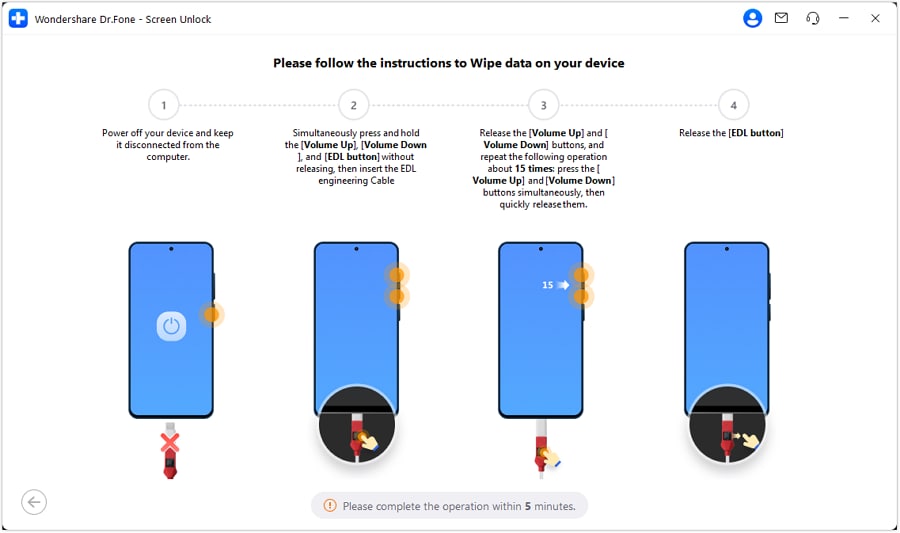
4 Adhere to the on-screen instructions displayed. Dr.Fone will automatically download and install the firmware for your phone.
-
5 Choose your precise Samsung model, if asked, and proceed.
-
6 Maintain phone connection during the FRP removal process of Dr.Fone.
-
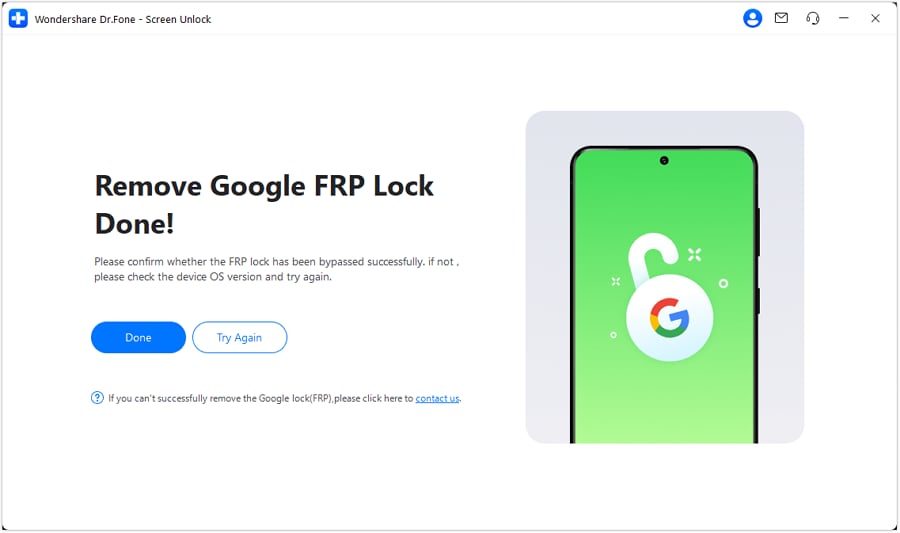
7 When you’re done, check your Samsung। Click Done if you’ve successfully removed the FRP lock. If the problem persists, make use of the option to retry in the tool.
What are the differences between the US (Snapdragon) and international (Exynos) S-series for FRP?
Samsung S-Series phones never have the same internal hardware. An American Galaxy S24 will be different from an international Galaxy S24 in the country it was designed for. This is why Samsung S series FRP methods must be chosen by variant, not just by model name.
| Variant Type | Common Model Ending | Main Difference | FRP Impact |
|---|---|---|---|
| US Snapdragon | U / U1 | Tighter bootloader and stronger carrier controls | Often needs paid or professional Snapdragon-supported tools |
| Canada Snapdragon | W | Similar hardware path to US models | Tool support can vary by carrier and firmware |
| International Exynos | B / B/DS | Different chipsets and security structures | Needs Exynos-compatible tools; Snapdragon methods may fail |
| China / Hong Kong Snapdragon | 0 | Snapdragon hardware with regional firmware | Needs region-specific compatibility check |
Conclusion
FRP on Galaxy S-Series phones needs a model-first approach. ADB may suit advanced S22 users when USB debugging is already available. The emergency-call route is only a weak fallback for older or unpatched S23 builds. For S24 and S25, IMEI-based online unlocking is the cleaner first step, while Dr.Fone Desktop fits supported Snapdragon variants that need a PC-based process.
Because of the above reasons, Samsung S series FRP bypass is rarely worth the risk, as the FRP is dependent on the Android version, One UI, chipset, and security patch. Dr. Fone feels like a safer choice for most flagship users because it checks compatibility and guides you through the process with fewer technical steps.
FAQ
-
1. Why does my Galaxy S23 show FRP even though I know the Google account?
If the phone was reset through recovery mode, an incorrect Google account is entered or if the Google account password was changed, then FRP may still appear. Use the same Google account previously synced on the phone. Samsung confirms FRP verifies ownership after reset. -
2. Is the S25 Snapdragon FRP bypassable in 2026?
This is possible if the tool supports the same Galaxy S25 model, Android version, One UI version and security patch. You can use Dr.Fone after checking compatibility, as it lists Samsung S25 and Android 16 FRP support. -
3. What’s the difference between Samsung FRP and Samsung account lock?
FRP is the Google account verification after a factory reset. Samsung account lock is linked to Samsung services and needs the Samsung account. Dr.Fone is mainly used for Google FRP removal, not Samsung account disputes.